
Vernetzte Geräte sind Maschinen, Werkzeuge oder Vorrichtungen, die digital – in der Regel über ein Netzwerk – miteinander verbunden sind, sodass sie Daten in Echtzeit erfassen, austauschen und darauf reagieren können. In FactoryLogix können Sie vernetzte Geräte wie Prüfgeräte, Drehmomentschrauber, Kepware-Server, Etikettendrucker, digitale E/A-Schalter, vernetzte Lagerbestände, Lasermarkierer und vieles mehr verwalten.
Anstatt isoliert zu arbeiten, können vernetzte Geräte Folgendes tun:
-
Leistungs- und Trace-Daten senden (z. B. Geschwindigkeit, Temperatur oder Betriebszeit)
-
Anweisungen oder Updates empfangen
-
Mit anderen Maschinen oder Systemen (wie Produktionssoftware) kommunizieren
-
Fernüberwacht oder -gesteuert werden
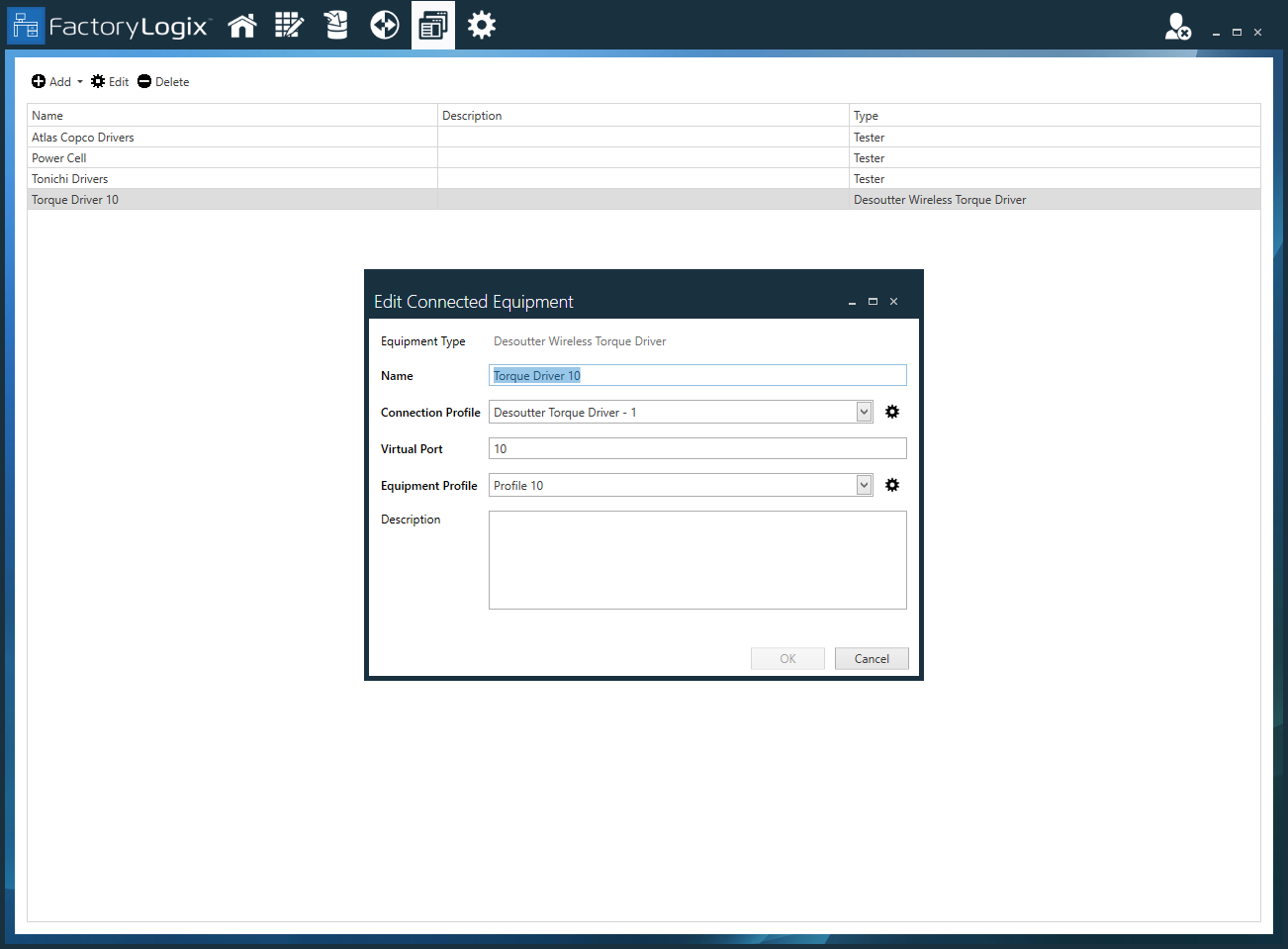
Über die Schaltfläche „Vernetzte Geräte“ (FactoryLogix Office > Vorlagen und Standards > Vernetzte Geräte) können Sie jede Art von vernetztem Gerät verwalten. Diese Funktionalität entspricht der Verwendung der Schaltfläche „Verwalten“ auf der Registerkarte „Vernetzte Geräte“ einer Workstation-Fabrikressource (Bereich „Fabrikressourcen“ in FactoryLogix Office).
Wichtig
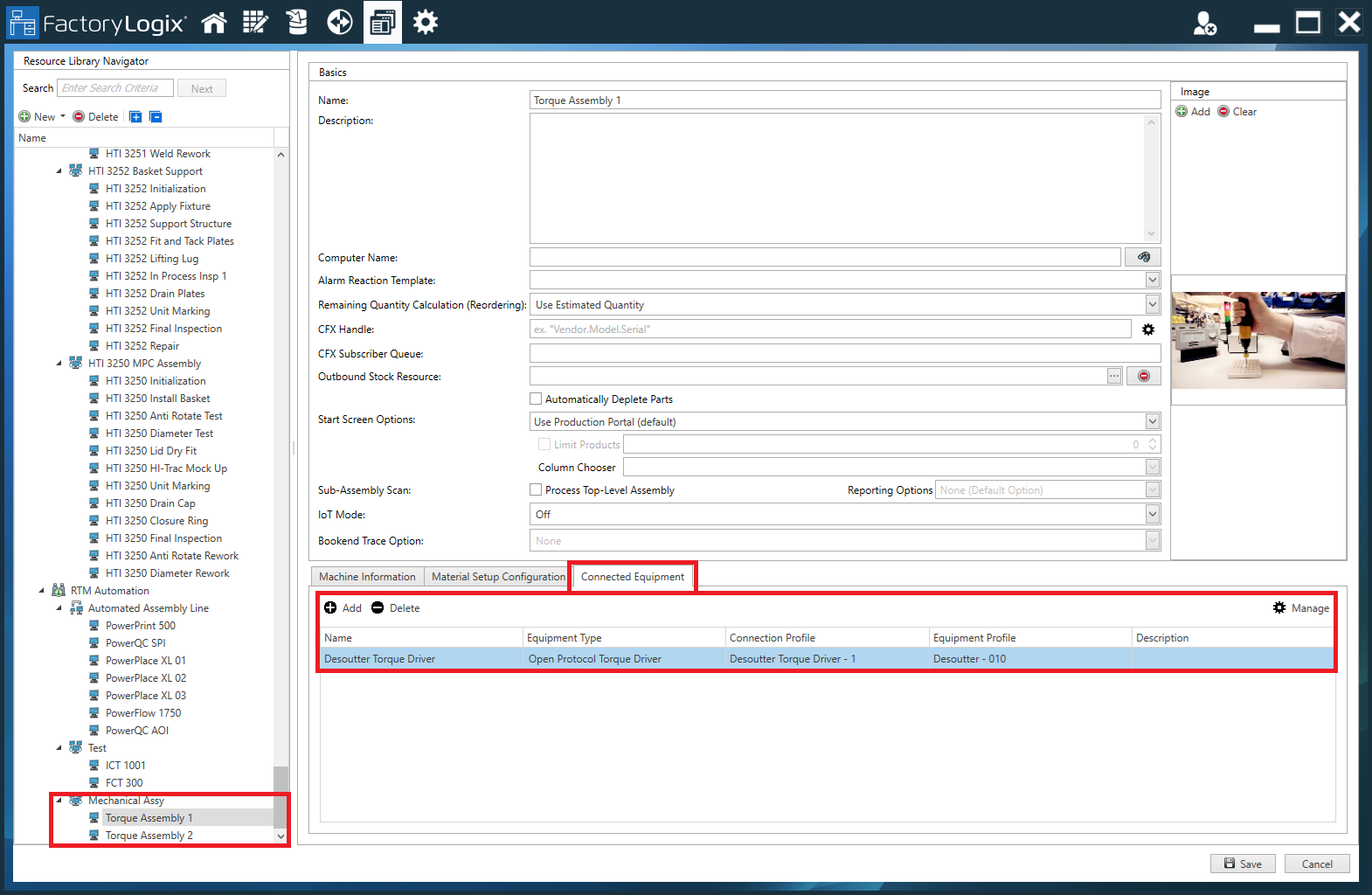
Über die Schaltfläche „Verbundene Geräte“ können Sie lediglich verbundene Geräte verwalten – das Zuordnen verbundener Geräte zu einer Werkstattanlagenressource ist nur auf der Registerkarte „Verbundene Geräte“ der Definition einer Werkstattanlagenressource im Bereich „Werkstattanlagenressourcen“ von FactoryLogix Office möglich, wie in der folgenden Abbildung dargestellt. (Weitere Informationen finden Sie unterEine Fabrik erstellen und Fertigungsressourcen einrichten.)
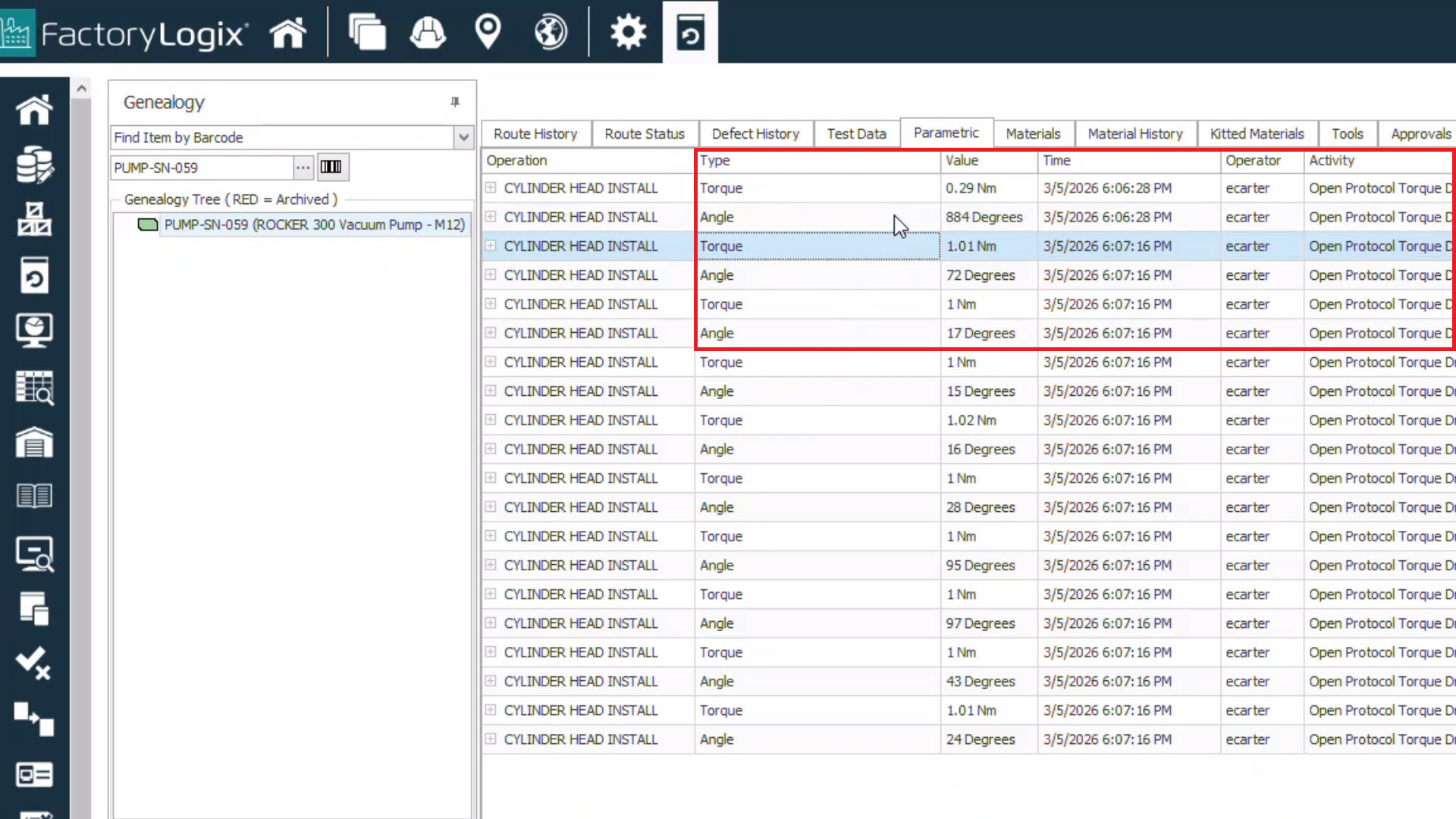
In FactoryLogix Operations zeigt das Fenster „Trace“ den Trace-Datensatz für eine ausgewählte Produktionseinheit an und enthält auf der Registerkarte „Parametric“ die von den angeschlossenen Geräten gemeldeten Ergebnisse.
Berechtigungen der Administratorrolle für angeschlossene Geräte
Die Berechtigungen der Administratorrolle, die Sie für den Zugriff auf die Funktionen der angeschlossenen Geräte benötigen, finden Sie in FactoryLogix Office (Weitere Informationen finden Sie unterVerwalten von Standardberechtigungen für die Administratorrolle):
-
Fabrikressourcen erstellen
-
Fabrikressourcen löschen
-
Fabrikressourcen bearbeiten
-
Fabrikressourcen auslesen
Vernetzte Geräte hinzufügen, bearbeiten oder löschen
-
Melden Sie sich in FactoryLogix Office an.
-
Navigieren Sie zu Vorlagen und Standards und wählen Sie dann Vernetzte Geräte aus.
-
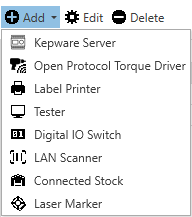
Wählen Sie oben rechts im Fenster die Schaltfläche Vernetzte Geräte hinzufügen

-
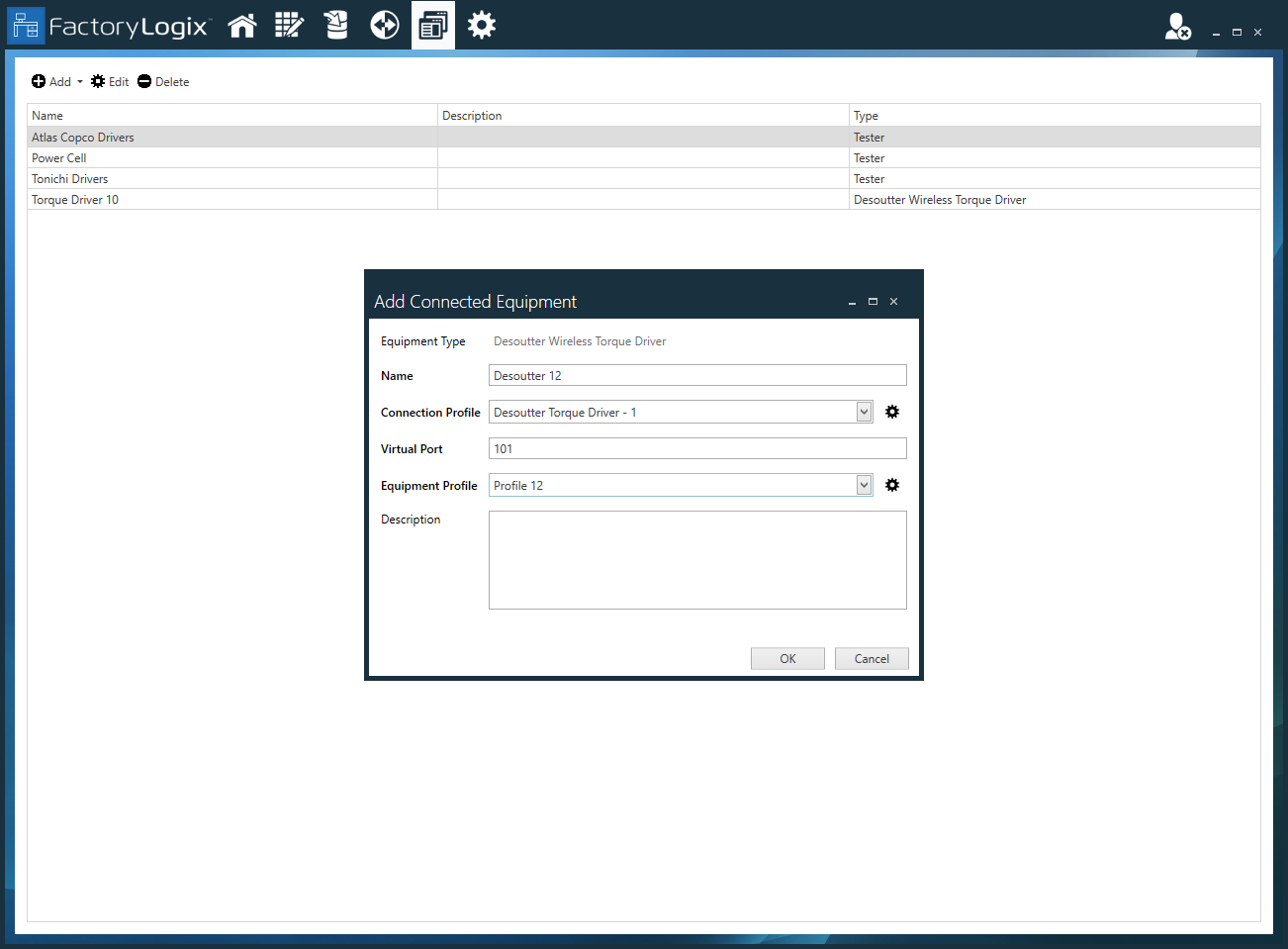
Vergeben Sie für die vernetzten Geräte einen Namen.
-
Wählen Sie ein bestehendes Verbindungsprofil aus dem Drop-Down-Menü aus.
-
Wählen Sie aus dem Drop-Down-Menü das gewünschte Geräteprofil aus.
-
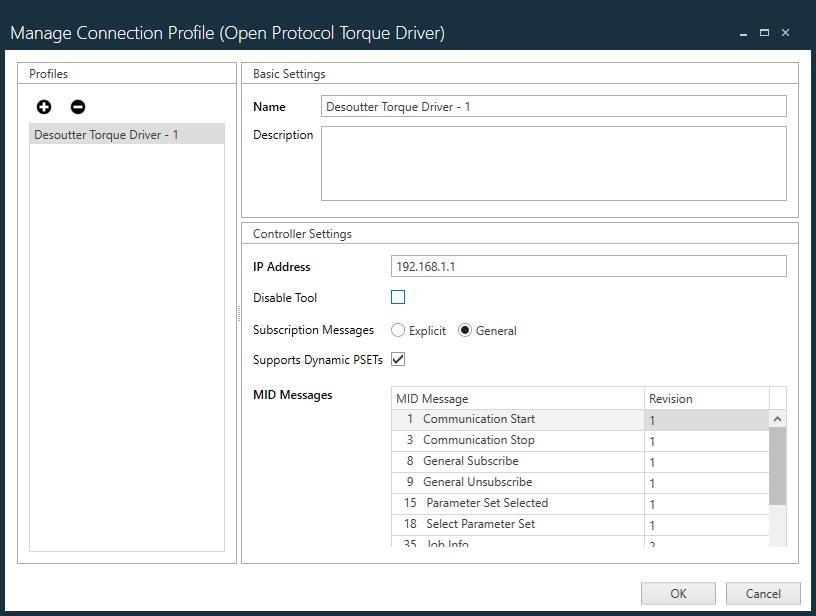
(Optional) Um ein neues Verbindungsprofil hinzuzufügen oder ein vorhandenes zu bearbeiten, klicken Sie auf die Schaltfläche Verbindungsprofil verwalten

-
(Optional) Um ein neues Geräteprofil hinzuzufügen oder ein bestehendes zu bearbeiten, klicken Sie auf die Schaltfläche „Geräteprofil verwalten“
Je nach Art des angeschlossenen Geräts, das Sie hinzufügen möchten, werden im Dialogfeld „Geräteprofil verwalten“ die für dieses Gerät spezifischen Profileinstellungen angezeigt.