
Einleitung
In der Elektronikfertigung nehmen feuchtigkeitsempfindliche Bauteile (MSDs) Feuchtigkeit aus der Luft auf. Wenn sich zu viel Feuchtigkeit ansammelt und ein Bauteil während der Fertigung einem Reflow-Lötprozess unterzogen wird, kann sich die eingeschlossene Feuchtigkeit rasch ausdehnen und Probleme wie innere Rissbildung (den „Popcorn-Effekt“), Delamination oder sogar einen dauerhaften Ausfall verursachen.
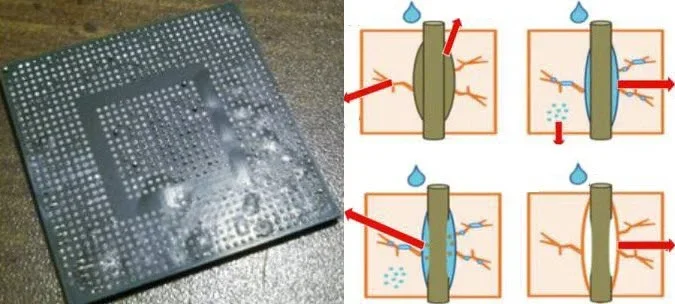
In FactoryLogix können Sie Schäden beim Löten vorbeugen, indem Sie nachverfolgen, wie lange feuchtigkeitsempfindliche Bauteile nach dem Öffnen ihrer Verpackung der Luft ausgesetzt sind. Durch Trockenbacken lässt sich aufgenommene Feuchtigkeit entfernen – dies ändert zwar nichts an der offiziellen Feuchtigkeitsempfindlichkeitsstufe (MSL), setzt jedoch die „Lagerlebensdauer“ bzw. die Verwendbarkeit des Bauteils zurück und ermöglicht ein sicheres Reflow-Löten.
Beispiel
Um einen typischen Anwendungsfall für den Umgang mit MSDs besser zu verstehen, muss man wissen, wie die Haltbarkeitsdauer für ein Bauteil bzw. eine Komponente berechnet wird. Nehmen wir an, das Bauteil hat ab dem Zeitpunkt des Öffnens der Verpackung eine Gesamtlebensdauer von 168 Stunden:
Tag 0 → Beutel öffnen → 168 Stunden beginnen
Tag 3 → 72 Stunden verbraucht
Tag 7 → 168 Stunden erreicht → MSD-Bauteil abgelaufen
Backen → Zurücksetzen
Zurück auf volle 168 Stunden
MSD-Einrichtung – Voraussetzungen
Um die Verwaltungsfunktionen für feuchtigkeitsempfindliche Materialien (MSD) nutzen zu können, müssen Sie zunächst die MSD-Eigenschaften einrichten.
-
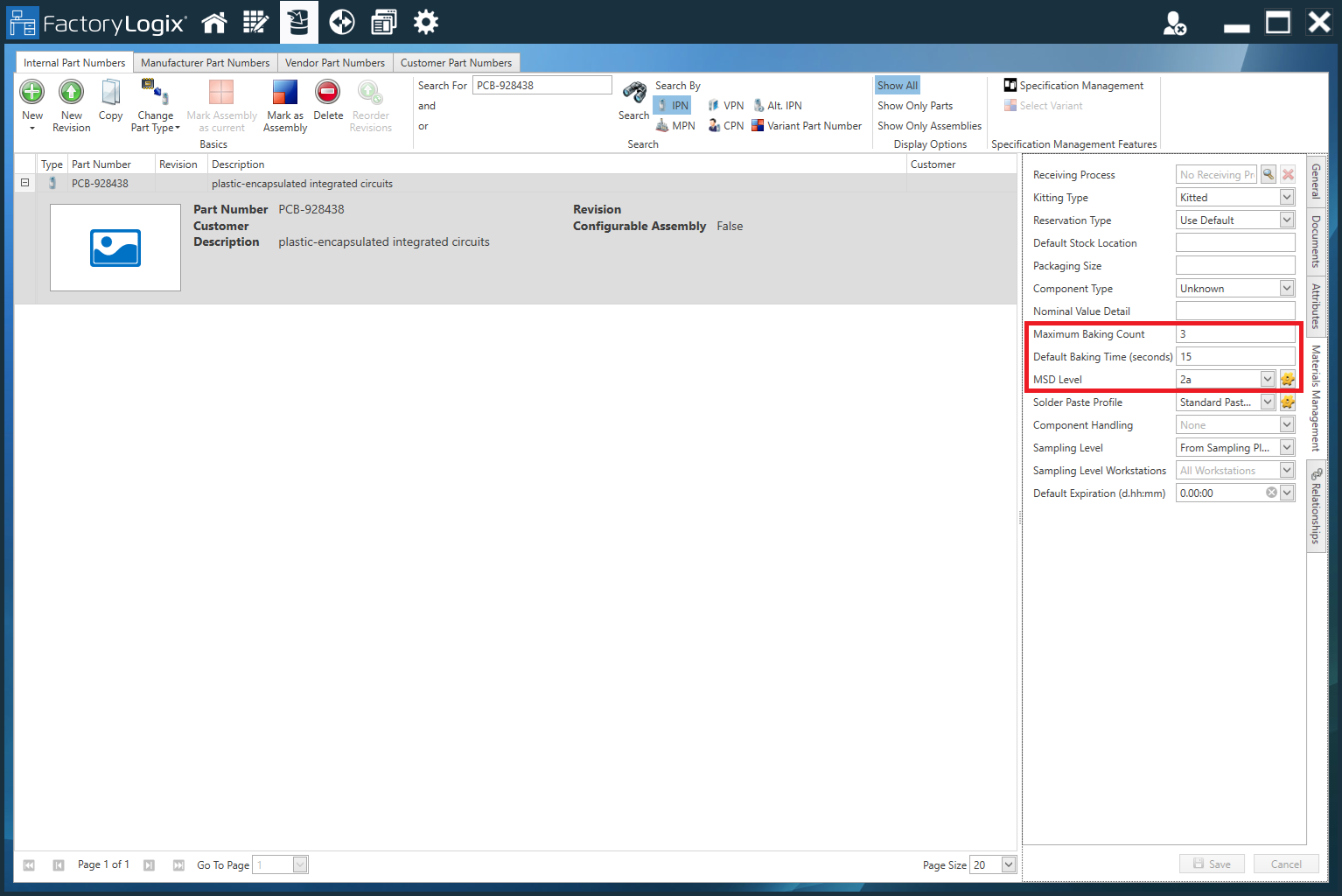
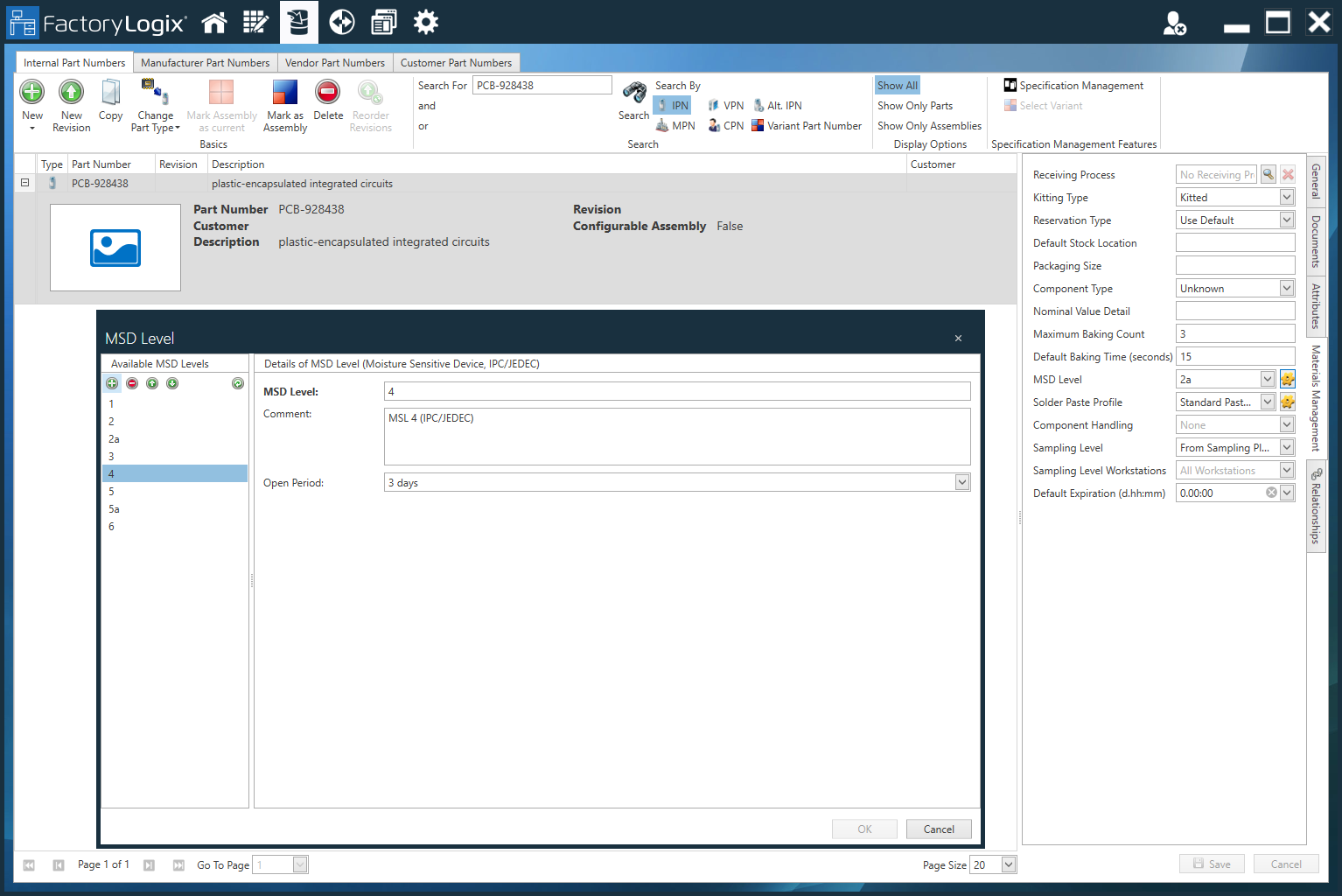
Richten Sie die MSD-Stufen für alle Sachnummern/Komponenten ein bzw. überprüfen Sie diese und vergewissern Sie sich, dass sie den im FactoryLogix-System geladenen Standardprofilen entsprechen, oder ändern Sie die MSD-Stufen nach Bedarf in der Bauteilbibliothek (Registerkarte „Materialwirtschaft“). Informationen zu diesen Einstellungen finden Sie hier: IPN Logisitk verwalten.
-
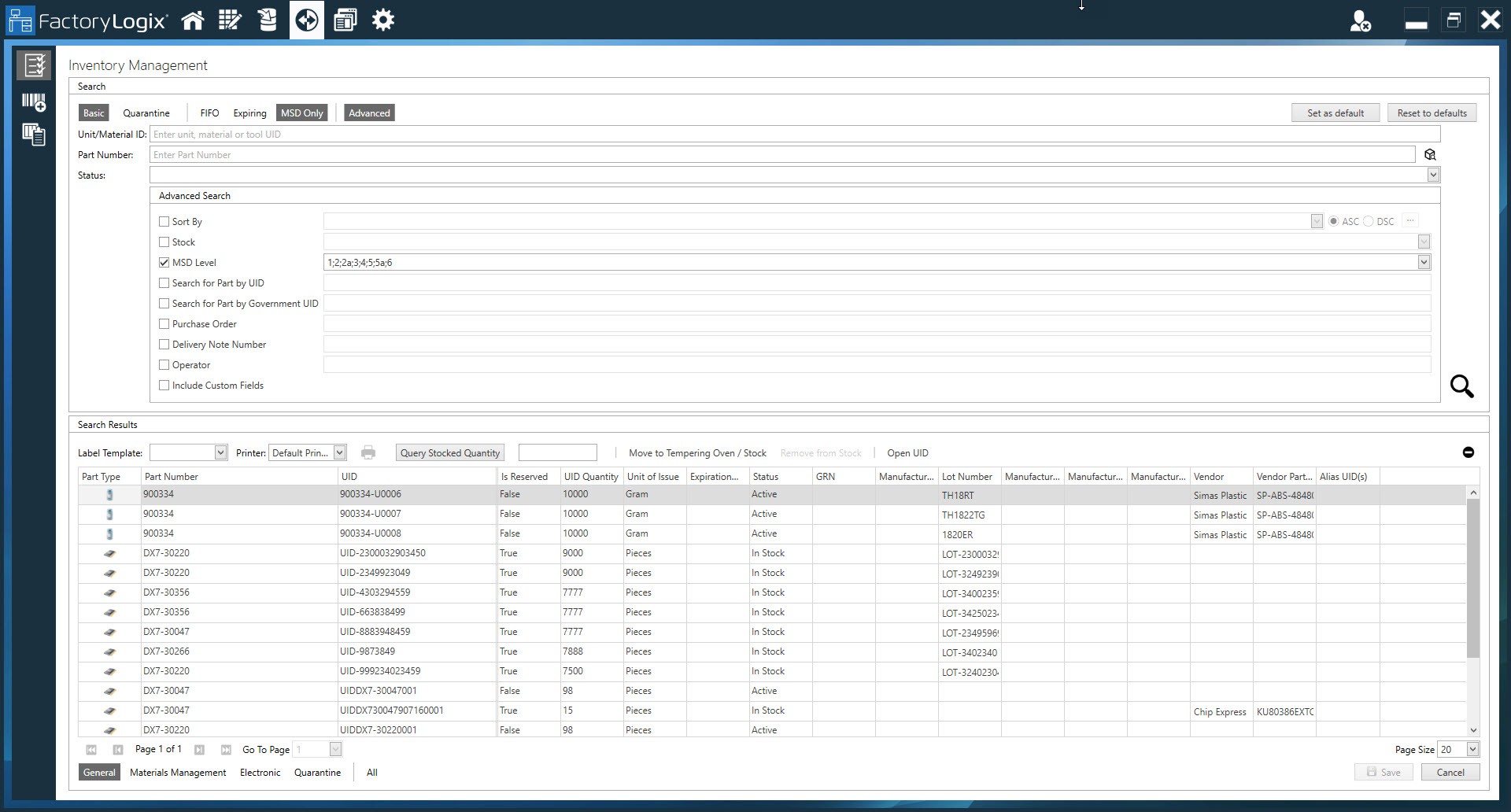
Eine alternative Möglichkeit, in der Bauteilbibliothek nach MSD-Eigenschaften zu einer Sachnummer zu suchen und diese festzulegen, besteht darin, den Bereich „Bestandsverwaltung“ in FactoryLogix Office aufzurufen (Materialverwaltung > Bestand), wie in der folgenden Abbildung dargestellt:
-
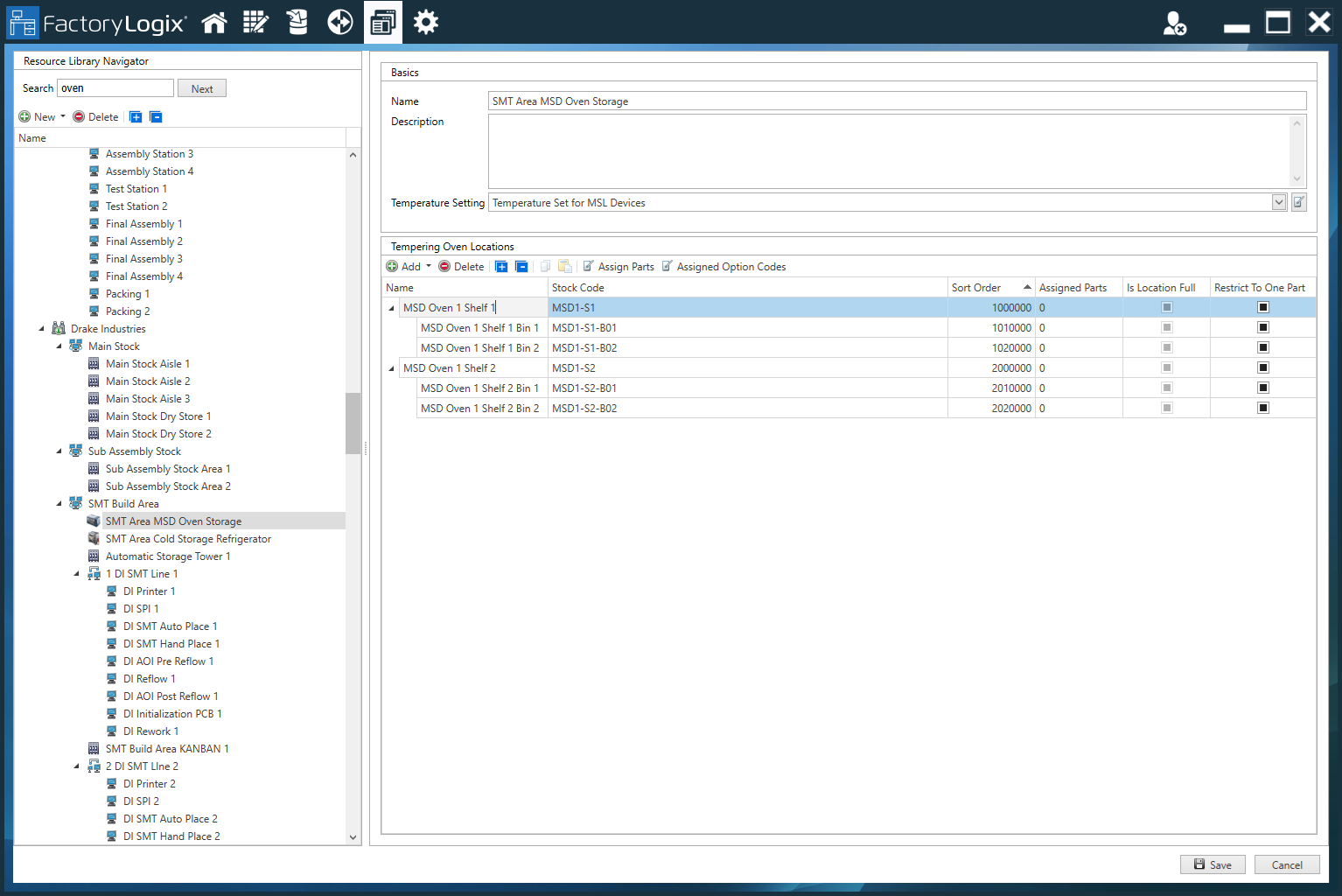
Richten Sie im Bereich „Factory Resources“ von FactoryLogix Office mindestens eine Bestandsressource vom Typ „Backofen“ ein, wenn Sie vorhaben, dass sich MSD-Materialien nach einer festgelegten Backzeit zurücksetzen. Informationen zur Einrichtung von Bestandsressourcen und Standorten finden Sie hier: Lagerorte einrichten.
-
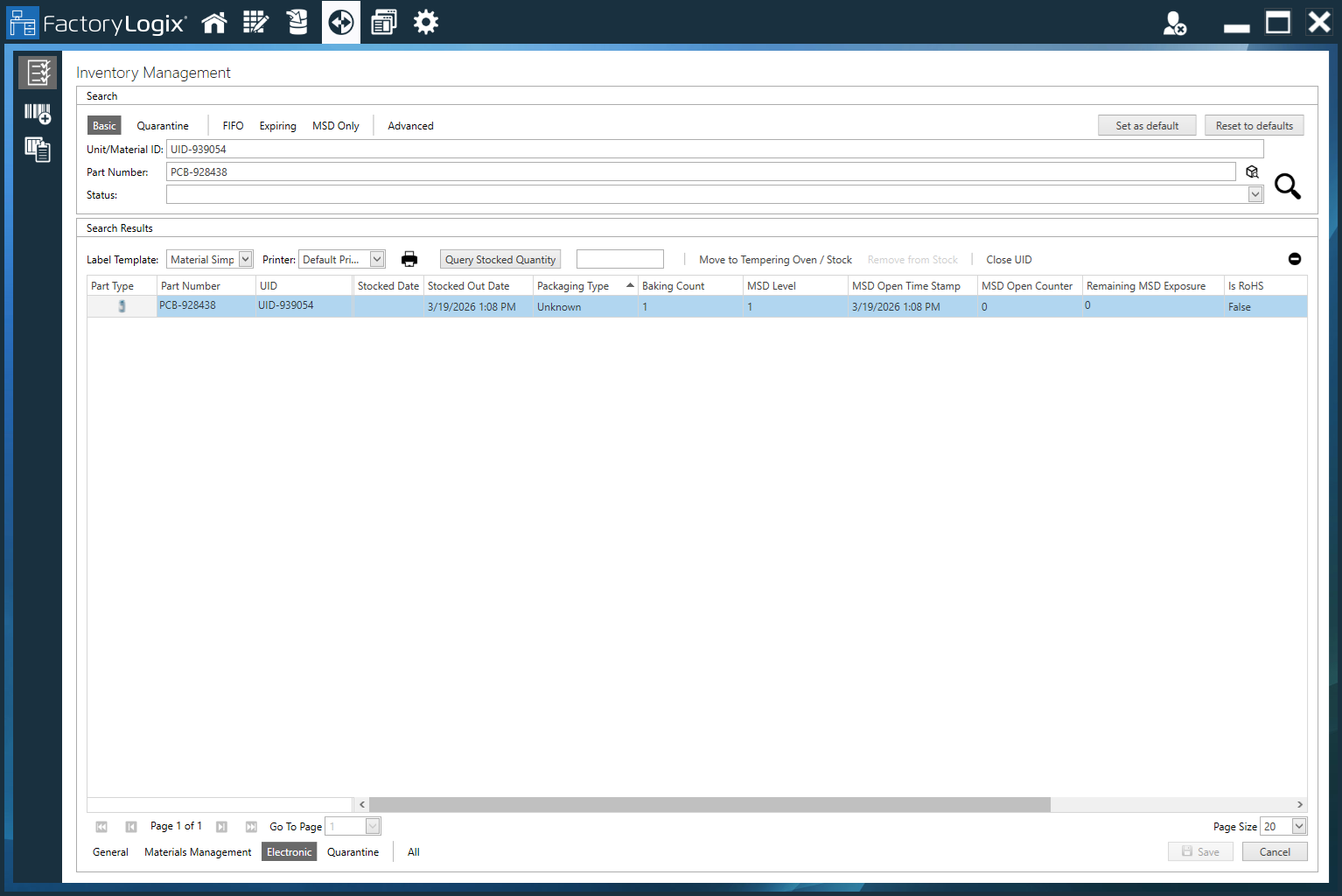
Stellen Sie sicher, dass den UIDs für Materialien in Ihrem FactoryLogix-System ein Feuchtigkeitsempfindlichkeitsgrad (MSL) zugeordnet ist. Über das Fenster „Bestandsverwaltung“ (Registerkarte „Elektronik“) können Sie den aktuellen MSD-Grad und die verbleibende Expositionszeit für jede Sachnummer einsehen, wie in der folgenden Abbildung dargestellt.
Stellen Sie sicher, dass der MSD-Zähler läuft
Sobald die gesamte Einrichtung wie unter Umgang mit feuchtigkeitsempfindlichen Materialien (MSD) | MSD setup prerequisitesbeschrieben abgeschlossen ist, führen Sie die folgenden Schritte aus, um sicherzustellen, dass der MSD-Zähler läuft:
Tipp
Sie können die Funktionen der Materialwirtschaft über FactoryLogix Office oder FactoryLogix Materials Management aufrufen.
-
Melden Sie sich bei FactoryLogix Office > Materialwirtschaft > Bestand > Zusätzliche Bestandsfunktionen > MSD-Funktionen an oder melden Sie sich bei FactoryLogix Materials Management an und wählen Sie die Schaltfläche MSD-Funktionen direkt im Startfenster aus.
-
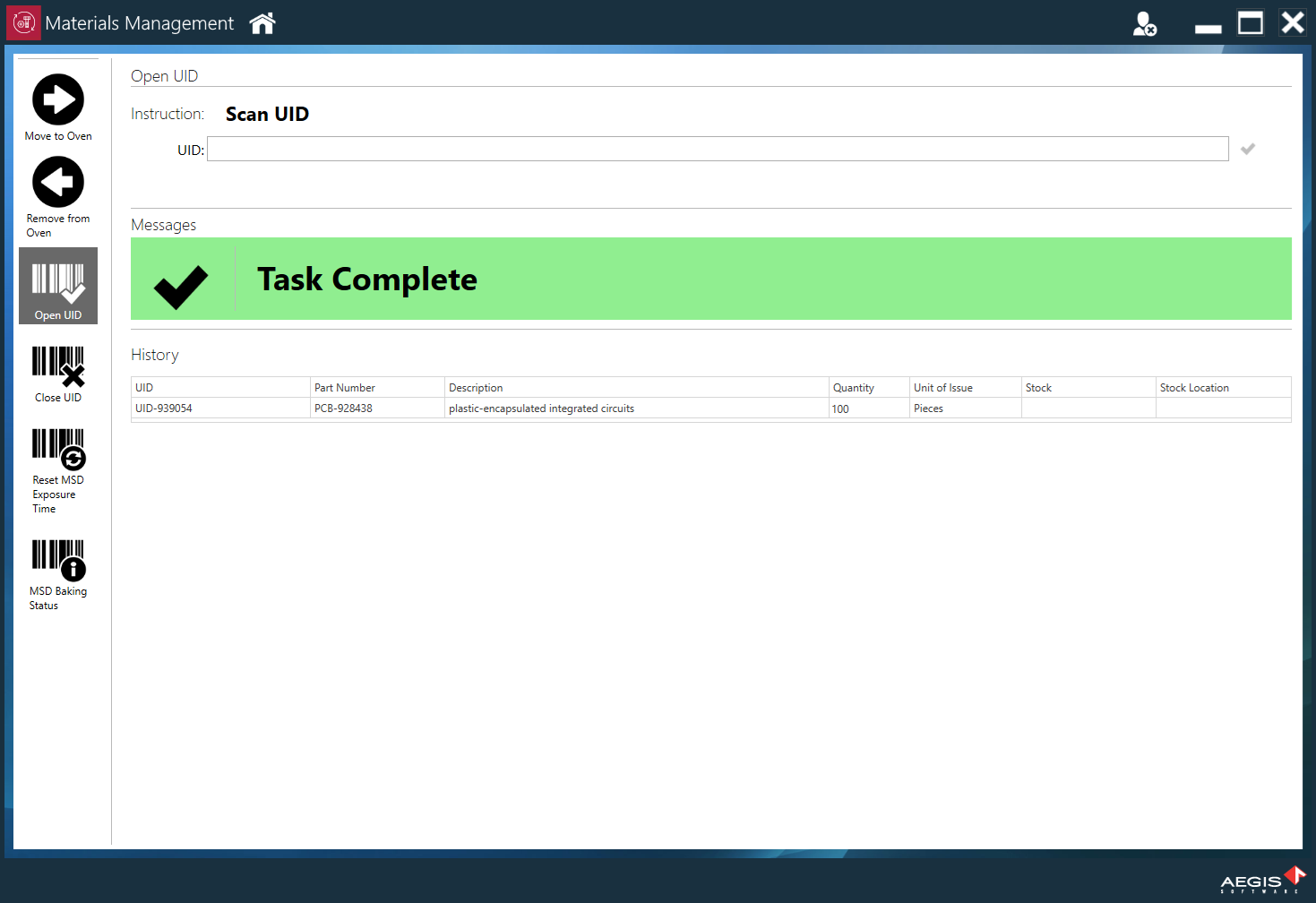
Wählen Sie die Schaltfläche UID öffnen auf der linken Seite des Fensters.
-
Geben Sie die UID ein oder scannen Sie sie ein, die Sie öffnen und für die Sie die MSD-Uhr/den MSD-Zähler starten möchten, und wählen Sie dann das schwarze Häkchen rechts neben dem UID-Dropdown-Menü, um Ihre Auswahl zu bestätigen. (Der Bediener in der Fertigung muss die Uhr vor dem Verbrauch starten.)
Wenn die MSD-Uhr läuft, verbraucht der Bediener Materialien wie gewohnt – in der Regel über Material Setup.
Wird „Material Setup“ verwendet und überschreiten Materialien beim Laden den MSD-Zählerwert, ändert FactoryLogix automatisch den Status der Materialien, und der Bediener darf diese Materialien nicht verwenden, bis sie von der Arbeitsstation entladen und durch eine UID ersetzt wurden, die einen gültigen MSD-Zählerwert aufweist.
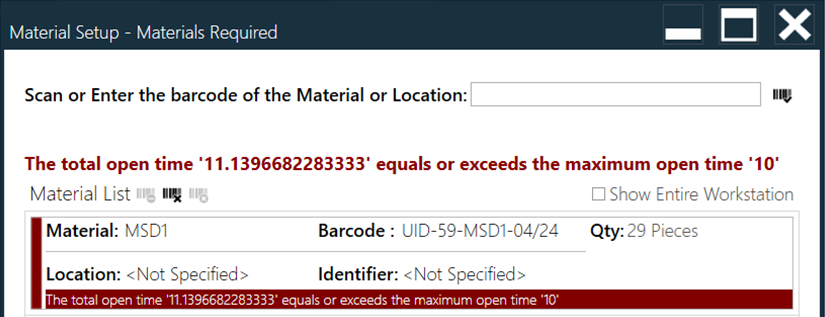
Um einen MSD-Timer-/Zähler-Reset durchzuführen, müssen die UIDs in den Backofen-Bestandsbestand verschoben werden:
-
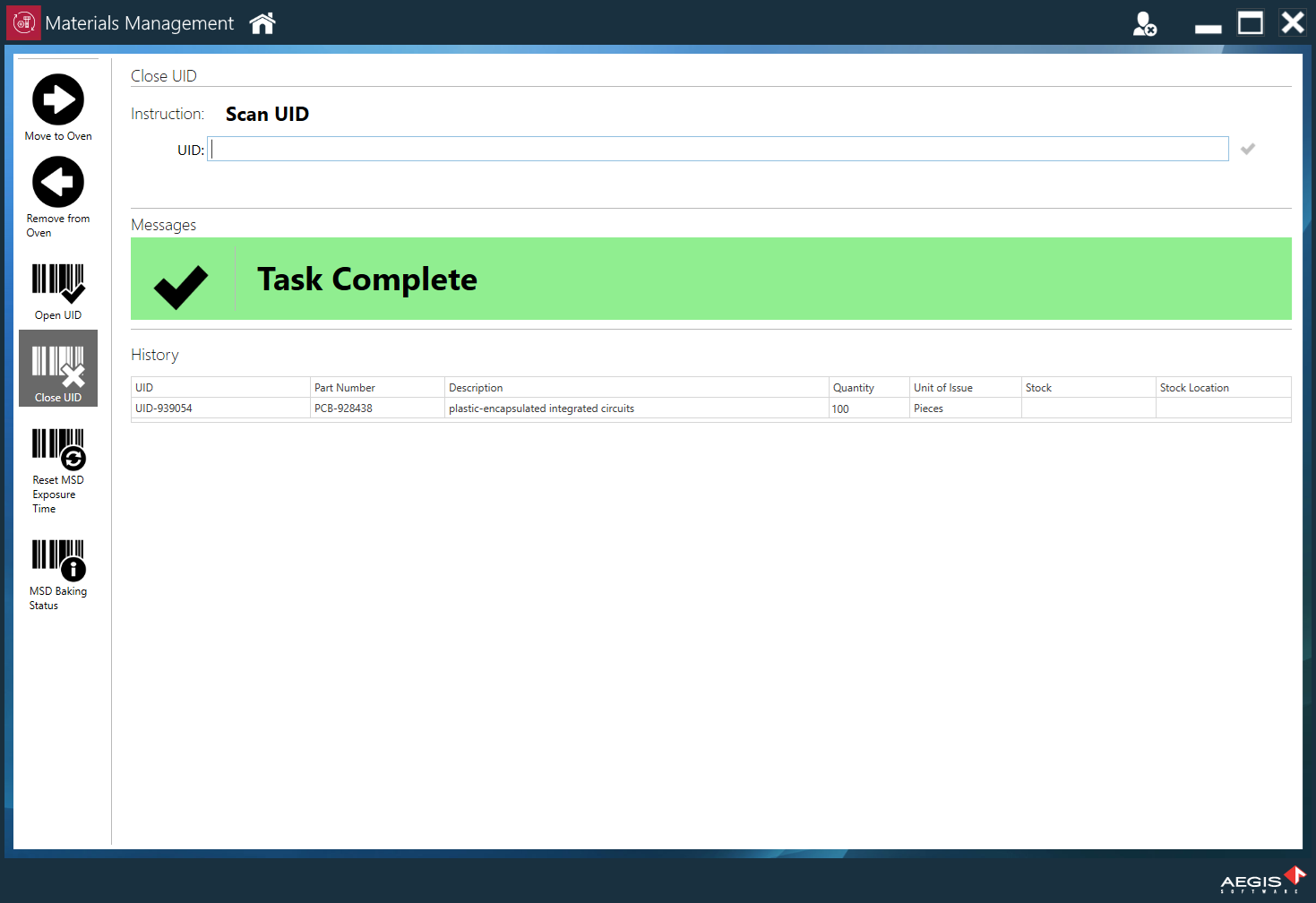
Wählen Sie die Schaltfläche UID schließen auf der linken Seite des Fensters MSD-Funktionen – FactoryLogix setzt den Timer/Zähler einer geöffneten UID nicht zurück.
-
Geben Sie die UID ein oder scannen Sie sie ein und wählen Sie dann das schwarze Häkchen rechts neben dem Dropdown-Menü UID.
-
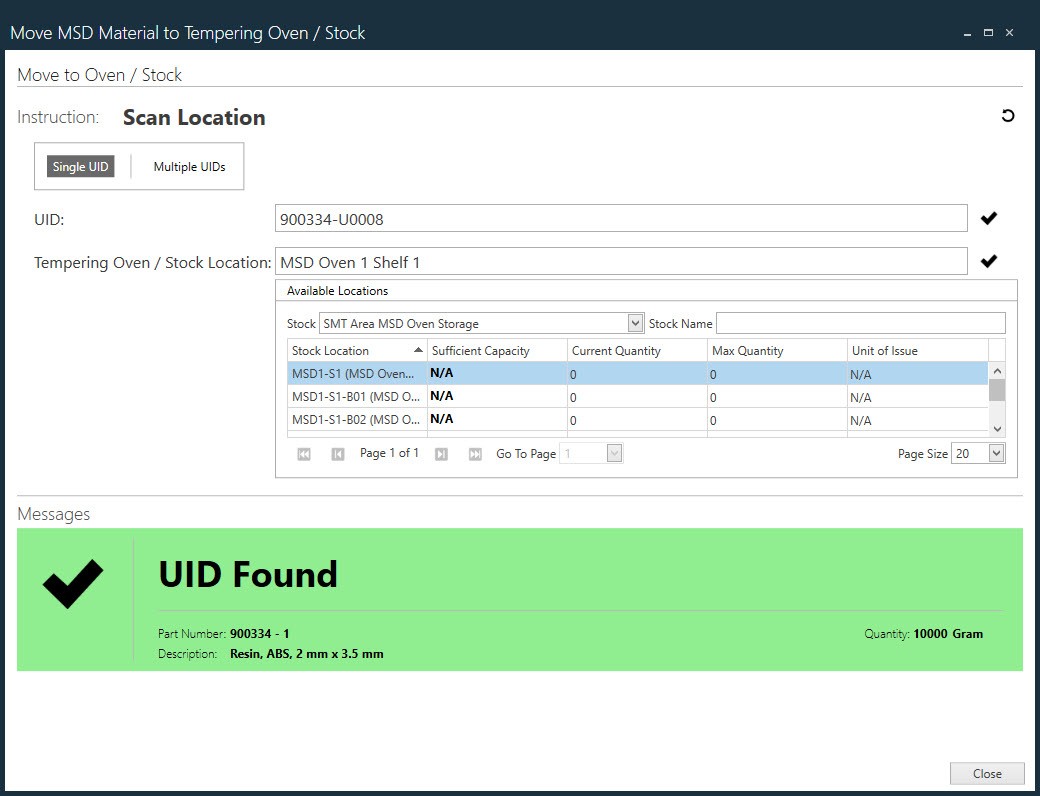
Wählen Sie „In den Ofen verschieben“, geben Sie die UID ein oder scannen Sie sie ein und wählen Sie dann das schwarze Häkchen rechts neben dem UID-Dropdown-Menü, um Ihre Auswahl zu bestätigen.
-
Neben Temperierofen/Lagerort > Verfügbare Standorte können Sie über das Dropdown-Menü Lager die gewünschte Ofenressource suchen und auswählen; wählen Sie anschließend das schwarze Häkchen rechts neben dem Dropdown-Menü, um die UID in den ausgewählten Ofen zu laden.
-
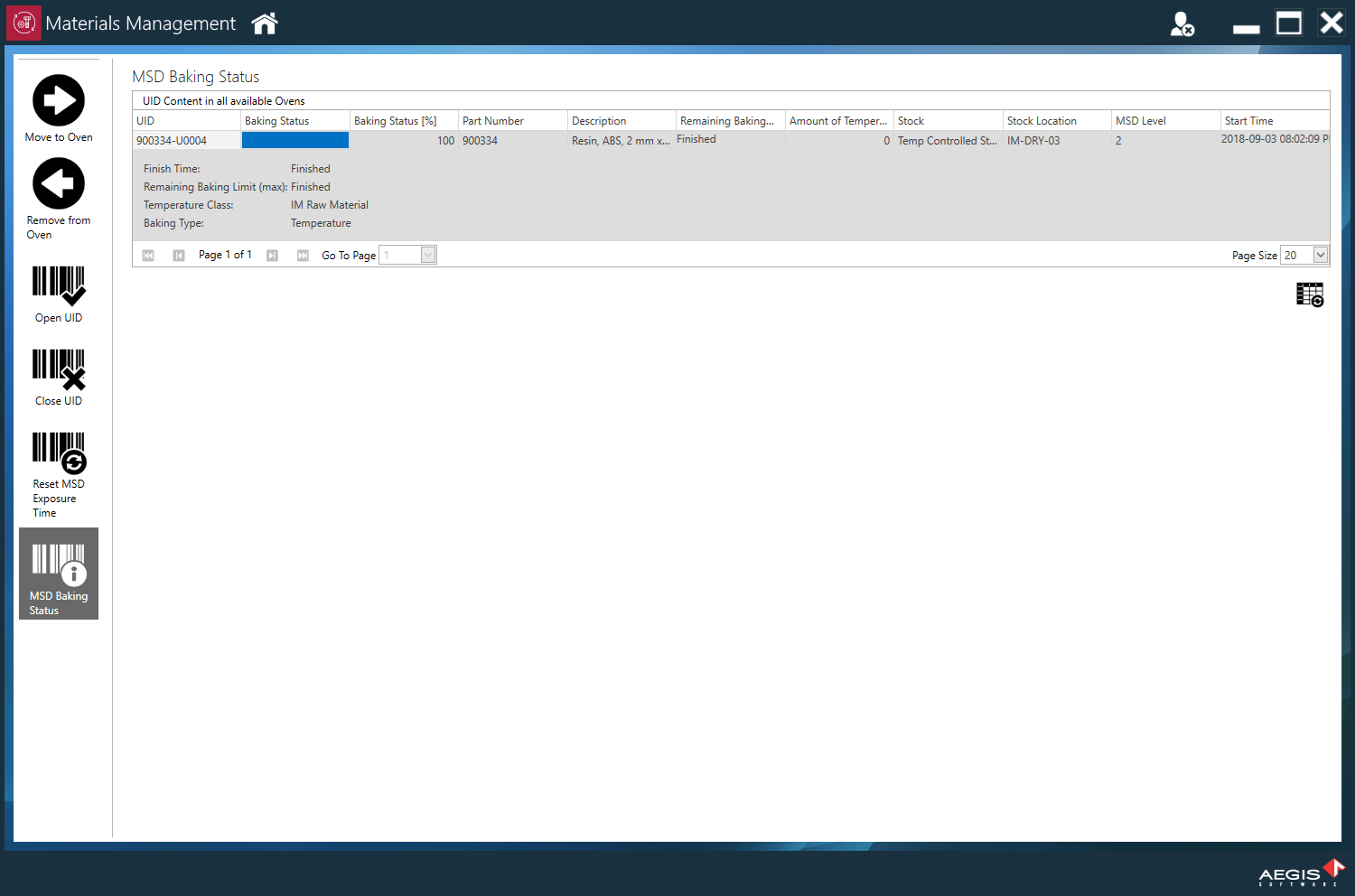
Sie können den Backfortschritt überwachen, indem Sie auf die Schaltfläche MSD-Backstatus auf der linken Seite des Fensters klicken, um die UIDs im Backmodus sowie die verbleibende Zeit und den prozentualen Fortschritt bis zum Abschluss anzuzeigen.
-
Klicken Sie auf die Schaltfläche Aktualisieren

Sobald der Backvorgang abgeschlossen ist, kann die UID aus dem Ofen entnommen und direkt zum Verzehr an die Ausgabestelle weitergeleitet oder an einen trockenen Lagerort gebracht werden. -
Um eine UID aus dem Backofen zu entnehmen, wählen Sie die Schaltfläche „Aus Ofen entnehmen“ auf der linken Seite des Fensters, geben Sie die UID ein oder scannen Sie sie ein und wählen Sie dann das schwarze Häkchen auf der rechten Seite des Fensters, um Ihre Auswahl zu bestätigen. Wenn der Backvorgang noch nicht vollständig abgeschlossen ist, wird eine Warnung angezeigt, damit der Bediener den Vorgang abbrechen kann, bevor die Materialien zu früh entnommen werden.
Die Materialien sind nun zum Verbrauch bereit.