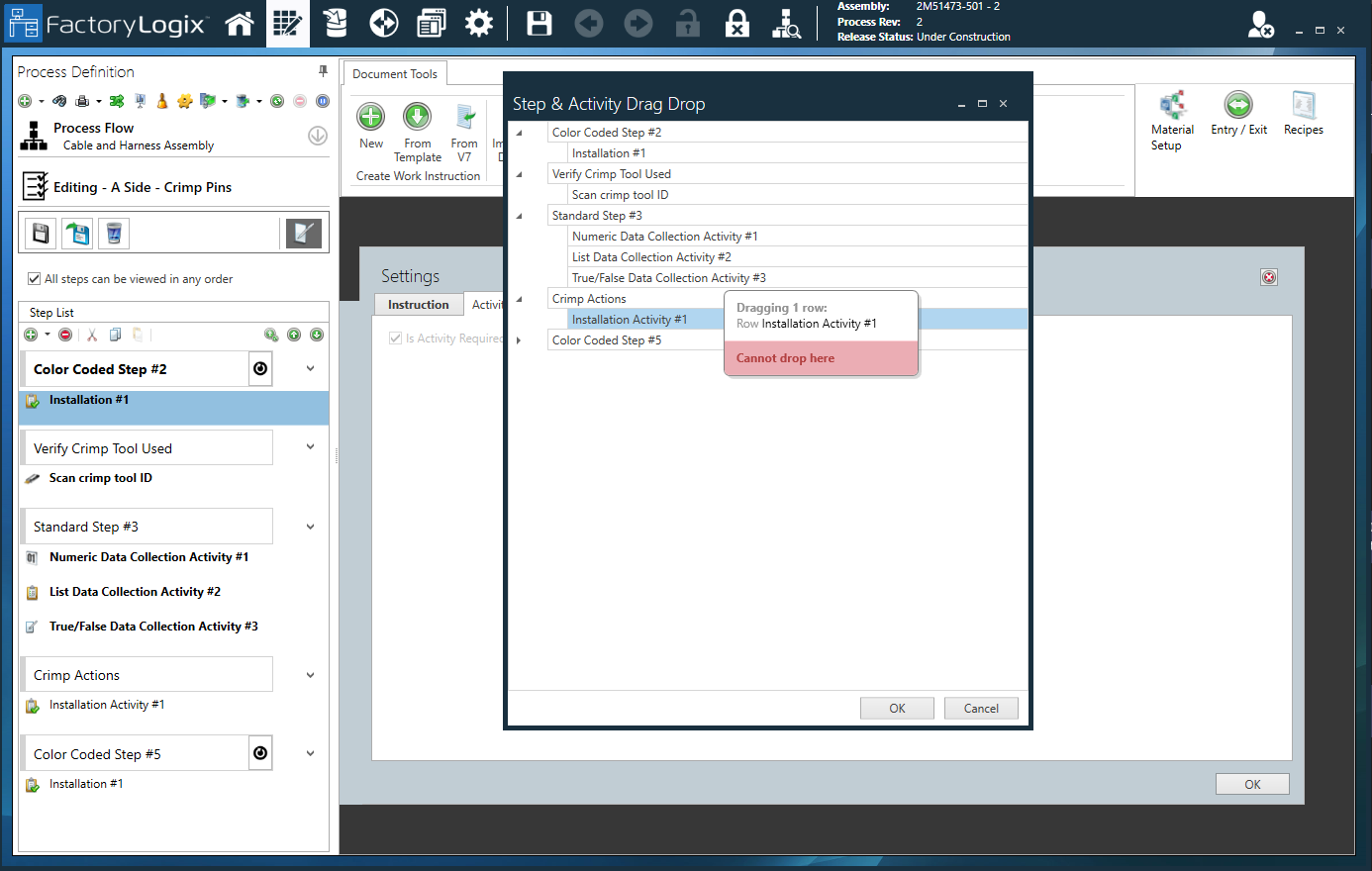
When creating a process definition in the Process Definition window, you can drag and drop activities and steps using the Reorder 
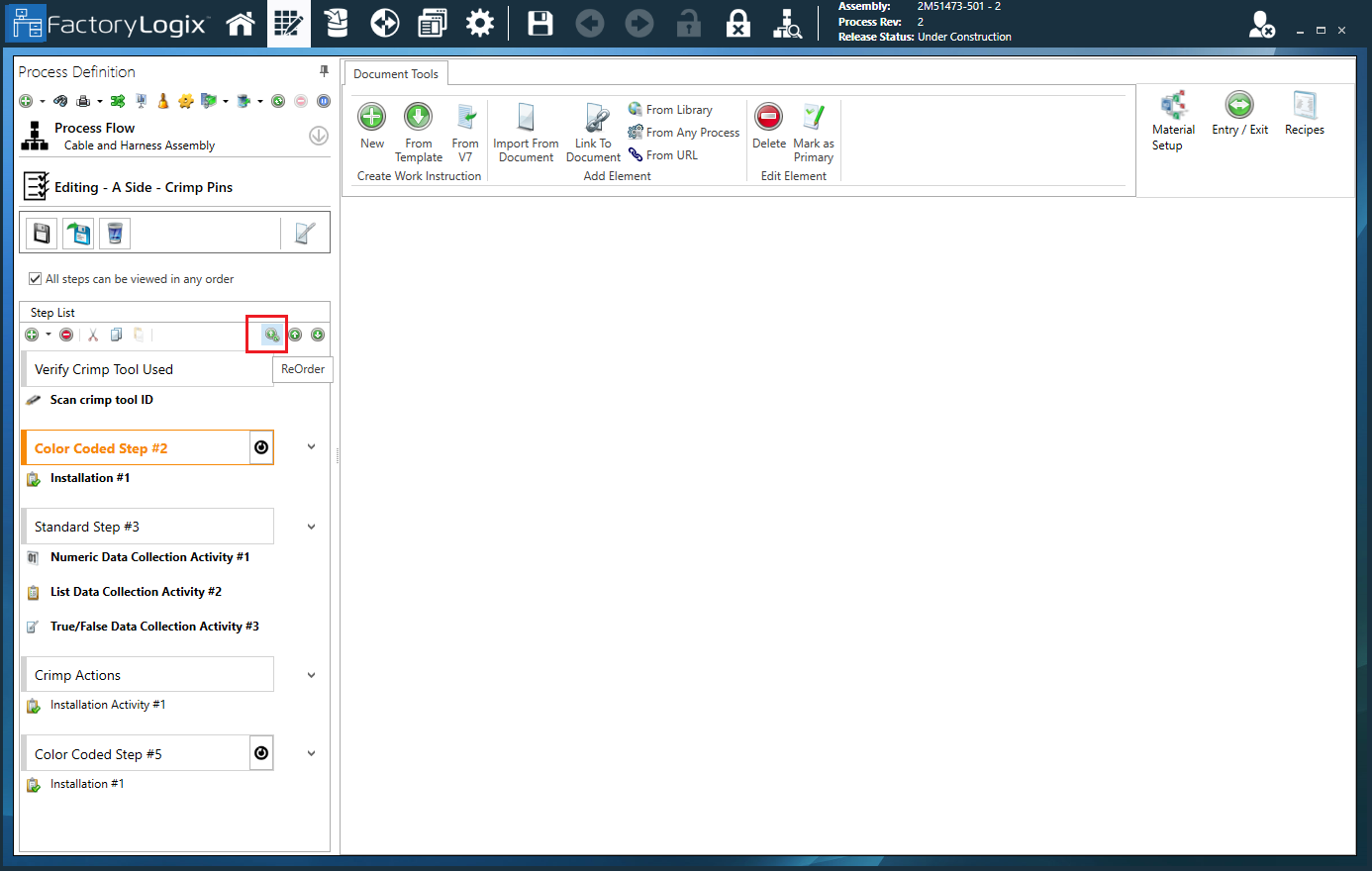
When you select a step or activity in a process definition and then select the Reorder button (see the following illustration), the Step & Activity Drag Drop dialog displays. The dialog shows steps and activities in a tree view (hierarchy); steps are listed on the left and the activities for each step are nested underneath.
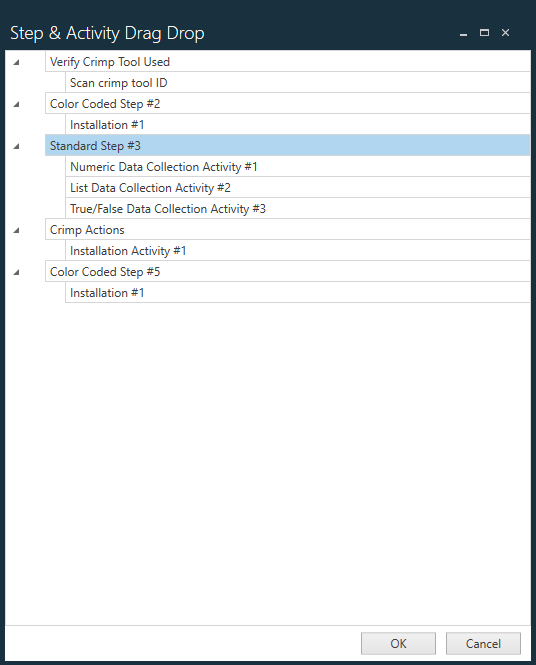
-
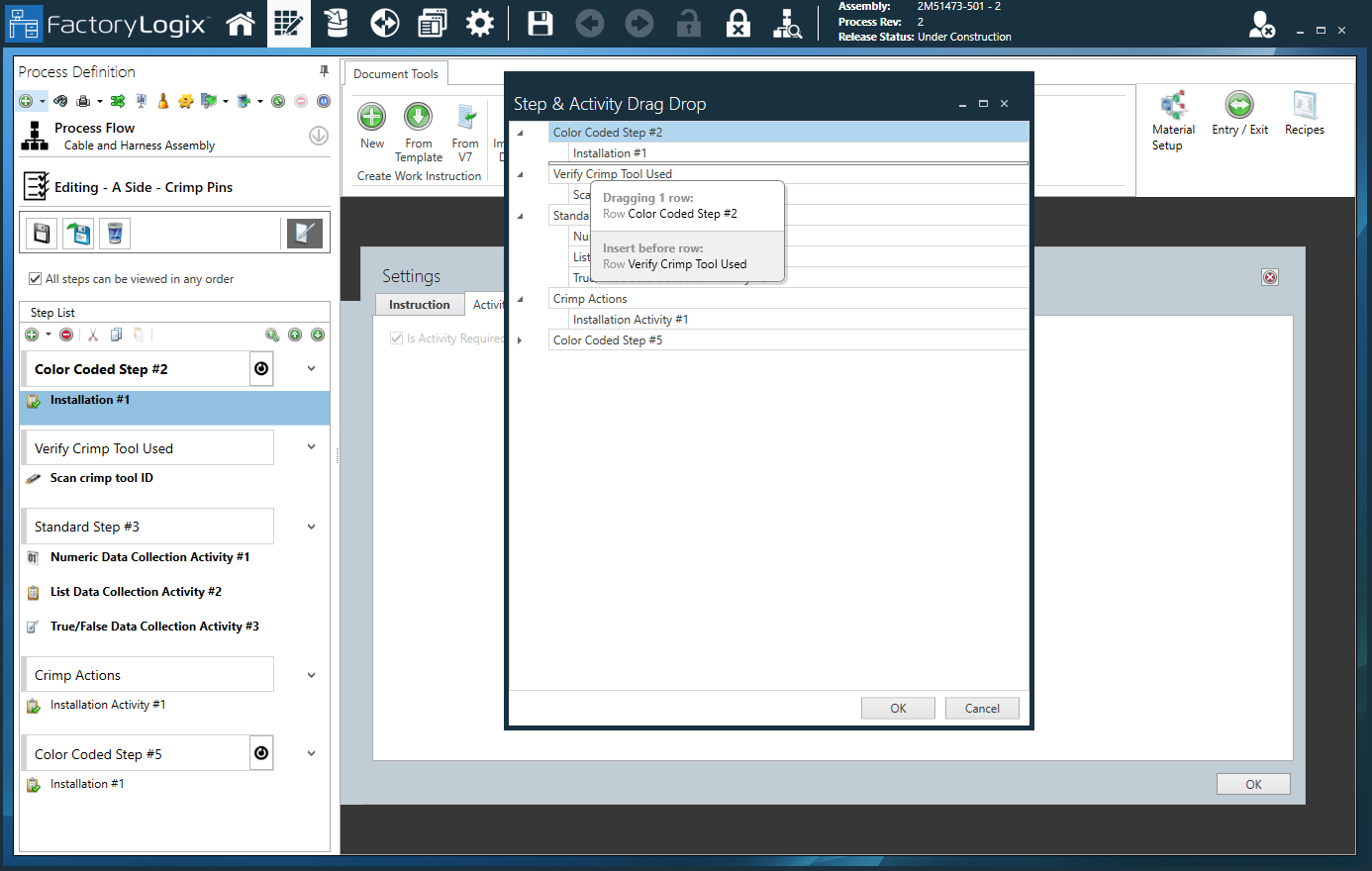
Drag the step or activity to a new location. The dialog indicates the item you are dragging and the target location.
If you try to drag and drop a step or activity in a location where it can's be reordered in the hierarchy, you'll see the message Cannot drop here, as shown in the following illustration.