
Introduction
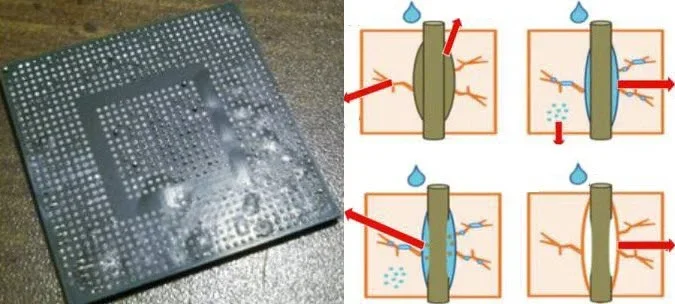
In electronics manufacturing, Moisture Sensitive Devices (MSDs) absorb moisture from the air. If too much moisture builds up and a component goes through reflow soldering during manufacturing, the trapped moisture can expand rapidly and cause problems such as internal cracking (the “popcorn effect”), delamination, or even permanent failure.
In FactoryLogix, you can help prevent damage during soldering by tracking how long moisture-sensitive components are exposed to the air after their packaging is opened. Dry baking can be used to remove absorbed moisture—it doesn’t change the official Moisture Sensitivity Level (MSL), but baking does reset the “floor life clock”/part usability and allows safe reflow soldering.
Example
To better understand a typical use case for handling MSDs, you need to undersatnd how floor life clock is calculated for a part/component. Assume the component has a total clock life of 168 hours from the time the packaging is opened:
Day 0 → Open bag → 168h starts
Day 3 → 72h used
Day 7 → 168h reached → MSD PART EXPIRED
Bake → Reset
Back to full 168h
MSD setup - prerequisites
To take advantage of Moisture Sensitive Device (MSD) management functions, you need to first set up MSD properties.
-
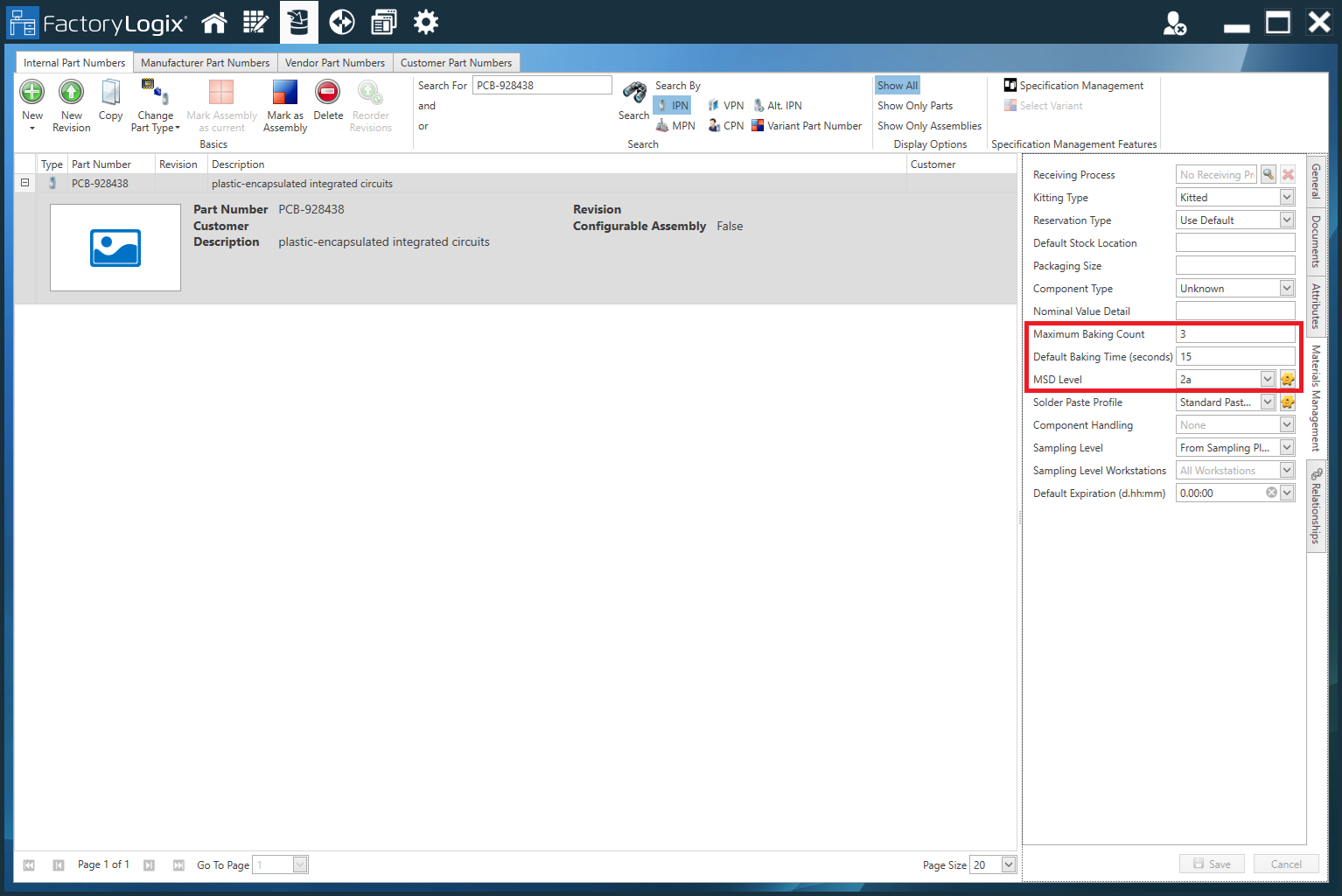
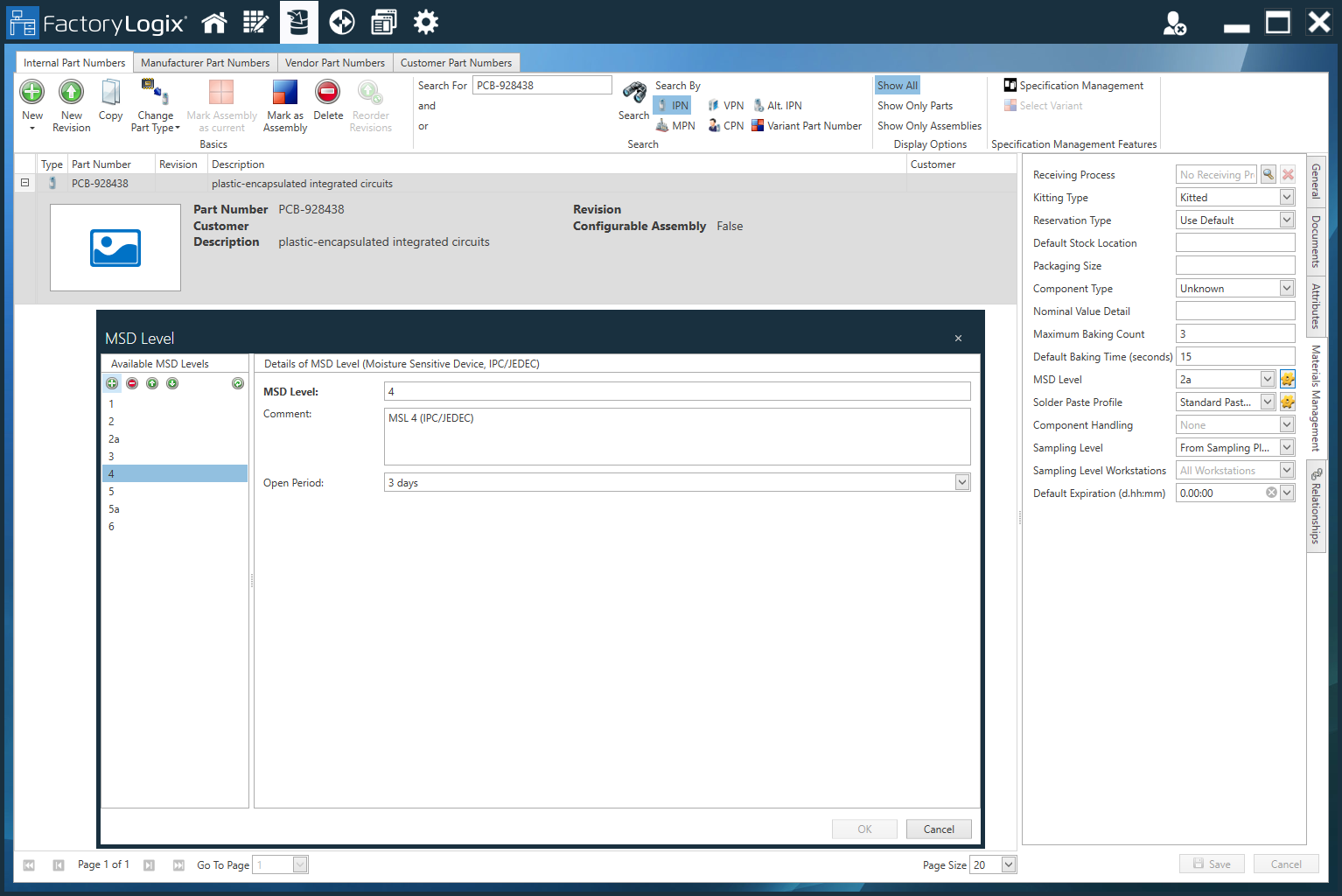
Set up/review MSD levels for all part numbers/components and confirm they are acceptable from the standard profiles loaded into the FactoryLogix system or modify the MSD levels as desired in the Part Library (Materials Management tab). Information about these settings can be found here: Manage IPN logistics.
-
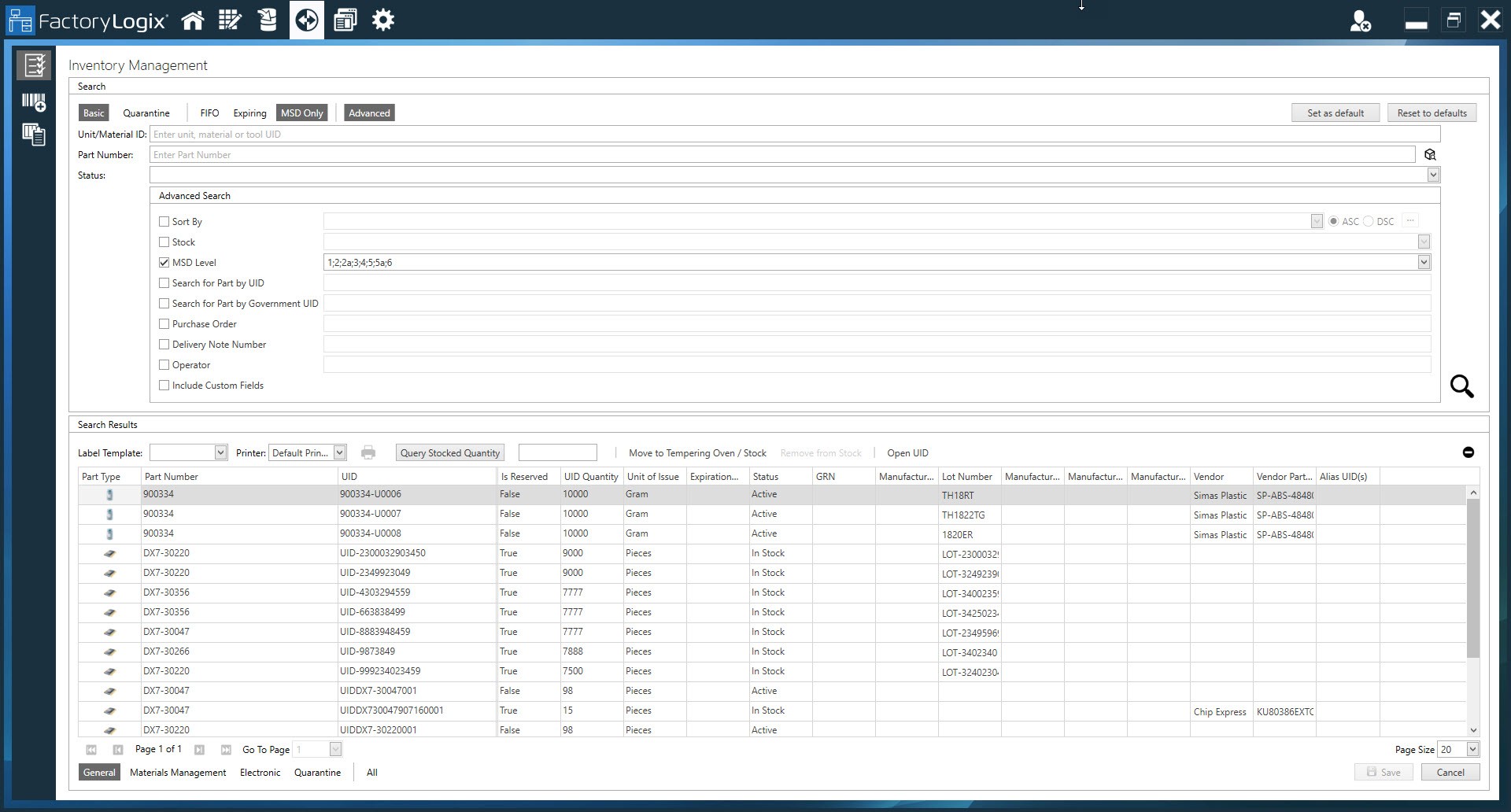
An alternate way to search for and set MSD properties against a part number in the Part Library is to go to the Inventory Management area of FactoryLogix Office (Materials Managemernt > Inventory) as shown in the following illustration:
-
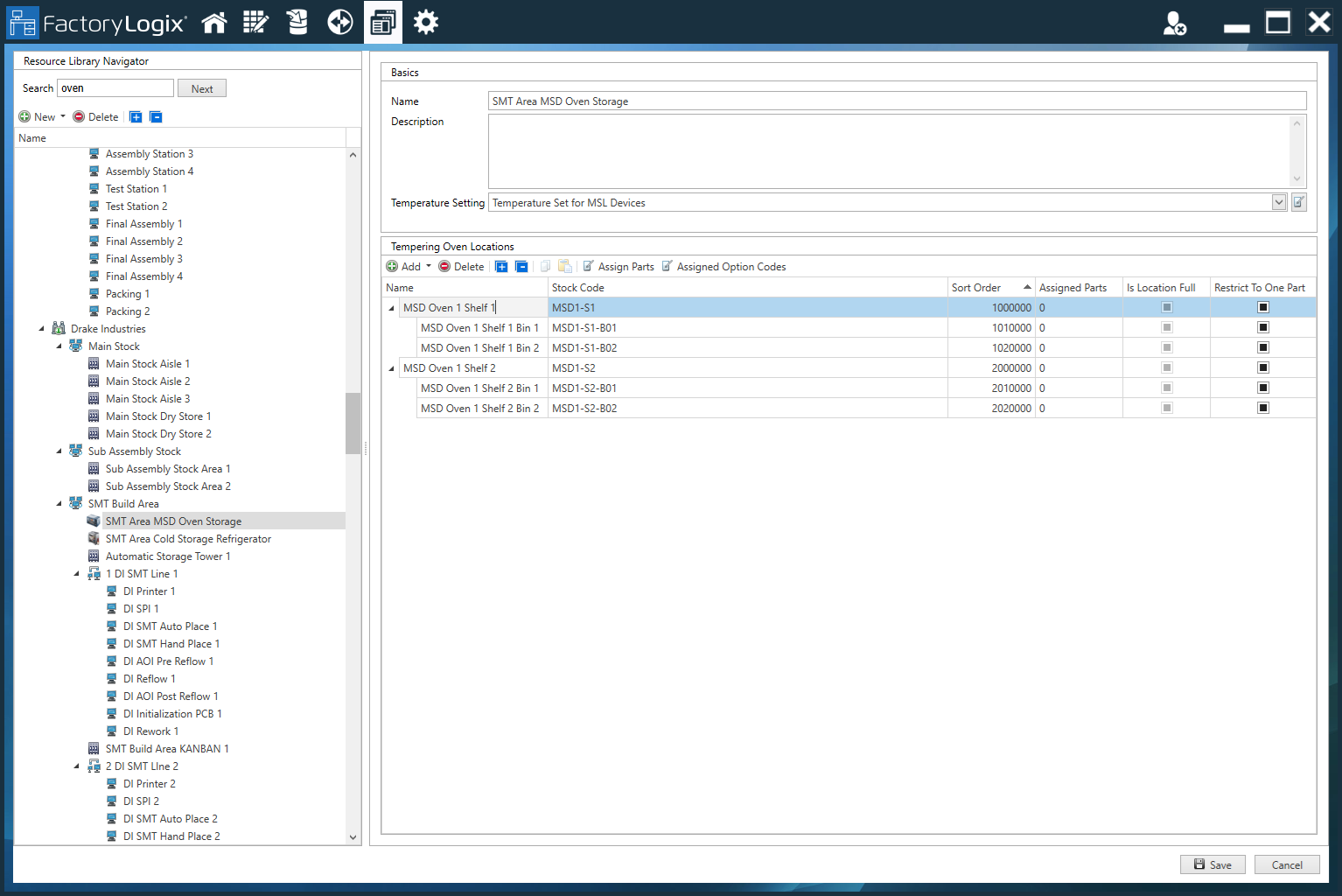
Set up at least one Baking Oven stock resource in the Factory Resources area of FactoryLogix Office if you plan to allow MSD materials to reset after a fixed amount of baking time. Information about setting up stock resources and locations can be found here: Set up stock locations.
-
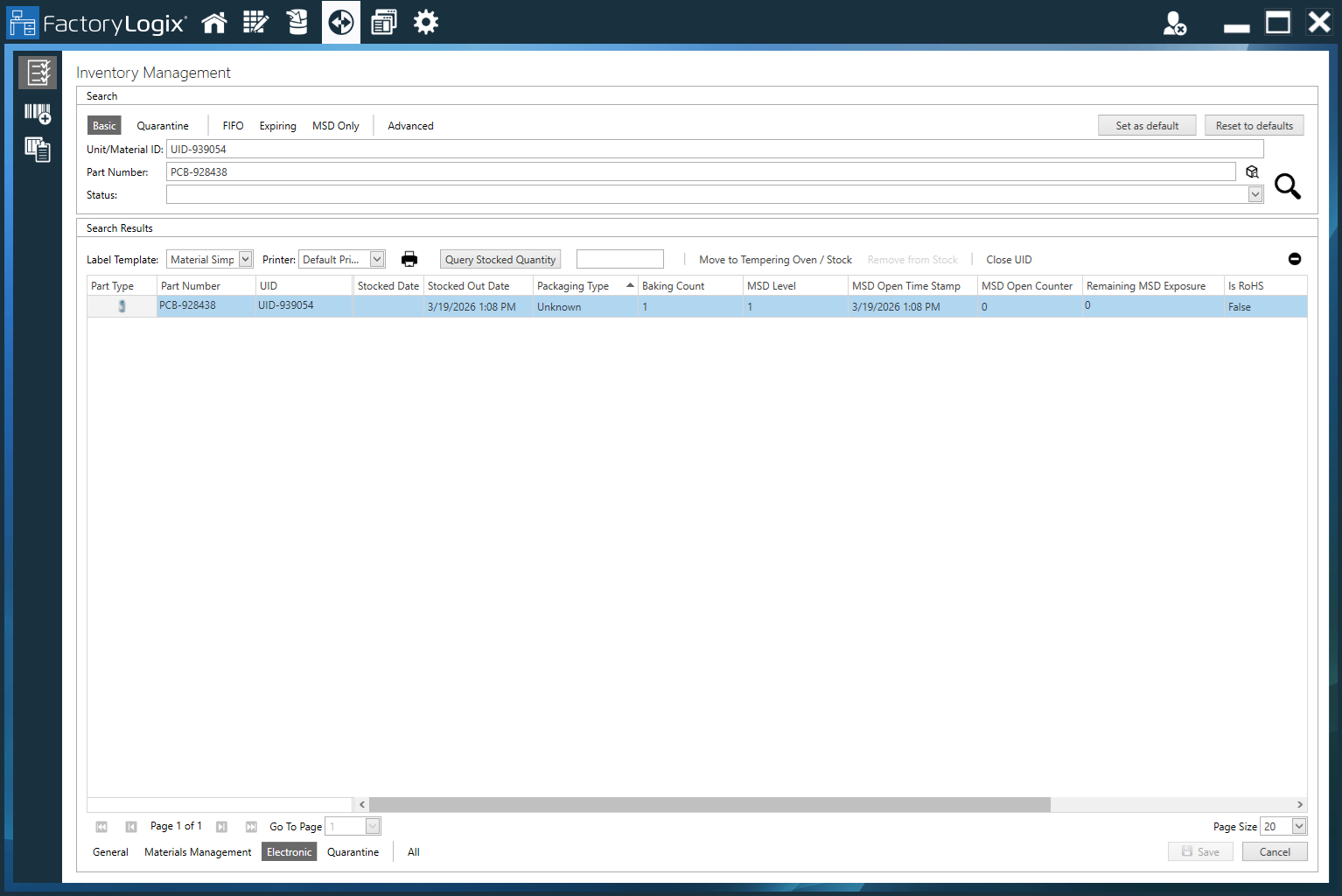
Create or confirm that the UIDs for materials have an associated Moisture Sensitivity Level (MSL) in your FactoryLogix system. You can use the Inventory Management window (Electronic tab) to see the current MSD level and remaining exposure time for each part number as shown in the following illustration.
Ensure the MSD counter is running
Once all setup is completed as described in Handling Moisture Sensitive Devices (MSD) | MSD setup prerequisites, use the following steps to ensure that the MSD counter is running:
Tip
You can access Materials Management functions from FactoryLogix Office or FactoryLogix Materials Management.
-
Log into FactoryLogix Office > Materials Management > Inventory > Additional Inventory Functions > MSD functions or Log into FactoryLogix Materials Management and select the MSD Functions button directly from the Home window.
-
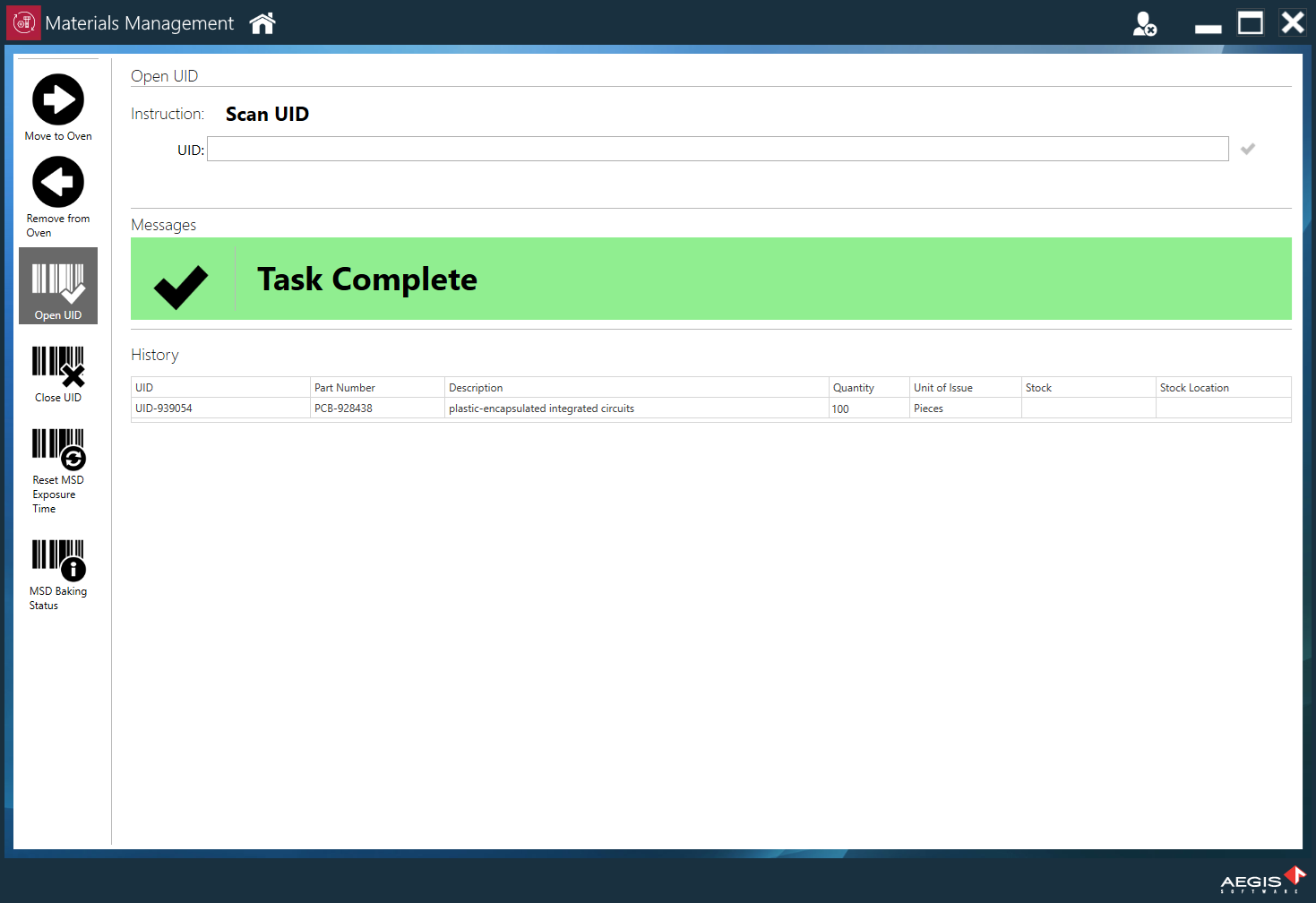
Select the Open UID button on the left side of the window.
-
Enter or scan in the UID that you want to open and start the MSD clock/counter on, then select the Black check mark to the right of the UID drop-down to confirm your selection. (The shop floor operator must start the clock prior to consumption.)
When the MSD clock is running, the operator consume materials as usual—typically through Material Setup.
If Material Setup is being used and materials exceed the MSD clock/counter while they are loaded, FactoryLogix will automatically change the status of the materials and the operator will not be allowed to use those materials until they are unloaded from the workstation and replaced with a UID that has a valid MSD clock/counter value.
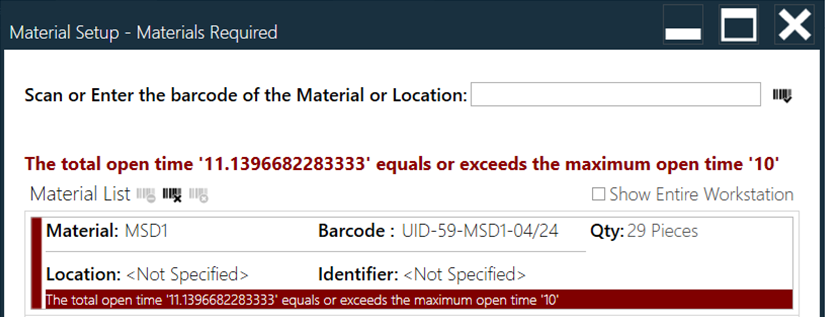
To perform a MSD clock/counter reset, the UIDs must be moved to the baking oven stock resource:
-
Select the Close UID button on the left side of the MSD Functions window—FactoryLogix will not reset the clock/counter on a UID that is open.
-
Enter or scan the UID, then select the Black check mark to the right of the UID drop-down.
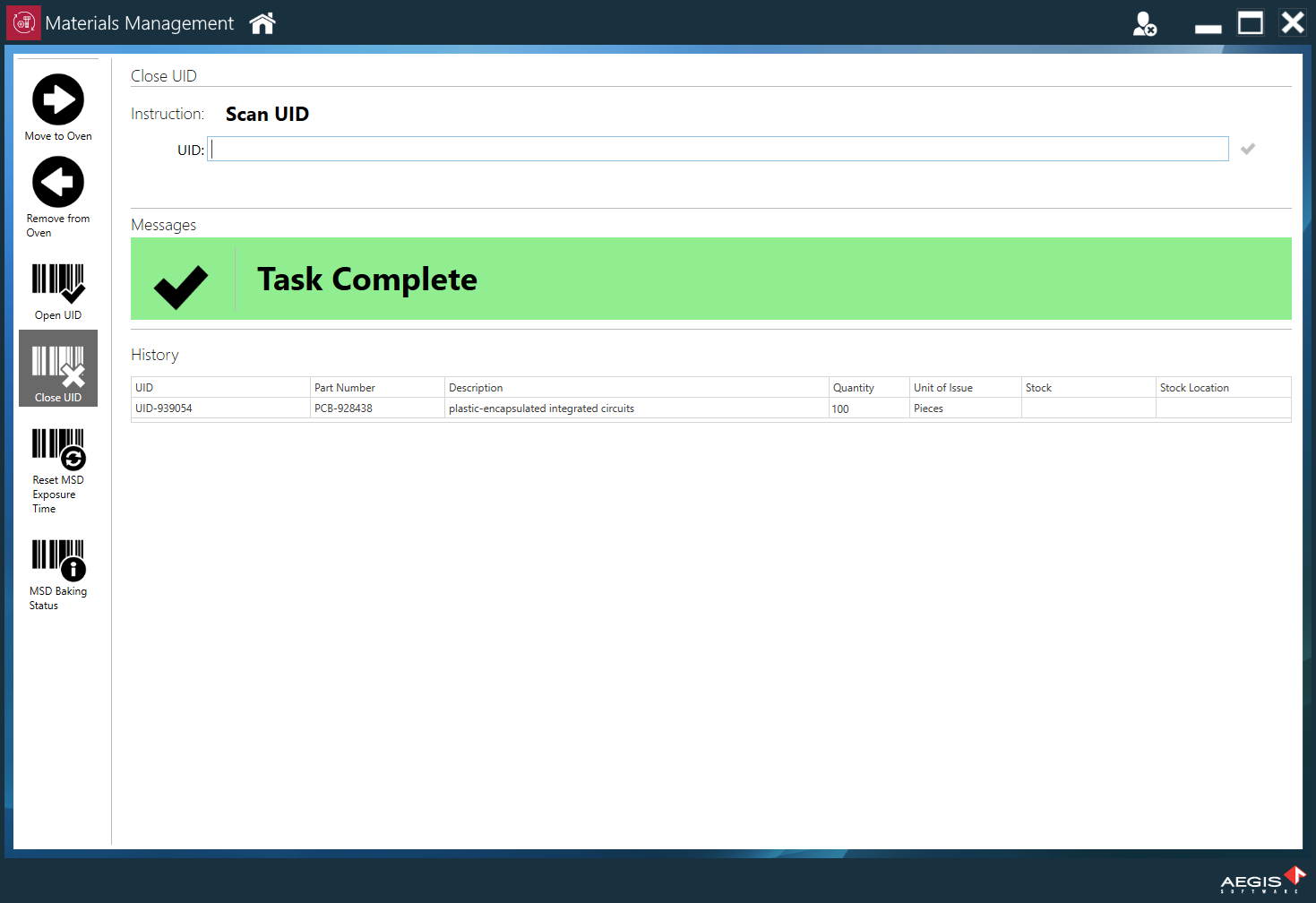
-
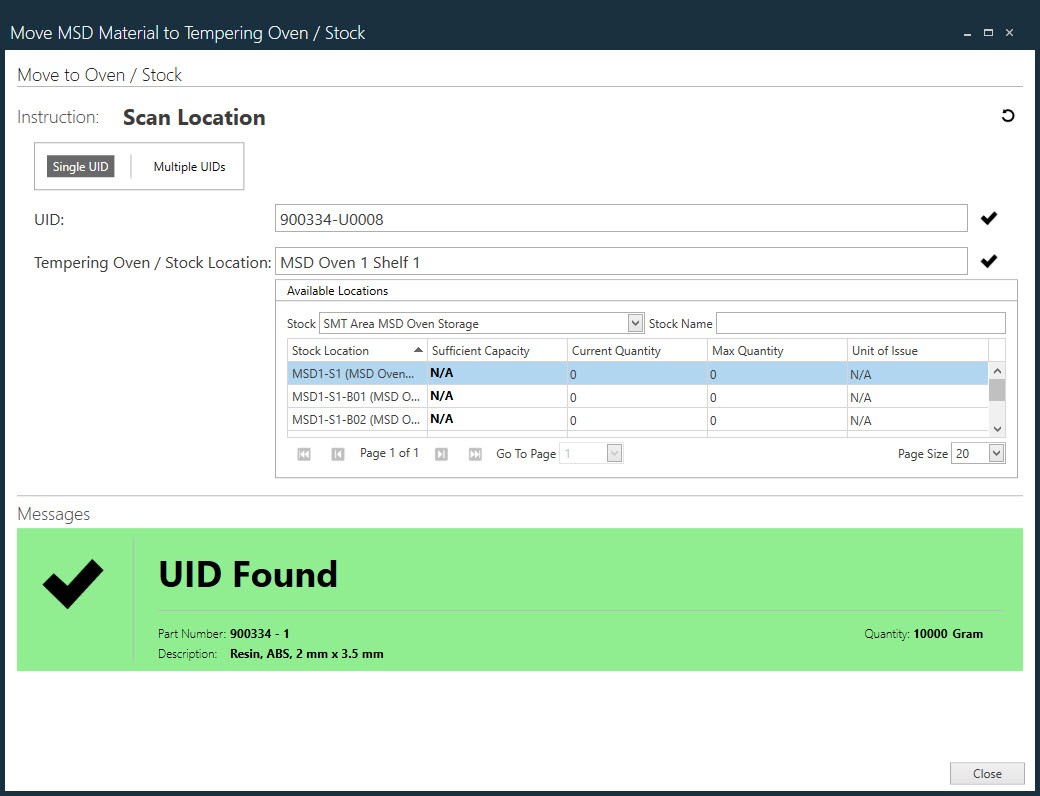
Select Move to Oven, enter or scan the UID, then select the Black check mark to the right of the UID drop-down to confirm your selection.
-
Next to Tempering oven/Stock Location > Available Locations, use the Stock drop-down to locate and select the desired oven resource, then select the Black check mark on the right side of the drop-down to load the UID into the selected oven.
-
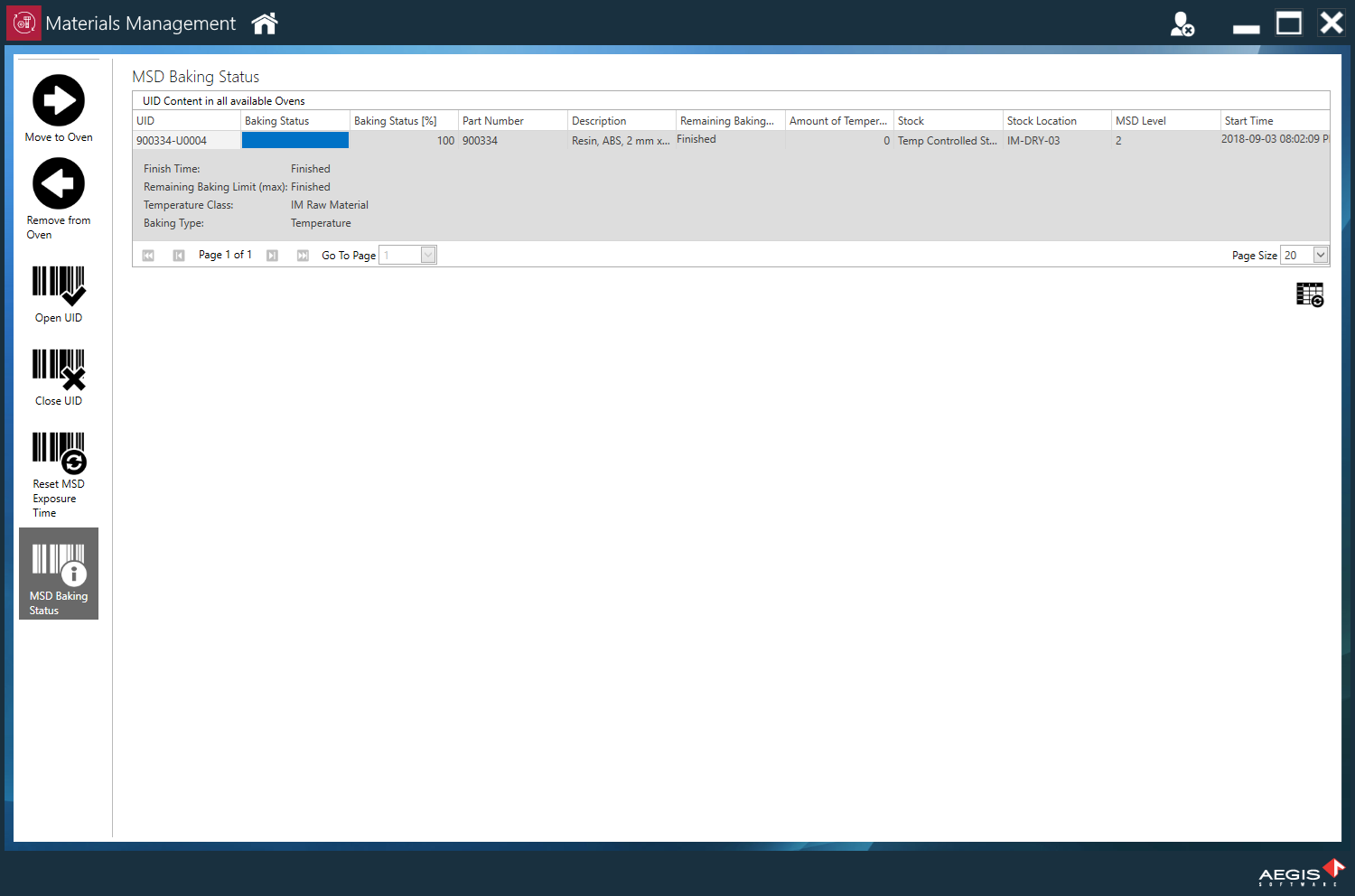
You can monitor the baking progress by selecting the MSD Baking Status button on the left side of the window to review UIDs in bake mode as well as the time and percentage until completion.
-
Select the Refresh

Once the baking process is completed, the UID can be removed from the oven and sent directly to the floor for consumption or moved to a dry storage location. -
To remove a UID from the bake oven, select the Remove from Oven button on the left side of the window, enter or scan in the UID, then select the Black check mark on the right side of the window to confirm your selection. If the baking process hasn't completed a full cycle, a warning is displayed to allow the operator to cancel the operation before pulling the materials too early.
Materials are now ready for consumption.