
Introduction
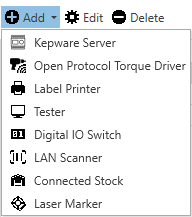
Connected equipment refers to machines, tools, or devices that are digitally linked—typically through a network—so they can collect, share, and act on data in real time. In FactoryLogix, you can manage connected equipment such as testers, torque drivers, Kepware servers, label printers, digital I/O switches, connected stock, laser markers, and more.
Instead of operating in isolation, connected equipment can do the folllowing:
-
Send performance and trace data (speed, temperature, or uptime, for example)
-
Receive instructions or updates
-
Communicate with other machines or systems (like production software)
-
Be monitored or controlled remotely
The Connected Equipment button (FactoryLogix Office > Templates and Standards > Connected Equipment) lets you manage any type of connected equipment. This functionality is identical to using the Manage button on the Connected Equipment tab of a workstation factory resource (Factory Resources area of FactoryLogix Office).
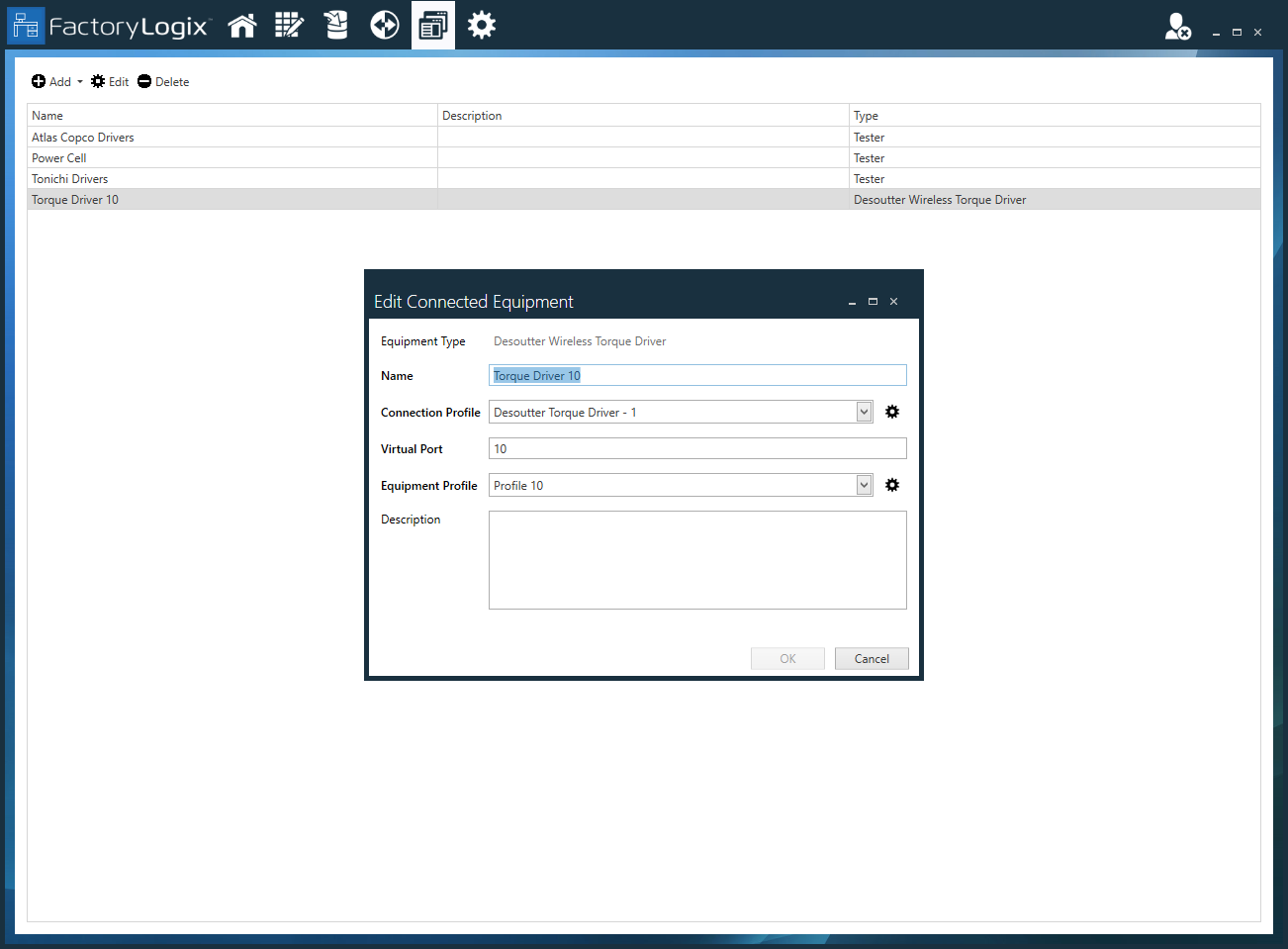
Important
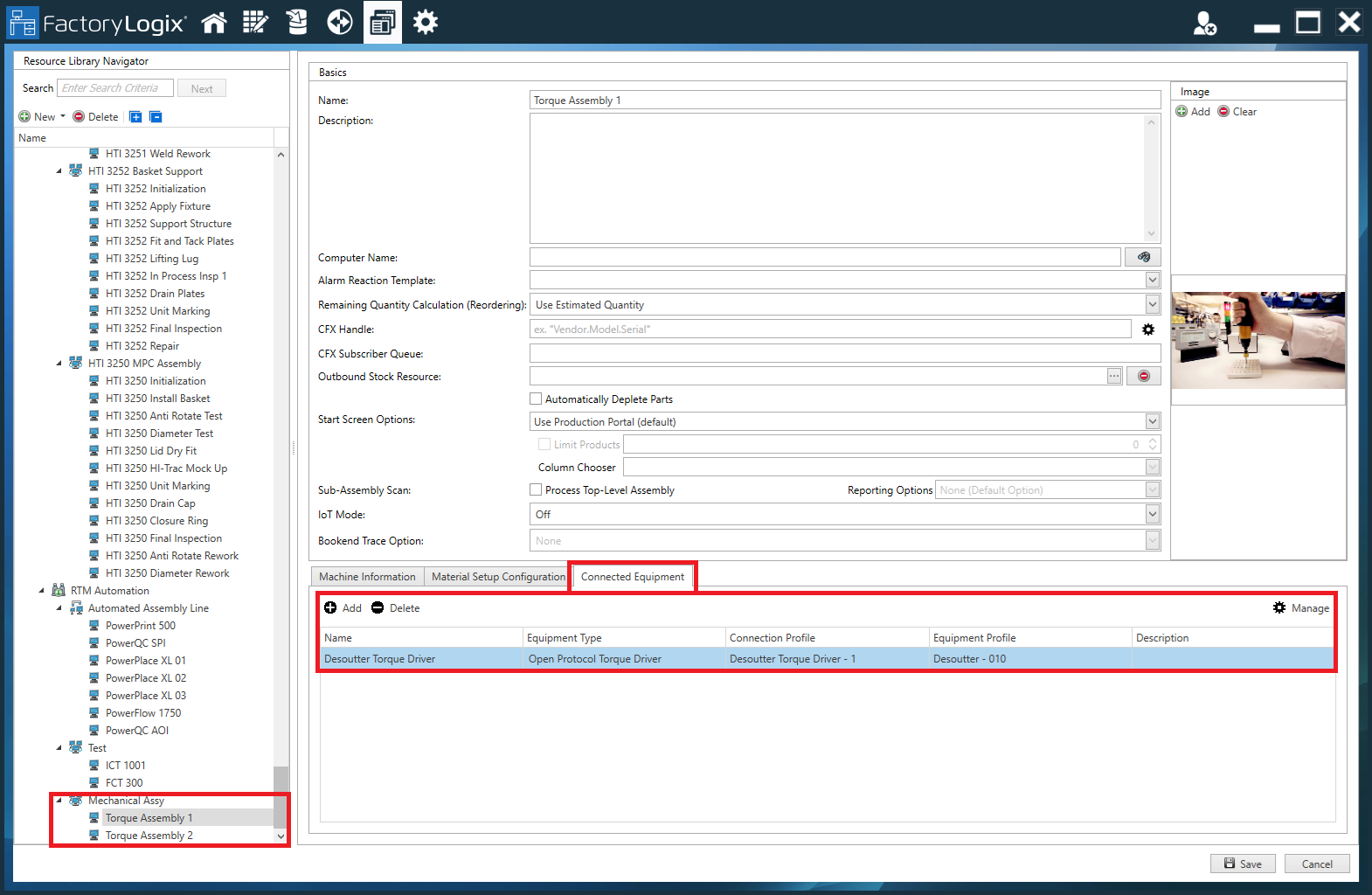
The Connected Equipment button only provides access to managing connected equipment—associating connected equipment with a workstation factory resource may only be done on the Connected Equipment tab of a workstation factory resource definition in the Factory Resources area of FactoryLogix Office, as shown in the following illustration. (See Create a factory and set up factory resources for more information.)
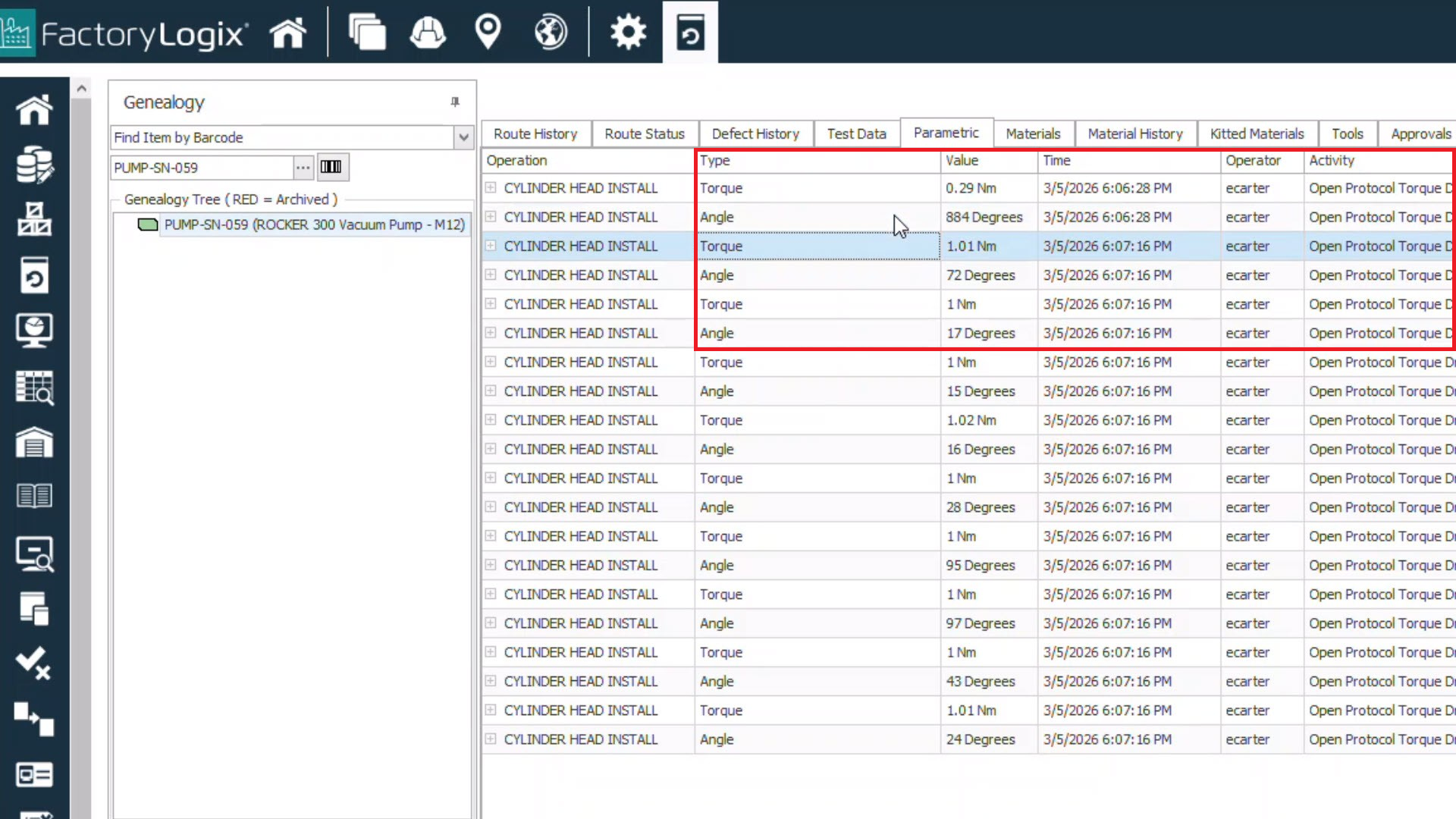
In FactoryLogix Operations, the Trace window shows the trace record for a selected production unit and includes the results reported by the connected equipment on the Parametric tab.
Administrator role permissions for connected equipment
The Administrator role permissions you need to access the capabilities of connected equipment are located in FactoryLogix Office (see Manage default administrator role permissions for details):
-
Create Factory Resources
-
Delete Factory Resources
-
Edit Factory Resources
-
Read Factory Resources
Add, edit, or delete connected equipment
-
Log into FactoryLogix Office.
-
Navigate to Templates and Standards, then select Connected Euqipment.
-
In the upper-left corner of the window, select the Add Connected Equipment

-
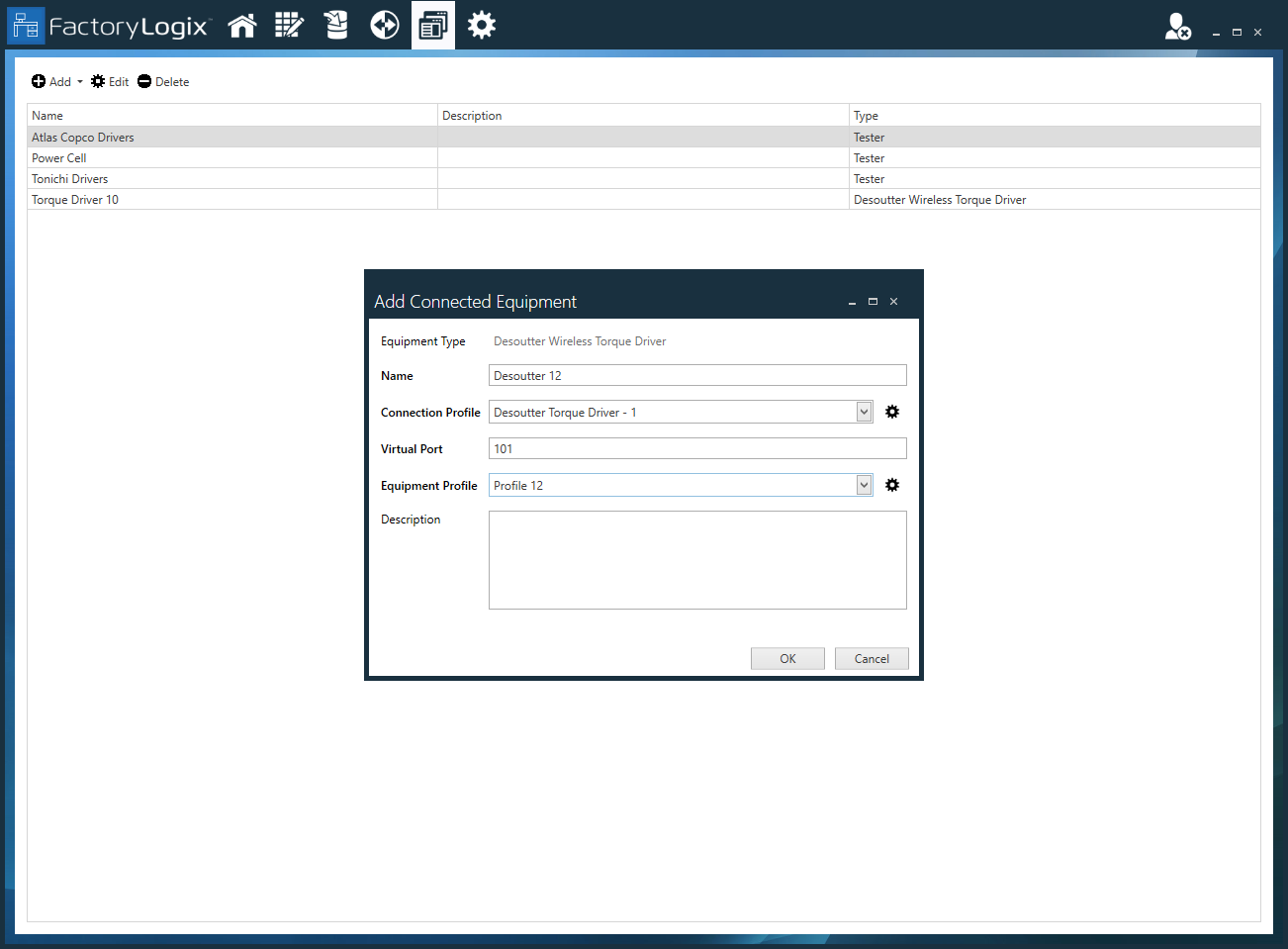
Enter a Name for the connected equipment.
-
Select an existing Connection Profile from the drop-down.
-
Select the desired Equipment Profile from the drop-down.
-
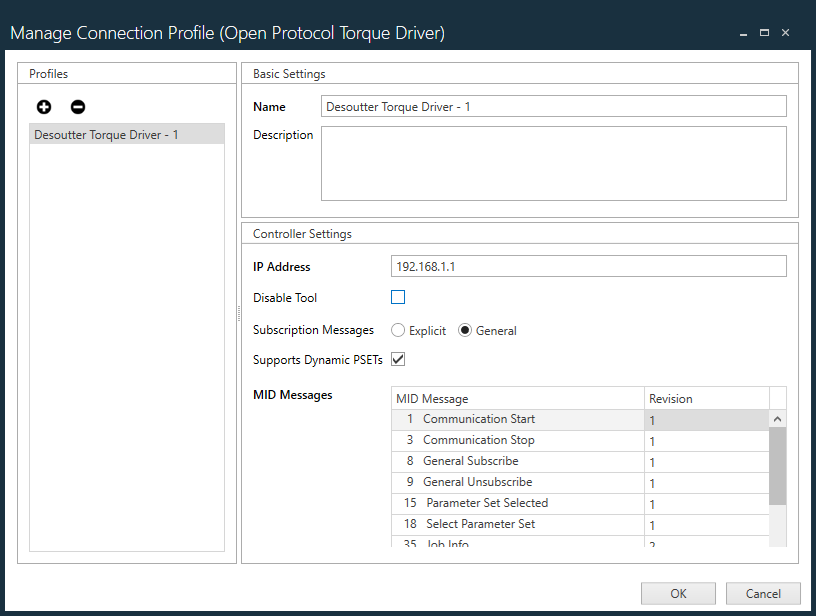
(Optional) To add a new connection profile or edit an existing one, select the Manage Connection Profile

-
(Optional) To add a new equipment profile or edit an existing one, select the Manage Equipment Profile
Depending on the type of connected equipment you are adding, the Manage Equipment Profile dialog will display profile settings specific to the equipment.