
saas only
FactoryLogix allows you to create user information that is as basic or detailed as you need. Beyond a standard user ID and password, you can also add a photo or avatar, the user's first and last name, email, and phone number. In addition, you can specify user certifications and upload related attachments (a copy of a user's certificate, for example).
-
Log into FactoryLogix Office.
-
Select System Configuration

-
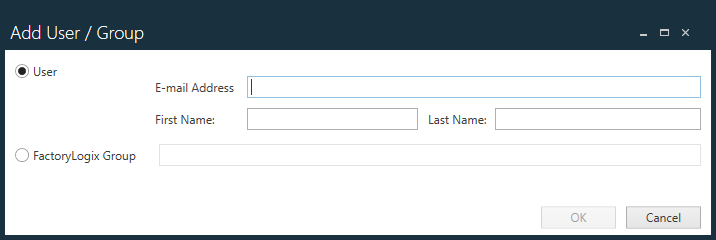
On the Manage People tab, select Add > New User/Group

-
Enter the email address of the new user and their first and last names, then select OK.
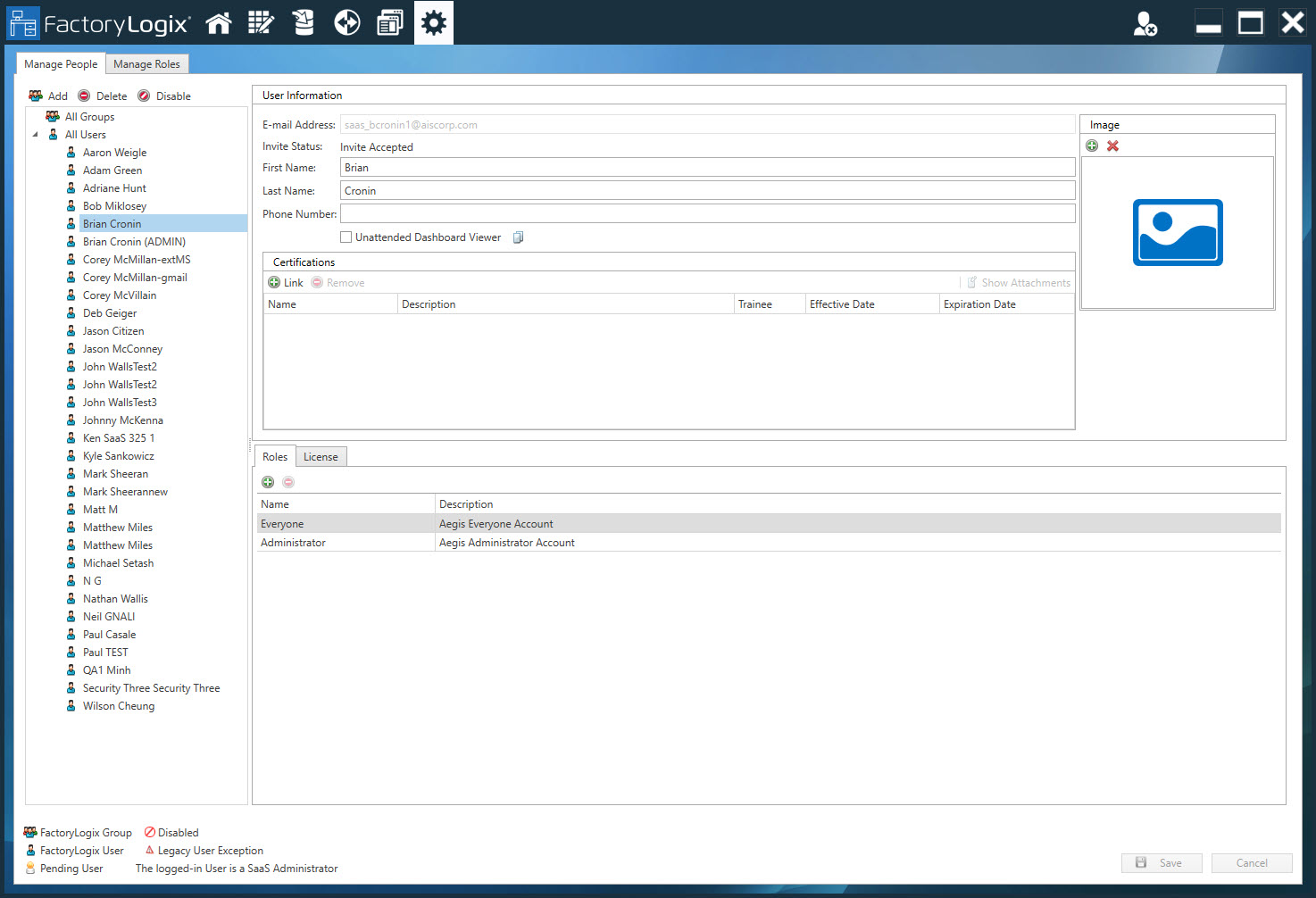
An email is sent to the new user; after the new user accepts the email invitation, you can specify additional user properties.
Note
User IDs must be unique. If you enter a user ID that is already in use, a Red X will display next to the name to indicate you must enter a different user ID.
-
(Optional) To add a photo or avatar for this user, select the Add

-
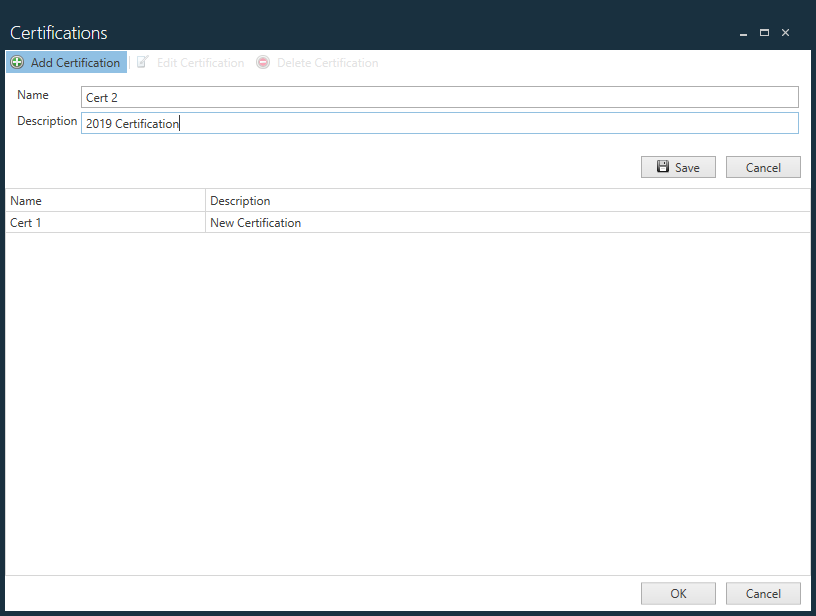
To further differentiate this user, you can add new or select existing certifications related to a user's role.
-
Under Certifications, select Link
-
If a certification requires an attachment (a copy of a certificate, for example), select Show Attachments


Important
When creating a process definition in FactoryLogix Office, a user certification can be added to an operation. All users with that certification applied (both trainee and non-trainee) can carry out work on this operation in FactoryLogix Operations. A user who has a trainee type certification can start the operation/WIP transaction in FactoryLogix Operations, but can't finish it without signoff by a user with the same certification who is a non-trainee. This is done through a login prompt where the certified non-trainee user provides credentials. After a successful signoff by the non-trainee user, the WIP transaction is finished. (If the login prompt is cancelled by the non-trainee user, the WIP transaction will not finish.)
The user who signed off the work of the trainee is recorded to the Audit Log database table as a new function of type “Supervisor Signoff”. This audit record contains the batch and the operation where the signoff was performed, and the product barcode (if the batch is serialized) is added to the “ScanInfo” field.
-
Select the Trainee check box next to each certification for this user where signoff for an operation in FactoryLogix Operations by a non-trainee will be required.
-
On the Roles tab, select the new user’s role: Administrator or Everyone.
-
To assign one or more licenses to the new user, select the License tab.
Under Current License Counts, you can see all available FactoryLogix licenses (how many are owned, how many are already used, and how many are remaining). To see a list of users for each license, select the highlighted number under Used. -
Use the check boxes to select the specific licenses you want to assign to the new user: Factory Office, Operational, Viewing, and/or Machine Programmer, then select Save to save your selections.