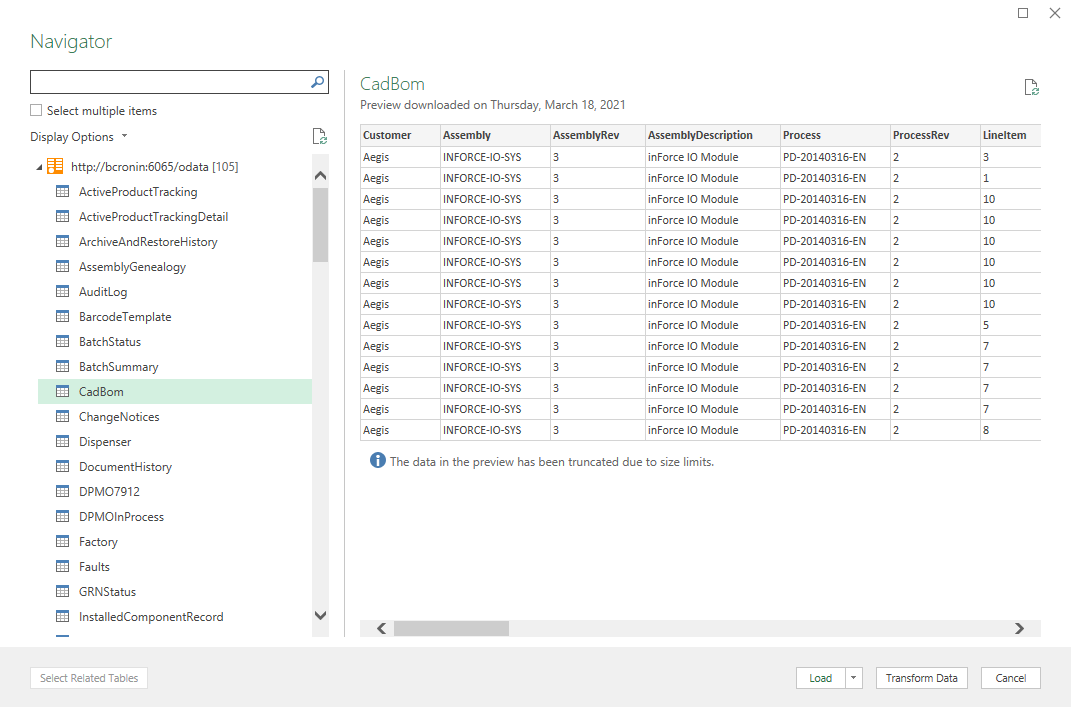
Using your BI tool of choice (Microsoft Power BI Desktop or Microsoft Excel, for example), you can use an OData connector to access FactoryLogix Analytics DataMiner data sources.
-
Log into the FactoryLogix Server Management application, then select Services Settings.
-
Select the Report Scheduler Service.
-
Make sure the Report Scheduler Service is pointing to the correct database (one that is running as a FactoryLogix user with rights to that database).
Important
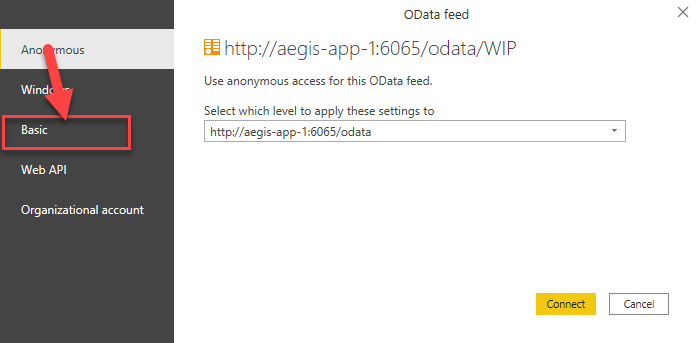
The OData connector requires authentication (Anonymous won’t work). You must enter the user name and password of a FactoryLogix user because FactoryLogix does the authentication—not Windows or SQL.
-
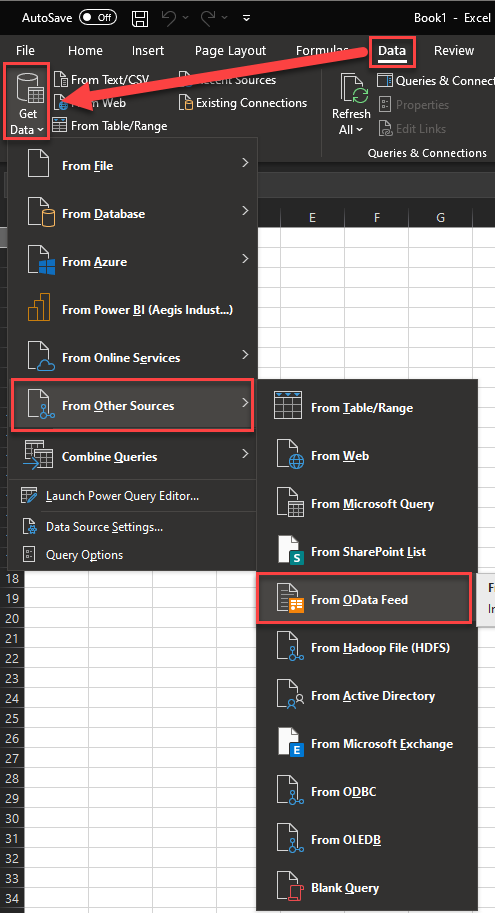
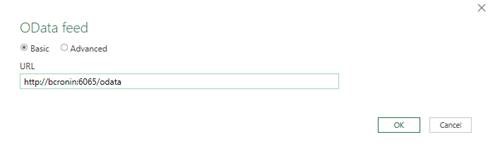
Using your BI tool of choice (Microsoft Power BI Desktop or Microsoft Excel, for example), use the following URL to access the OData connection: http://<servername>:6065/odata.
The following illustrations use Microsoft Power BI Desktop to demonstrate you how you would set up the OData connector to access FactoryLogix DataMiner data sources:
Change from Anonymous feed to the user name and password of a FactoryLogix user (FactoryLogix does the authentication—not Windows or SQL).
Once the connection is established, the FactoryLogix user will have access to DataMiner data sources.