
Set up resources
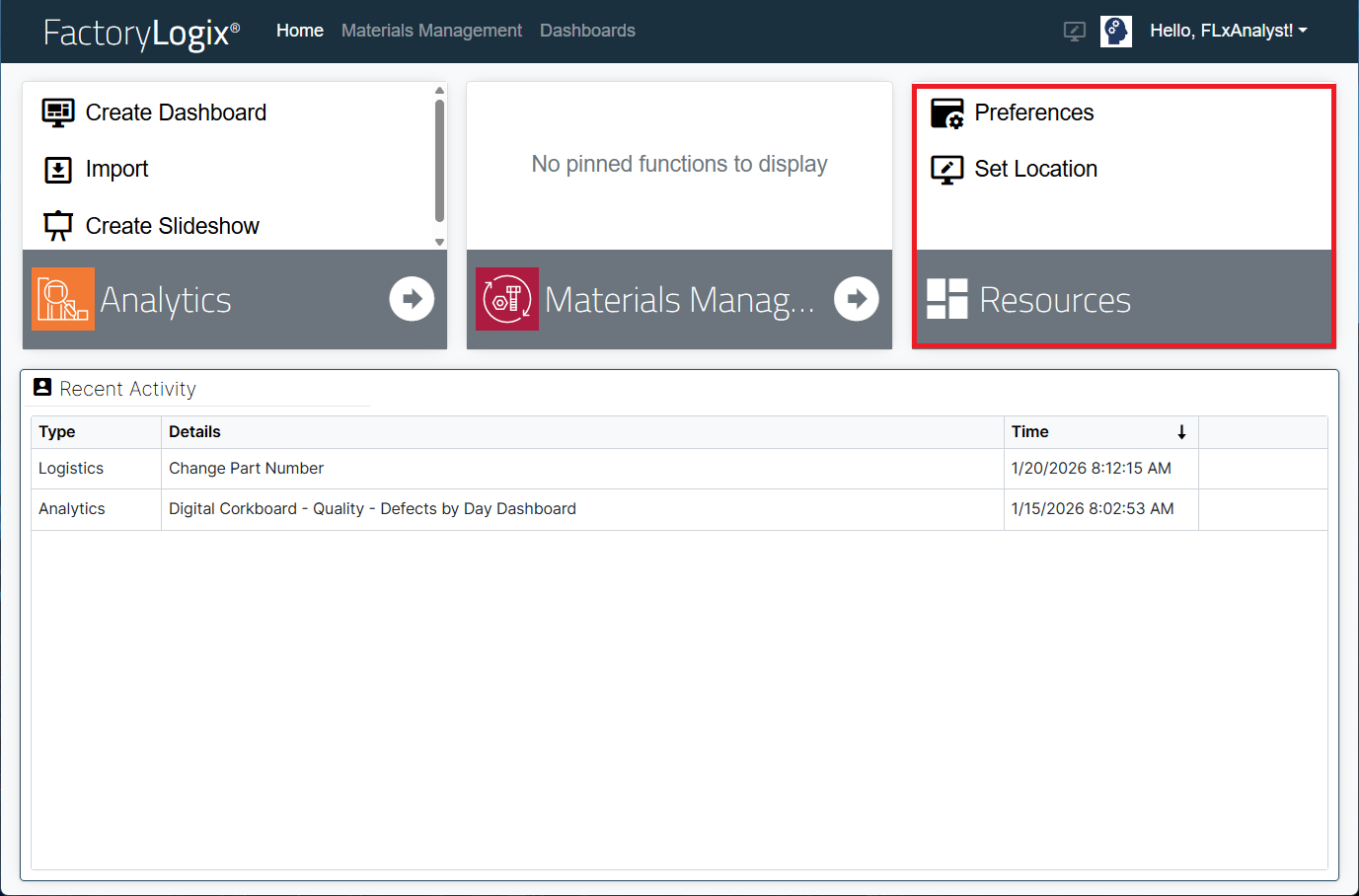
The FactoryLogix website Home window has an option named Resources where you can select the following preferences and settings:
-
Dashboard font, color, size, and style settings (for use with FactoryLogix Analytics only)
-
A default language for the FactoryLogix website
-
A default (current) workstation
-
A standard label printer
-
A damaged label printer
The Recent Activity area shows a history of your recent Materials Management activities. Select any item in the Recent Activity area, then select the Open button to the right of the item to go to that function.
Set preferences
The default language you select is used for the FactoryLogix website.
-
In the FactoryLogix Home window, select Preferences under Resources.
-
Select a default language from the list.
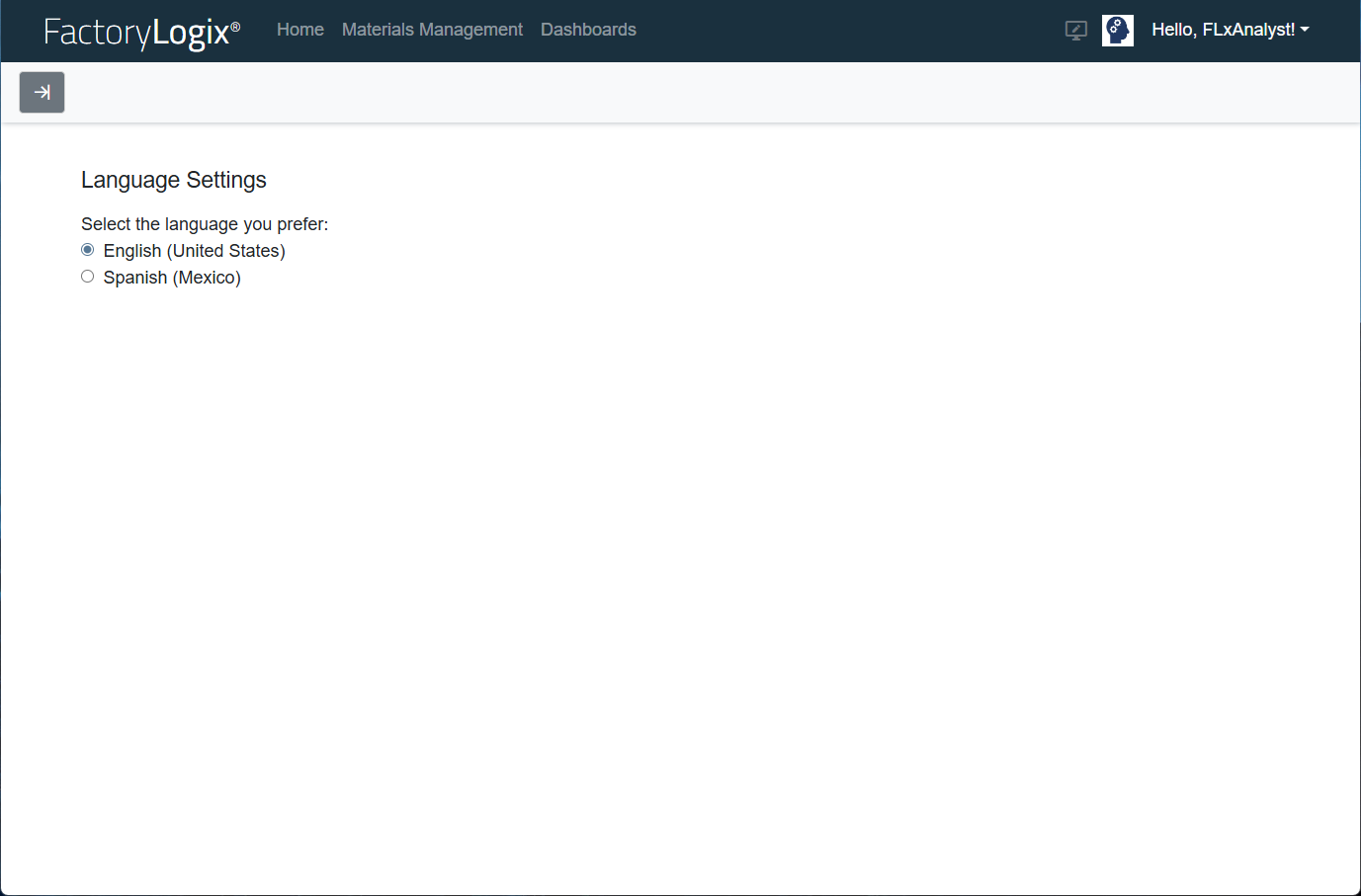
The selected language will be used for the FactoryLogix website until you change it.
Tip
Use the left arrow 

Set Location
The Set Location function allows you to specify the current (default) workstation to be used by Materials Management. You can also specify a printer for standard labels and a backup printer for label printing when the standard label printer isn't working.
-
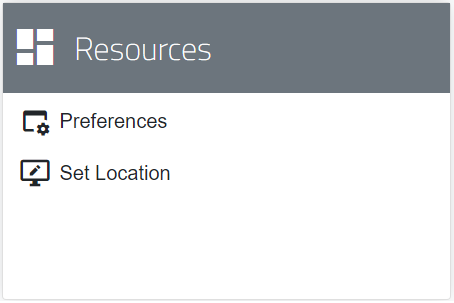
In the FactoryLogix website Home window, select Set Location under Resources.
-
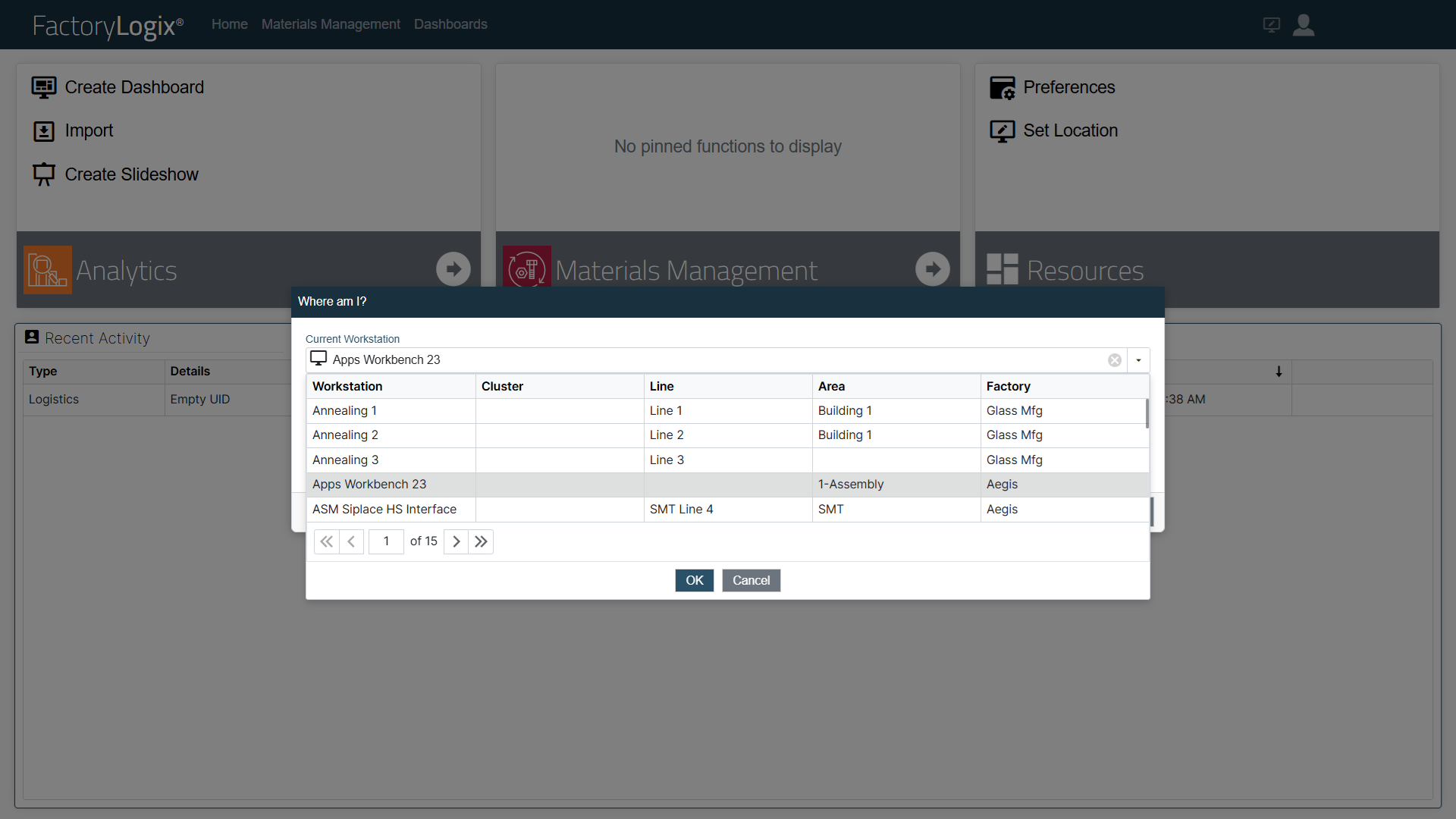
In the Where am I? dialog, select the drop-down under Current Workstation to view available workstations.
-
Select the desired workstation from the list, then select OK. The workstation you selected will be used until you change it.
-
Under Standard Label Printer, use the drop-down to select the desired printer for label printing.
-
Under Damaged Label Printer, use the drop-down to select the desired backup printer for label printing when the standard label printer isn't working.
Note
To associate printers to the workstation, the FactoryLogix Office global option Workstation Assigned Label Printer must be set to True. The setting can be found in FactoryLogix Office > System Configuration > Settings > Production Portal > Workstation Assigned Label Printer.
-
Select Save to save all your workstation and printer selections.