The operators who build a product need to know more than just the operation sequence of a process flow; they need to know what can be worked on and if it’s part of a group.
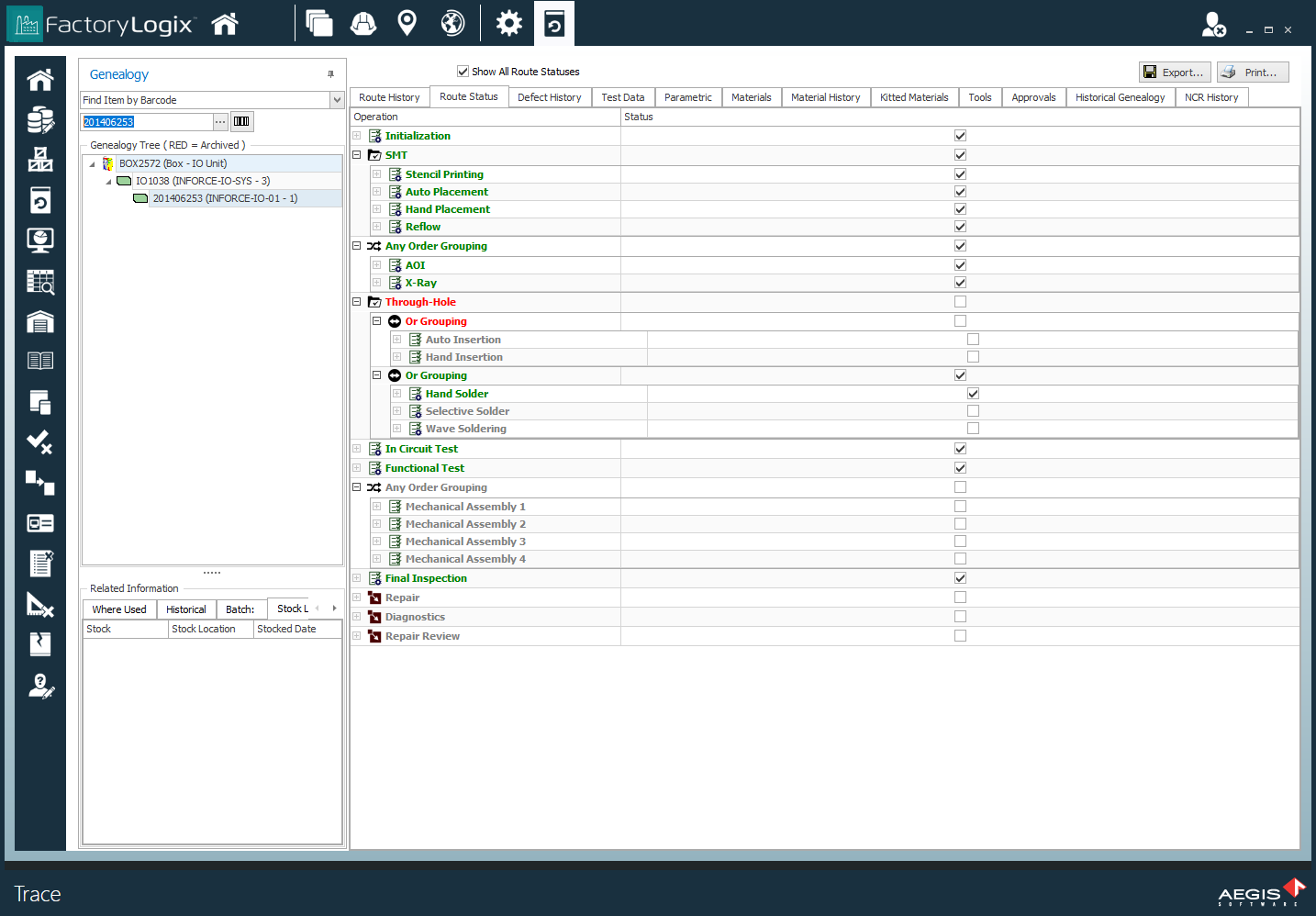
The Trace window Route Status tab provides a way to visualize Either/Or groups, Any Order groups, and operation group clusters (parallel) in addition to overall route status.
-
Log into FactoryLogix Operations, then select the Advanced Features

-
Select Trace to display the Trace window.
-
Under Genealogy, select a lookup type from the drop-down to find a product.
For example, select Find Item by Barcode, then do one of the following:-
Scan a barcode
-
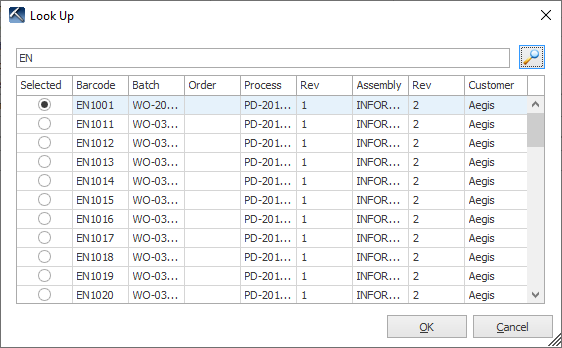
Select the ellipsis (...), enter a partial barcode in the Look Up dialog, select the Magnifying Glass to display a list of barcodes matching your search, select the desired barcode, then select OK.
-
Tip
To display all available barcodes in the Look Up dialog, enter an asterisk * and select Enter.
Information about the selected product is displayed on the right side of the Trace window.
-
Select the Route Status tab.
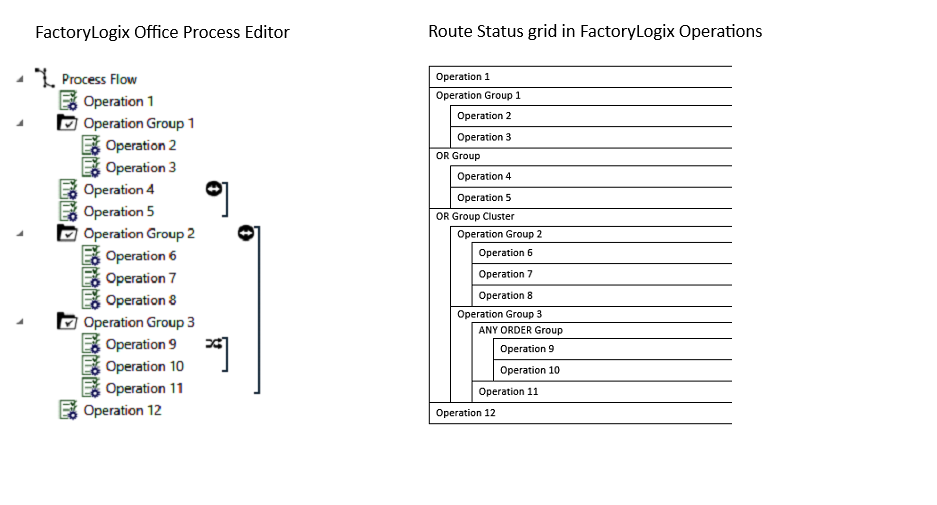
The Route Status tab identifies Or groups, Any Order groups, and operation group clusters to help an operator's interpretation of a unit’s route status. Example 1 compares a process flow in FactoryLogix Office with the route status in the Trace window where groups are also shown.
Example 1
Example 2
Example 2 shows the groups related to a selected process on the Route Status tab of the Trace window.