
administrator
xLink services for FactoryLogix Online require the installation of an on-premise FactoryLogix SaaS Gateway at each customer site. The SaaS Gateway communicates with SaaS xLink services in the cloud.
Note
The FactoryLogix SaaS Gateway is also required for label printing when using FactoryLogix Online. For label printing, the FactoryLogix SaaS Gateway handles local communication with labeling software and management of on-premise xLink and xTend ser
-
Log into FactoryLogix Online (factorylogixonline.com).
-
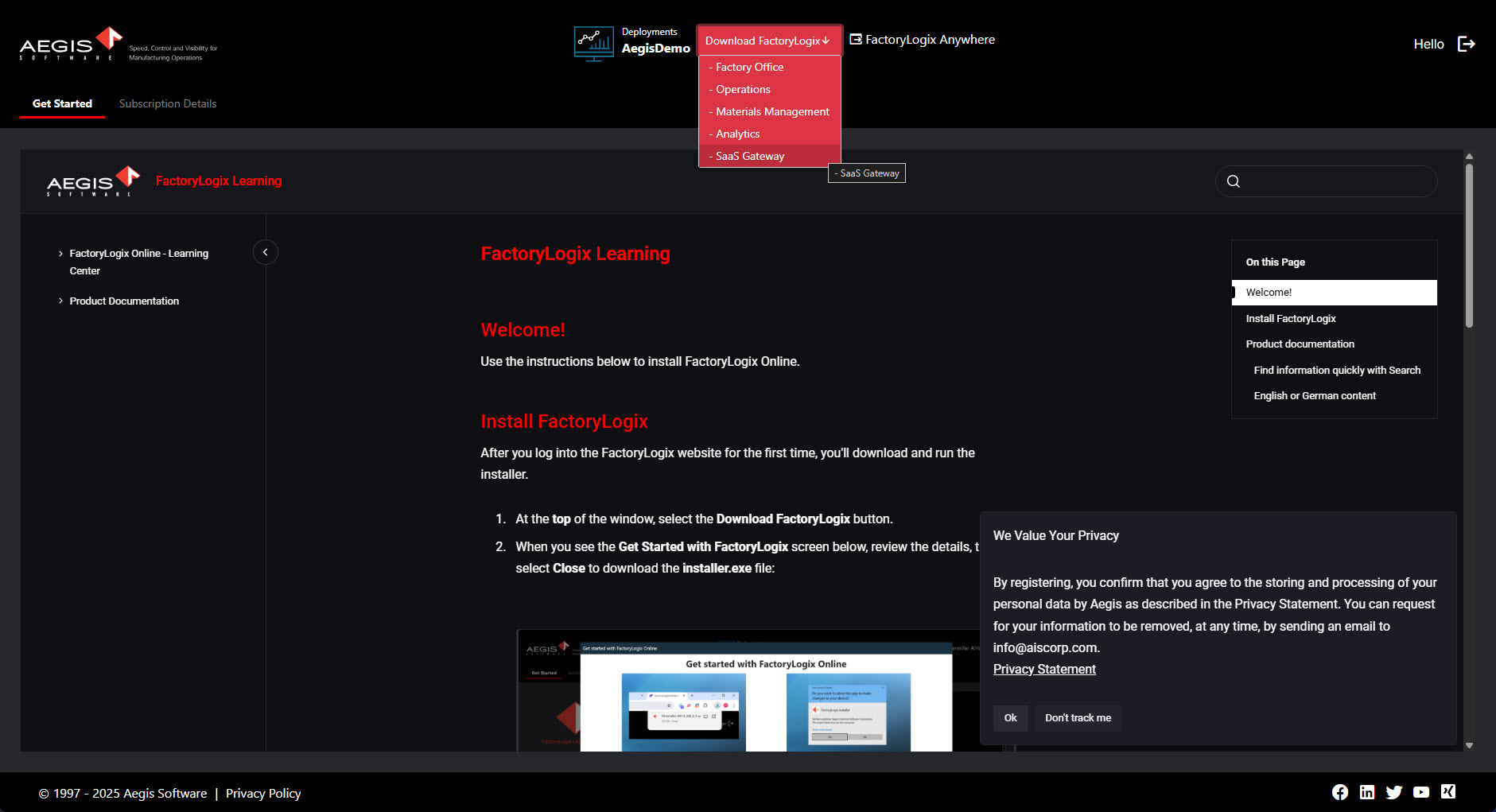
Select Download FactoryLogix at the top of the window, then select the SaaS Gateway to download the installer for the software.
-
Select the download location for the SaaS Gateway software, then select Save.
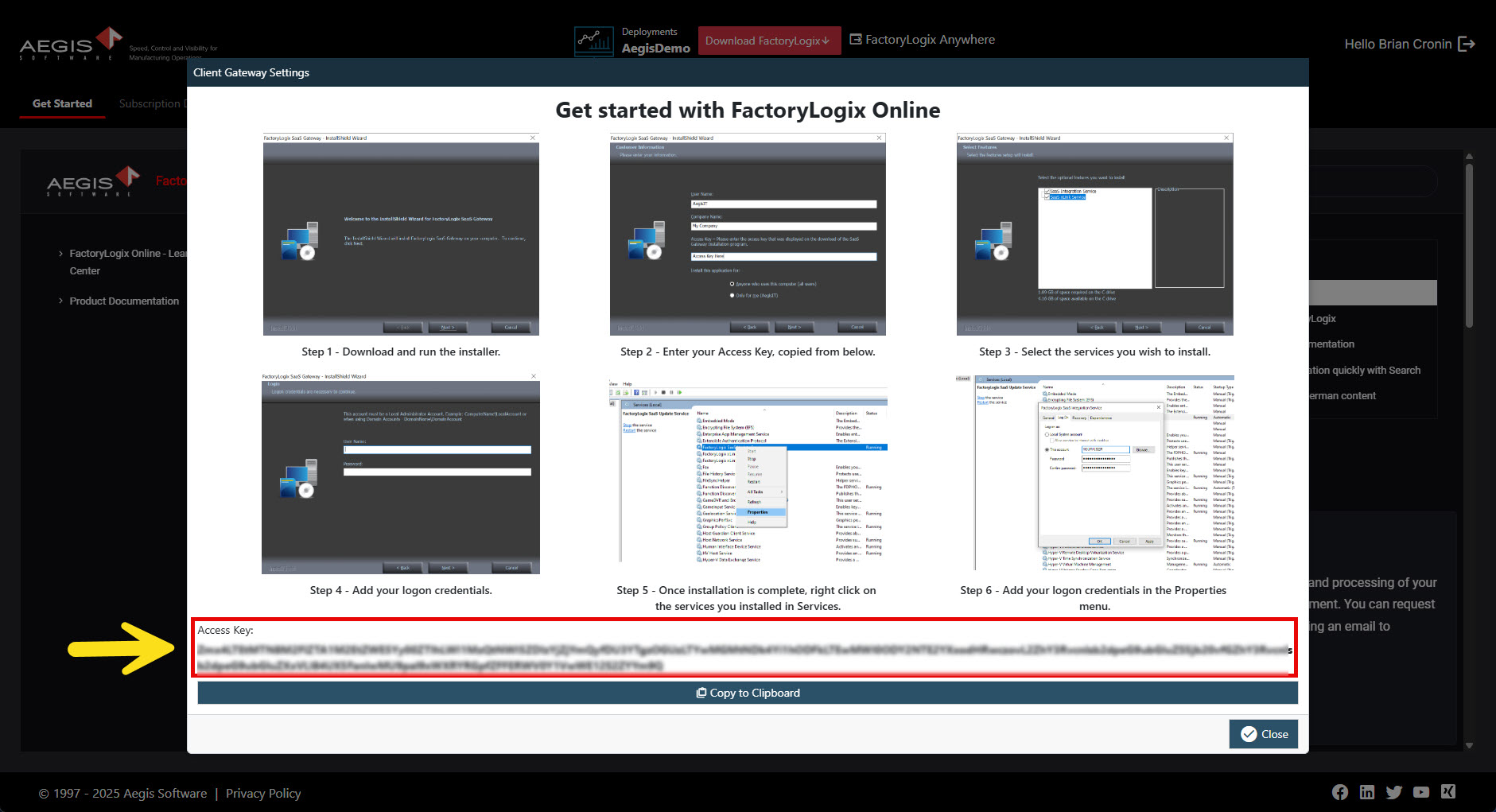
A window containing general instructions for the SaaS Gateway installation displays. Review the information, then proceed with the next step.
Important
Note the Access Key at the bottom of the window. This access key is auto-generated and linked to your SaaS deployment and represents how one deployment is differentiated from another by FactoryLogix services in the cloud.
At the bottom of the window there is a convenient Copy to Clipboard button that you will select to copy the entire access key string to your Windows clipboard---the copied access key will be required in the next step of the installation.
-
At the bottom of the window, select the Copy to Clipboard button to copy the Access Key for your installation.
-
Select the Close button in the lower-right corner of the window.
-
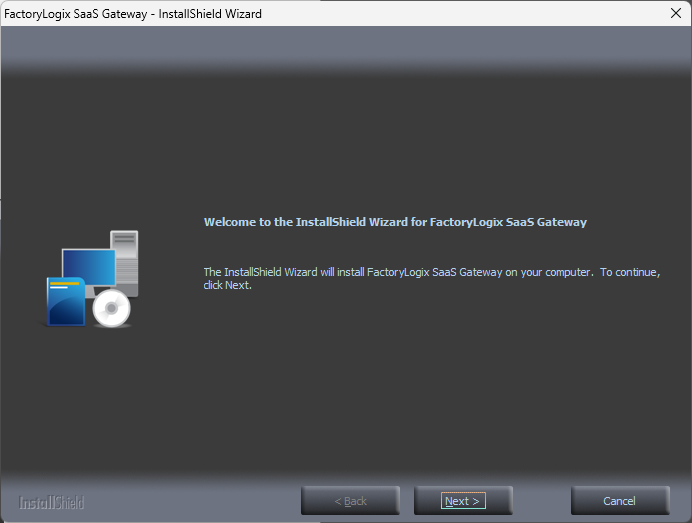
Locate and double-click the SaaS Gateway installer software (*.exe file) you downloaded in Step 3 to start the installer and display the Welcome page.
-
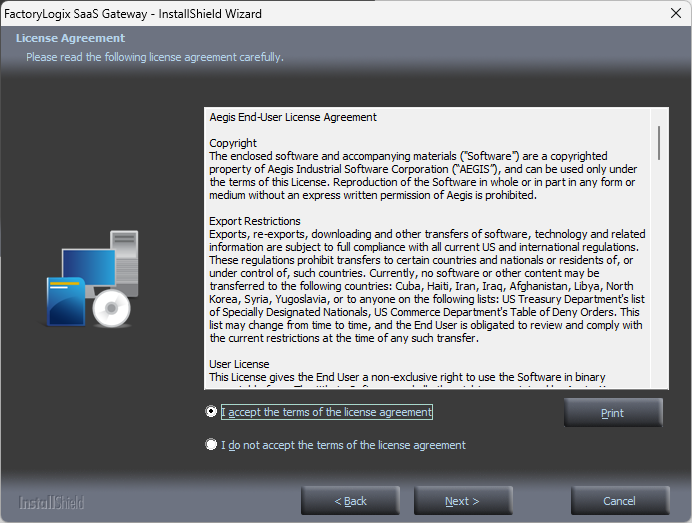
Select Next to display the License Agreement page.
Note
If you want to print the end user license agreement for the FactoryLogix SaaS Gateway, select the Print button before continuing the installer.
-
Accept the end user license agreement, then select Next.
-
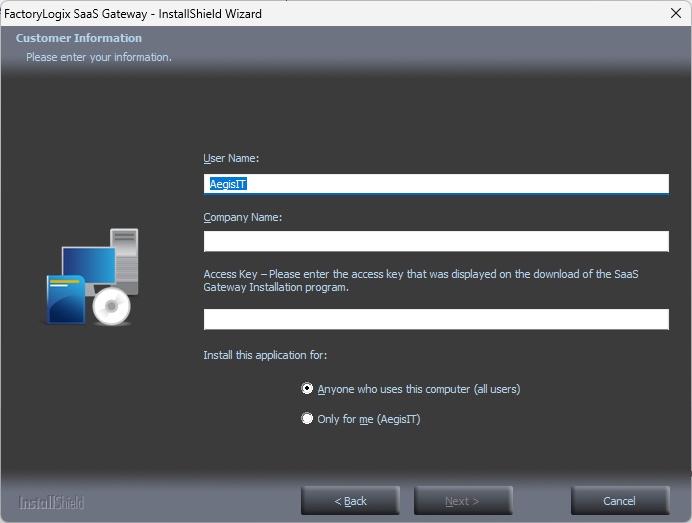
Enter your details on the Customer Information page: User Name and Company Name.
-
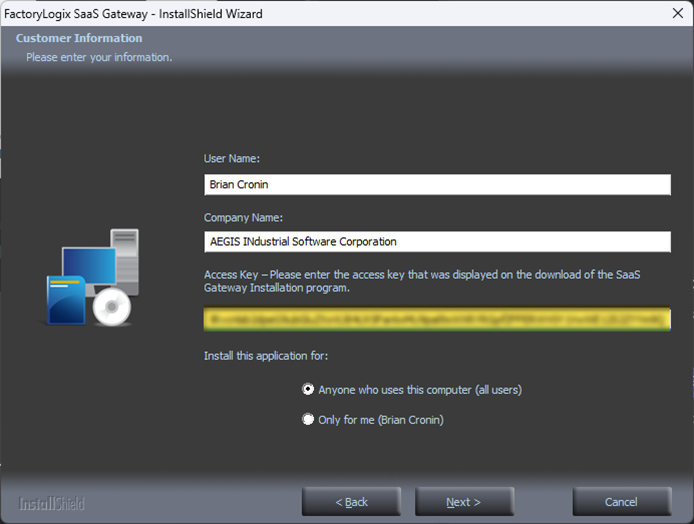
Under Access Key, paste (Ctrl+V) the access key you copied in Step 4, the select Next.
-
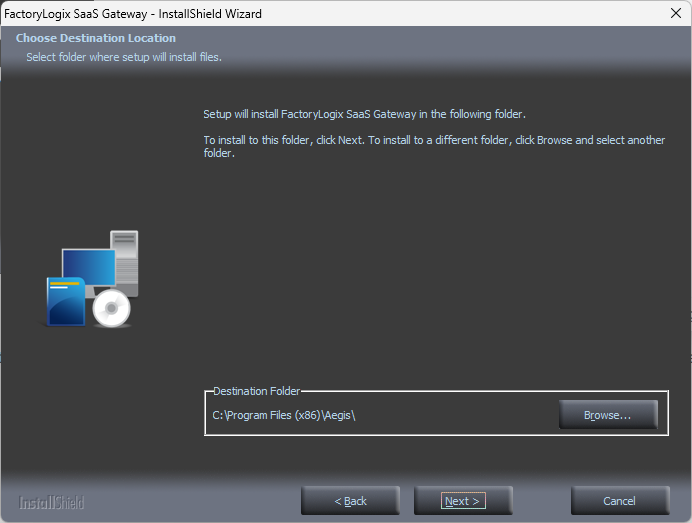
Select the Destination Location for the SaaS Gateway software, then select Next.
-
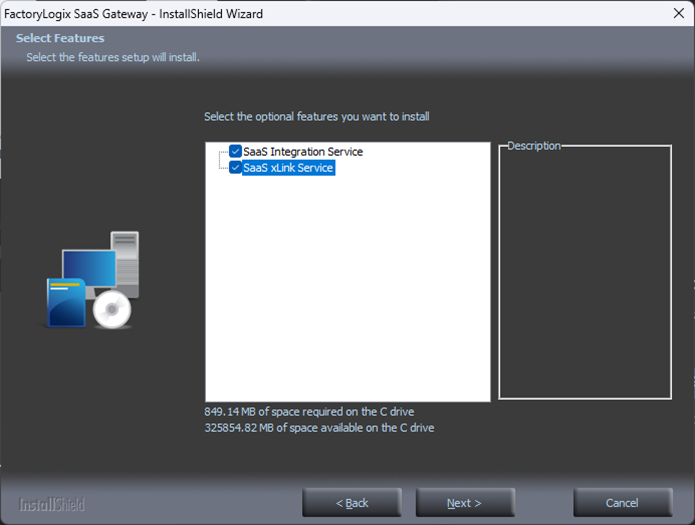
Select the desired service for installation: SaaS Integration Service and/or SaaS xLink Service (these are optional services), then select Next.
-
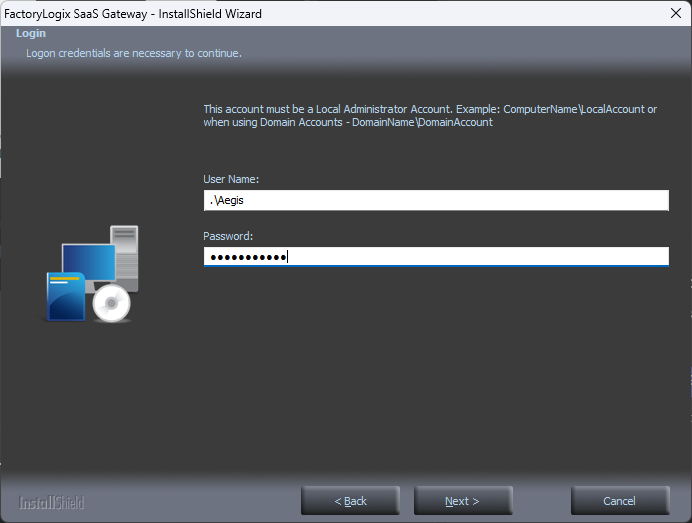
Under User Name and Password, enter the login credentials the new services will use to log in---this must be a local administrator account, then select Next.
-
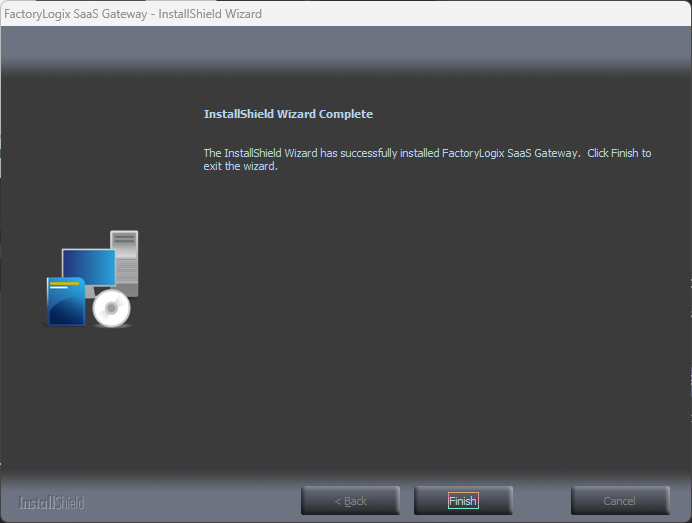
Select Finish to complete the installation.
-
In Windows, start the new services and verify that the startup type is Automatic:
-
FactoryLogix SaaS xLink Service (xLink Worker Service)
-
FactoryLogix SaaS Integration Service (xTend Worker Service)
-
FactoryLogix SaaS Update Service (Handles software updates)
-
FactoryLogix SaaS Gateway Service (Label Printing)
-