KB Article administrator on-premise only
Issue
Starting with FactoryLogix 8.242.0, the FactoryLogix Application Service installs as a 64-bit application by default, even when using the standard 32-bit FactoryLogix Server installer. This can cause compatibility issues—for example, when FactoryLogix attempts to communicate with a 32-bit BarTender installation for label printing.
Important
The recommended long-term solution is to reinstall any 32-bit label printing software as a 64-bit application. The procedure in this topic is a workaround for environments where that is not immediately possible.
How it works
The FactoryLogix Server installation includes a 32-bit copy of the Application Service executable C:\Program Files (x86)\Aegis|FactoryLogix Server\x86\. Switching to 32-bit requires stopping Application Service and replacing the active executable with this 32-bit copy.
Verify the current architecture
-
Open the Windows Task Manager and select the Details tab on the left side of the window.
-
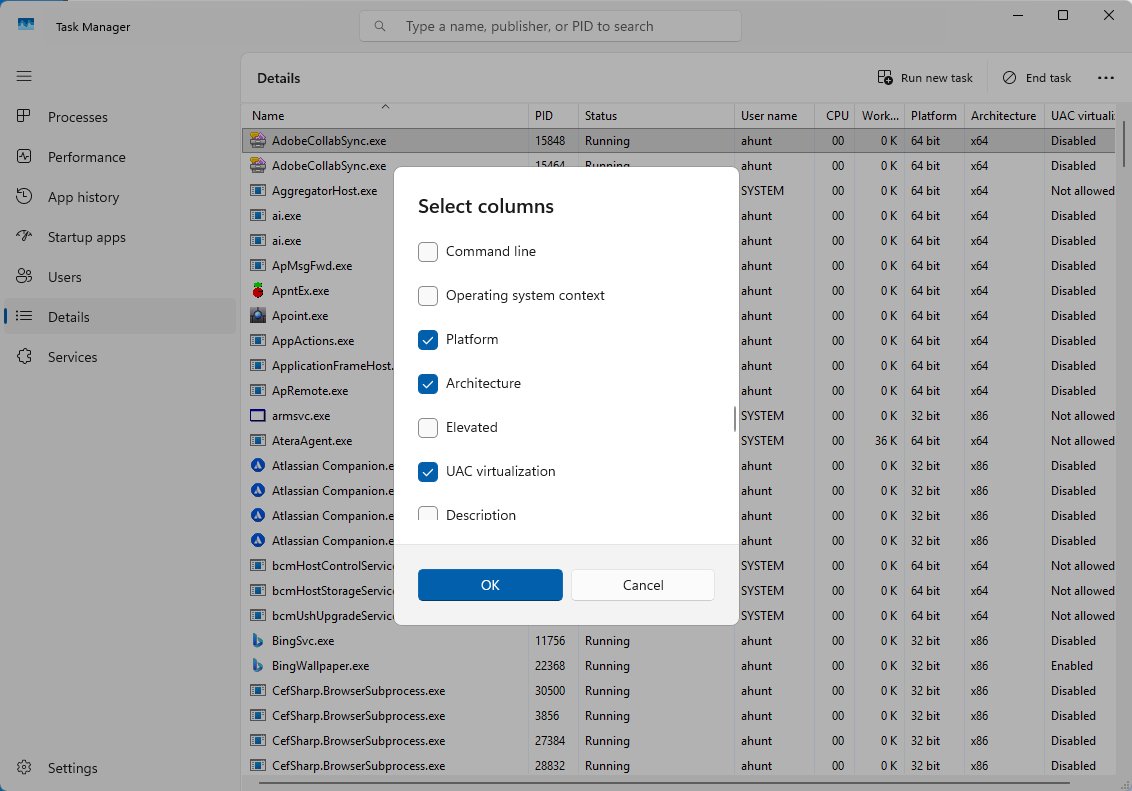
Right-click the column header bar and select Select Columns, then enable the Architecture column.
-
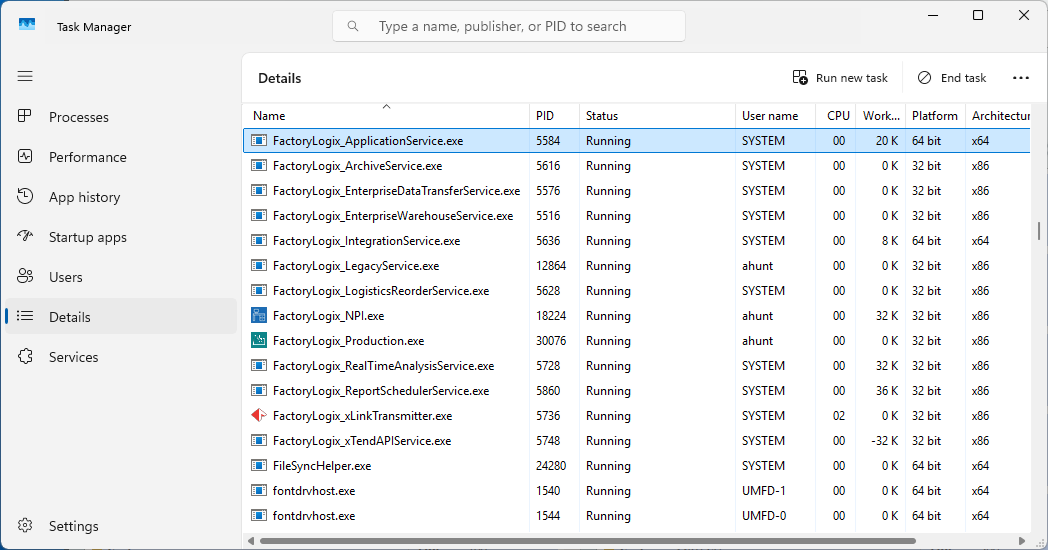
Scroll to FactoryLogix_Application_Service.exe and confirm the architecture shown— the service must be running for it to appear in the list.
-
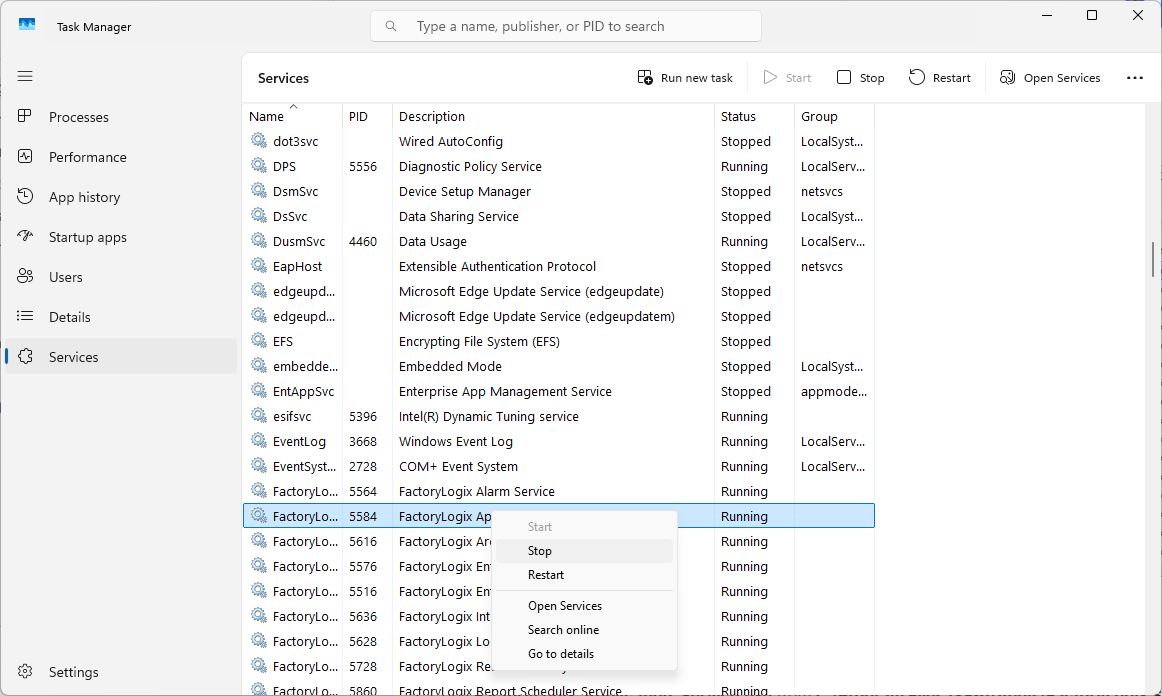
Right-click FactoryLogix_Application_Service.exe and select Go to Services.
-
Right-click the FactoryLogix Application Service and select Stop to stop the service.
-
Copy FactoryLogix_Application_Service.exe from C:\Program Files (x86)\Aegis\FactoryLogix Server\x86 to C:\Program Files (x86)\Aegis\FactoryLogix Server\ to overwrite the existing file.
-
Restart the FactoryLogix Application Service.
Note: A backup copy of the original 64-bit executable is automatically retained at C:\Program Files (x86)\Aegis\FactoryLogix Server\x64. It is not necessary to manually back up the file before overwriting it.