
administrator Saas only
Before you can import Version 7 assemblies, process revisions, or visual aids, you need to configure some global settings in FactoryLogix.
-
Log into FactoryLogix Office with administrator rights.
-
Select System Configuration

-
On the left side of the window under Settings Category, select General.
-
Select the Global Options tab at the top of the window (if not already selected).
-
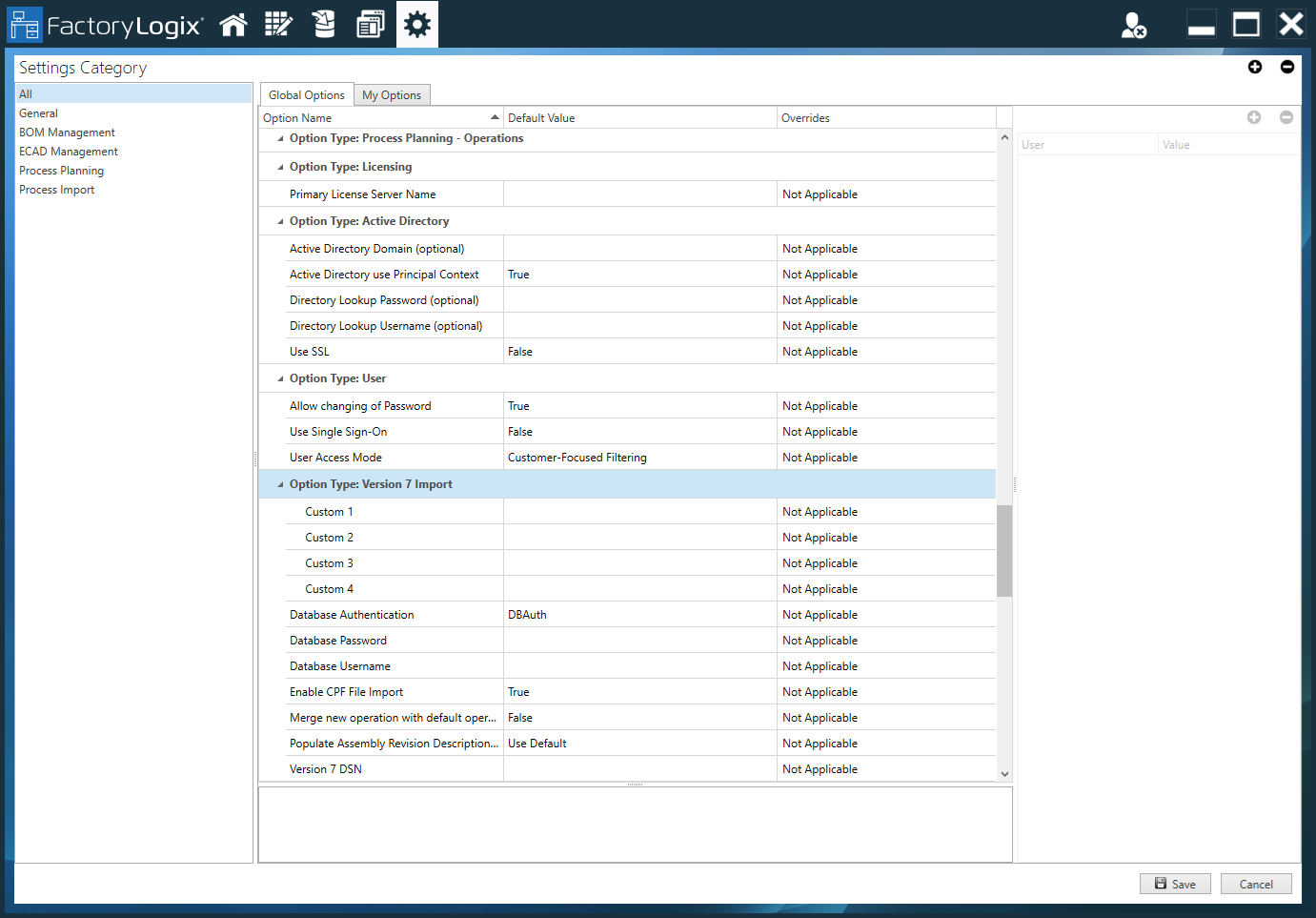
Select Option Type: Version 7 Import.
-
Set Enable CPF File Import to True. (This setting allows you to import V7 *.cpf files.)
-
(Optional) For Custom 1, Custom 2, Custom 3, and/or Custom 4, enter the desired custom fields to use when importing V7 process information into FactoryLogix. (For details about custom fields in FactoryLogix, see Define custom fields.)
-
Next to Populate Assembly Revision Description by: select one of the following to determine how the Assembly Revision Description property in FactoryLogix is populated from Version 7 data:
-
Use Default - Uses the FactoryLogix assembly description.
-
Use Assembly Description - Uses the Version 7 assembly description.
-
Use Assembly Revision Description - Uses the Version 7 assembly revision description.
-
Concatenate the Assembly and Assembly Revision Descriptions - Concatenates (links) the Version 7 assembly and assembly revision descriptions.
-
-
Next to Merge new operation with default operation template, select one of the following:
-
True - When set to True and working in unmapped mode, the default FactoryLogix operation template is applied to every operation before the Version 7 data is imported into FactoryLogix.
-
False - When set to False, no template is applied to the Version 7 data being imported into FactoryLogix.
-
|
Related topics |
|---|