The Angle Resolution section in the Machine List window (in the Process Definition window) gives you a way to verify each unique shape/package’s fit on the board and confirm its angle rotation, relieving the need to physically place components on a board with double sided tape. This method allows the validation and correction of placement angles that will be exported in the generated machine program and minimizes the adjustments necessary to begin running the board in production.
Basic Steps for using the Machine Angle Correction Center
The high-level steps for validating and/or correcting machine placement angles are shown below; read through to the end of this topic to learn about the different options you can select in the Machine Angle Correction Center to help you complete this task quickly.
-
Select the Calculate All Angles button
-
Select the first part in the list and visually confirm that the correct shape has been chosen and the rotation is suitable (when comparing the overlay to the CAD shape) and either confirm it or correct it.
-
Advance through the list until all package types are confirmed.
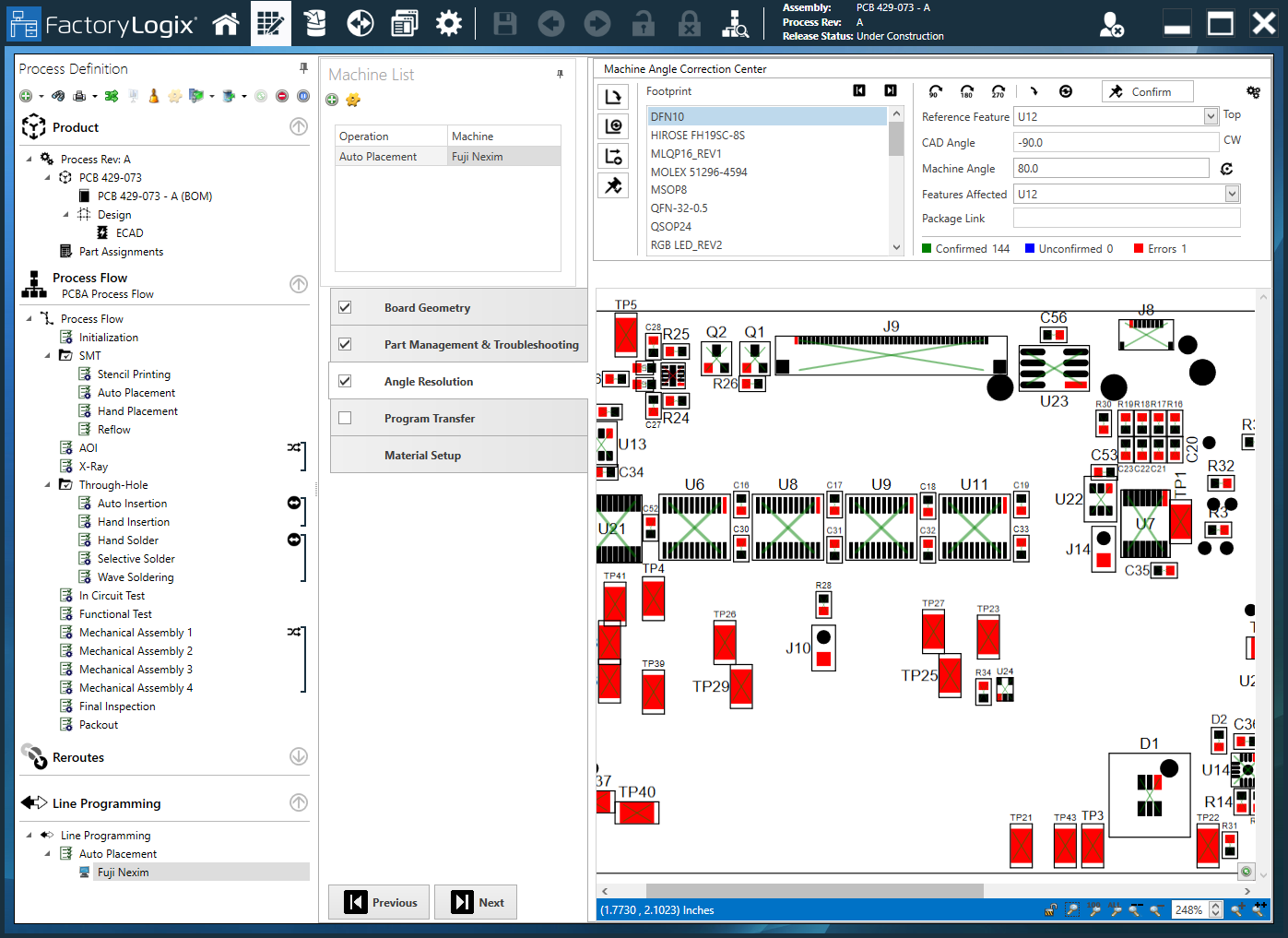
Check and validate machine placement angles
Use the Machine Angle Correction Center options to check and validate correct all machine placement angles automatically or on a part-by-part basis. The Angle Resolution options are used with certain advanced machine types to validate or correct machine placement angles (theta) specific to that machine type:
-
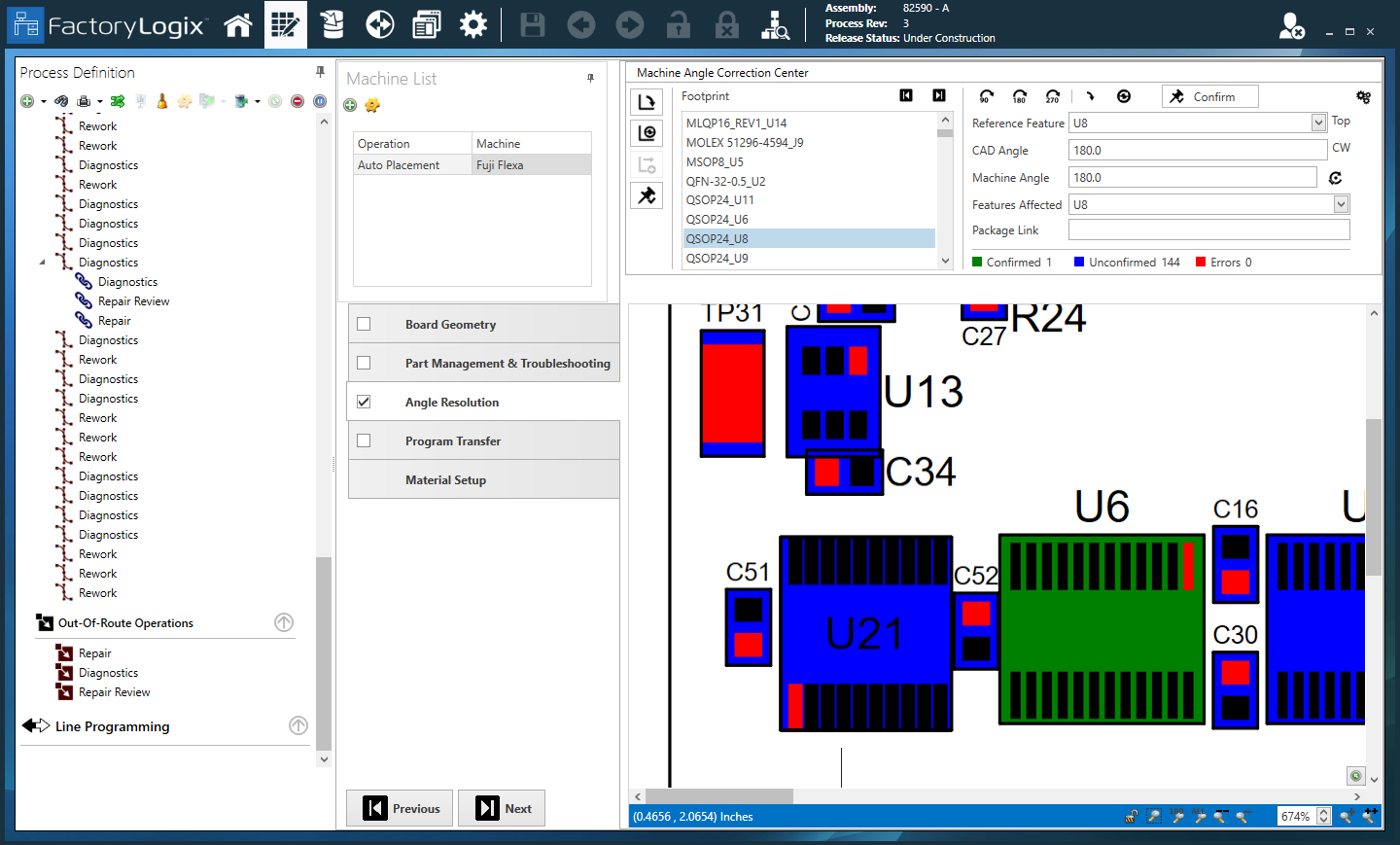
Blue indicates unconfirmed angles
-
Green indicates confirmed angles
-
Red indicates parts with angle errors.

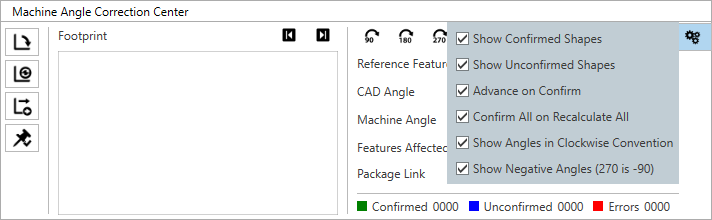
Settings - The Settings 
-
Show Confirmed Shapes - Displays confirmed parts (Green).
-
Show Unconfirmed Shapes - Displays unconfirmed parts (Blue).
-
Advance on Confirm - Advances to the next part in the Part Number list when an item is confirmed.
-
Confirm All on Recalculate All - All parts will be confirmed automatically when you select Recalculate All.
-
Show Angles in Clockwise Convention - Displays angles using the Clockwise convention.
-
Show Negative (270 is -90) - Specifies that 270 degrees is equivalent to -90 degrees.
Validate all machine placement angles automatically
To check and validate all machine placement angles automatically, you use the buttons on the left side of the Machine Angle Correction Center:




-
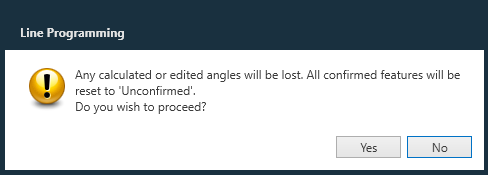
Select the Calculate All Angles

-
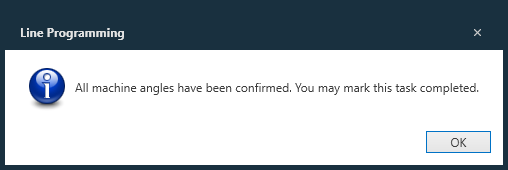
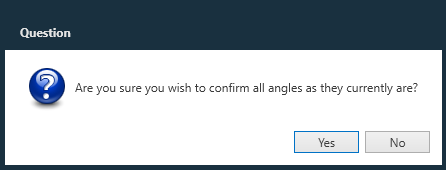
Select the Confirm All Angles

Important
You must confirm all angles (they must all be Green). When you select Generate Program to create a machine program, any unconfirmed angles will be auto-calculated by FactoryLogix and those calculated angles are published to the machine program.
Validate machine placement angles for selected parts
-
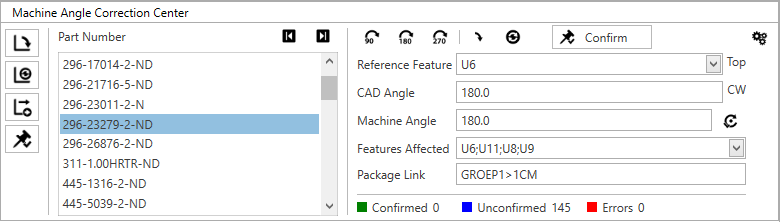
To check and validate machine placement angles on a part-by-part basis, select a part under Part Number in the Machine Angle Correction Center.
-
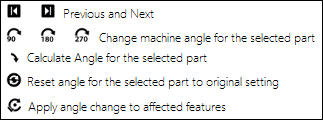
Step through each part number in the Part Number list (use the Previous and Next buttons) and confirm the rotations or adjust the angles and then confirm the angles.
-
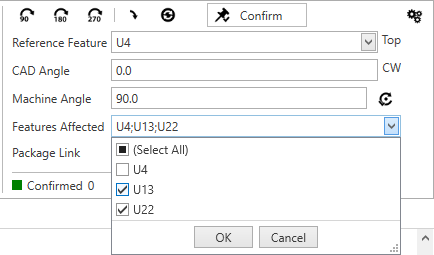
Make any necessary changes, then select the Confirm

-
Use these buttons to help you confirm machine placement angle settings for a selected part in the Part Number list:
Note
The Apply angle change to affected features