Global options affect how users interact with FactoryLogix features and functions and control all aspects of the system. Global option settings combined with Create and manage roles and permissions allow different types of access to all areas of the FactoryLogix system. Administrators access FactoryLogix global settings in the Settings area of FactoryLogix Office.
Note
Only a member of the Administrator group can configure default values for global options.
Tip
To search for a global option, select a column header on the right side of the window, then press Ctrl+F. In the Search box that displays at the top of the window, enter a search string, then press Enter. All categories containing the search string you entered are highlighted in Yellow. (Select the Close button to end the search and redisplay all settings.)
Category
Sub-category
Description
General
Display / GUI
Zoom Out Buffer Percentage (%) - Allows the user to specify a buffer percentage value to apply to the reference designator or region defined in the defined collection when zooming in to that component. This results in the display zooming out from the default zoom level.
The default and minimum value is 0.
There is no limitation to the maximum value to be defined.
Use Default PDF Viewer - Allows users to specify the Default PDF Viewer for Visual Aids. Setting this property to False will use the PC's default application for PDFs.
Show Option Code Descriptions - When enabled, shows the description for option codes and configuration options in all areas where they are displayed.
Enable Touch Screen Usage - Specifies whether or not users on the shop floor have the ability to use touch screens. The default setting is True.
Enable Taskflow System - Enables the use of the taskflow system. When set to true, the system is visible to users, when set to false the taskflow system is hidden.
Default Page Size - Sets the default value for all paging controls in the system.
Default Font - Specifies the default font used in FactoryLogix.
Default Culture - Specifies the default language for FactoryLogix users. Each user can override this setting to their preference.
General
Report Query Timeout Settings
Timeout Type - Specifies whether to use the default value or a custom timeout value when generating DataMiner outputs through the Report Scheduler Service before stopping and generating an error.
Custom Value (seconds) - Specifies a custom timeout value when generating DataMiner outputs through the Report Scheduler Service before stopping and generating an error.
General
E-mail
E-mail Address - Specifies the default e-mail address to use when sending emails.
E-mail Username - Specifies the email user name to use when sending emails.
E-mail Password - Specifies the password to use when sending emails.
SMTP Server - Specifies the SMTP server to use when sending emails.
Enable SSL - Enables SSL if using encryption on an Exchange server (the default setting is False).
Port Settings - All port settings default to 25. If you change the value, this port will replace the default value for all ports.
System Administrator E-mail Address - The specified recipient receives all IT-related email notifications, including license server failover notifications and other IT-related system messages.
Send E-mail Address Category - Applies to signoff notifications only.
Use Default means that emails will be sent from the user email address (if defined) or from the Global Options email address.
Use Global E-mail Address Always will always send emails from the Global Options email address.
General
Licensing
Primary License Server Name - Set this option if the License Enforcement key is not located on the same server as the Application Service. (If they are on the same computer, this value is not needed.)
General
Active Directory
Use SSL - When selected, the system will use Secure Sockets Layer (SSL) when validating Active Directory. (This option requires SSL enabled for your Active Directory server.)
Directory Lookup Username (optional) - Some Active Directory systems don't allow users to have directory lookup privileges. In these systems, a proxy username and password are required.
Directory Lookup Password (optional) - Some Active Directory systems don't allow users to have directory lookup privileges. In these systems, a proxy username and password are required.
Active Directory use Principal Context - When set to True, limits the search to the current Principal Content when synchronizing groups with Active Directory.
Active Directory Domain (optional) - A number of networks utilize more than one domain. In these cases, this value is the domain name of the Active Directory server. (Most systems don't need to have this value specified.)
Note
To set a particular Domain Controller for Active Directory authentication in FactoryLogix, enter “DC=[Domain Controller Server Address]” in the Active Directory Domain global setting. Doing this forces the forces the authentication to override to a specific domain controller instead of the first one available from the domain.
General
User
User Access Mode - Determines the behavior and rules to use with regard to accessing assemblies and associated processes and batches.
Customer-Focused Filtering (default setting) - When one or more users are associated with a particular customer, only those users are permitted to view assemblies for that customer.
User-Focused Filtering - Users are only permitted to view assemblies for customers they are assigned against in the Customer Library. (Users not assigned against any customers are permitted to see all assemblies.)
Use Single Sign-On - Uses logon information from the logged-in user's Kerberos ticket information for FactoryLogix login instead of a domain username and password.
Certification Timeout -When a user certification is not used for this number of days, the user certification reverts to Trainee status.
Allow Changing of Password - Allows users to change their FactoryLogix password from the main Login screen using the Settings button.
General
Barcode Scanning
Barcode Scanning Suffix - Specifies the set of characters at the end of a barcode scan (can be a combination of numeric, alpha-numeric, and decimal characters).
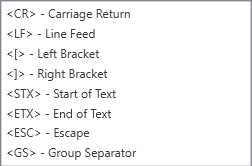
FactoryLogix supports any decimal characters by the following method '<##>'. The < symbol indicates the start of a decimal character. The ## is the actual decimal number of the character. The > symbol indicates the end of the decimal character. Note that all decimal numbers are translated to their hexadecimal equivalents. We support a pre-defined list that you can add by selecting the + button.
Barcode Scanning Prefix - Specifies the set of characters at the start of a barcode scan (can be a combination of numeric, alpha-numeric, and decimal characters).
FactoryLogix supports any decimal characters by the following method '<##>'. The < symbol indicates the start of a decimal character. The ## is the actual decimal number of the character. The > symbol indicates the end of the decimal character. Note that all decimal numbers are translated to their hexadecimal equivalents. We support a pre-defined list that you can add by selecting the + button:
General
Version 7 Import
Version 7 DSN - The Data Source Name (DSN) of a Version 7 database. When set to True, allows importing Version 7 assemblies, process revisions, and visual aids.
Populate Assembly Revision Description by: Determines how the Assembly Revision Description property in FactoryLogix is populated from Version 7 data:
Use Default - Uses the FactoryLogix assembly description.
Use Assembly Description - Uses the Version 7 assembly description.
Use Assembly Revision Description - Uses the Version 7 assembly revision description.
Concatenate the Assembly and Assembly Revision Descriptions - Concatenates (links) the Version 7 assembly and assembly revision descriptions.
Merge New Operation with Default Operation Template - When set to True and working in unmapped mode, the default FactoryLogix operation template is applied to every operation before the Version 7 data is imported into FactoryLogix.
Enable CPF File Import - When set to True, allows importing *.cpf files from a Version 7 database.
Database Username - The user name to connect to a Version 7 database. When set to True, allows importing Version 7 assemblies, process revisions, and visual aids.
Database Password - The password to connect to a Version 7 database. When set to True, allows importing Version 7 assemblies, process revisions, and visual aids.
Database Authentication - The authentication type to connect a Version 7 database (NTAuth or DBAuth). When set to True, allows importing Version 7 assemblies, process revisions, and visual aids.
Custom Field Destination determines where V7 BOM line item custom field values will be imported into FactoryLogix: into the Part Library Definition (default) or BOM Line Item (for each V7 BOM line item, ensures that each V7 custom field value is replicated to a custom field of the same name in the corresponding FactoryLogix BOM line item).
Custom 1 - 4 - Adds Version 7 custom field values in named custom fields defined against the assembly’s Internal Part Number in the target FactoryLogix database. (See Define and manage custom fields for more information.)
General
Machine Programming
Default Program Path - The default program path to apply when selecting a machine type for a workstation or workstation cluster (only applies when a machine type was not previously set).
General
Barcode Sequence Tracking
Last Global Barcode Sequence - The last barcode sequence stored at the global level. This value is only used when the option Default Barcode Sequence Tracking is set to Global.
Default Barcode Sequence Tracking - Sets the default tracking for sequencing a barcode. When a barcode template has a Serial Code (UID) segment defined as sequential, this option determines how a Serial Code is printed and/or introduced in FactoryLogix Operations. Barcode sequencing is tracked as follows:
Global - across the entire system
Part - for the part for all revisions
Revision - for a specific part revision
Batch - for a production batch
Note
You can override Default Barcode Sequence Tracking at the part level on the Internal Part Number tab of the Part Library.
General
General
Work Breakdown Structure - When set to True, enables the use of a Work Breakdown Structure (WBS) in stocking and receiving activities when using Logistics functions.
Scale Printed Visual Aids to Page Size - When set to True, scales all visual aids to fit the current page size.
Network Statistic Lifespan - Specifies the amount of time (in days) that a Network Statistic record can exist in the database before it is purged.
Maximum Stored Image Dimension - Specifies the maximum allowable width of any image added to an Active Work instruction. The default value is 800 and the maximum value is 3840 (4K width). When an image is wider than the specified value, it is resized down automatically to the width of this setting (the aspect ratio of the image will be maintained). This option will not affect existing images.
FactoryLogix Website Session Timeout (minutes) - Specifies the amount of time (in minutes) that a user's session remains valid when they leave their web browser open and inactive on the FactoryLogix website. After a user has been inactive for this amount of time, the session is no longer valid and the user will be forced to login the next time they interact with the website.
Exclude Calibration Units from Metrics - When enabled, units marked as calibration will be omitted from quality and performance metrics such as DPMO, OEE and Yield.
Defined First Full Week of Year - Specifies the first full week of the year.
ISO 8601 Week Based – Sets first week of the year that contains the first Thursday of January.
First Day – Sets the first week of the year that starts on the first day of the year and ends before the following designated first day of the week.
First Four Day Week – Sets the first week of the year as the first week with 4 or more days before the designated day of the week.
First Full Week – Sets the first week of the year that begins on the first occurrence of the designated first day of the week.
Define the First Day of the Week - Allows you to define a start day for each week. The default value is Monday.
General
Assembly Blocking Options
These options allow you to specify the default behavior, operator rights, and quarantine/block operation to use when quarantining/blocking units or materials.
Default Quarantine Operation Name - Specifies the name of an out of route (quarantine) operation that units will be routed to when being quarantined/blocked. (Use this option in conjunction with the Quarantine or Quarantine then Block Default Behavior options.)
Important
To use quarantine/blocking features in FactoryLogix Office, your process definition must include a quarantine reroute operation to handle all quarantined/blocked items. To learn more about reroute operations, see Out of route operations and reroutes.
Note
It is possible to have multiple quarantine out of route operations in a process definition. For example, one out of route operation might be Quarantine and another might be Repair or Rework.
Default Behavior
Block - Standard FactoryLogix blocking prevents unit from being used immediately.
Quarantine - The unit is routed to a designated out of route quarantine operation where it is started and paused, preventing any further in-route transactions. (Use in conjunction with the Default Quarantine Operation Name option.)
Quarantine then Block - After routing a unit to a quarantine operation, the unit is also blocked.
Allow Operator to Choose Blocking Mode - When set to True, operators can choose between Block, Quarantine, and Quarantine Then Block when blocking items in the inventory management area. When set to False, the Default Behavior option is used and operators are not given a choice.
General
Label Printing
Teklynx Sentinel Printer Names - A comma-separated list of printer names configured in Teklynx Sentinel and used for label printing. The first name in the list is considered the default name.
Teklynx Sentinel Port - The TCP/IP listening port for the configured Sentinel device.
Teklynx Sentinel Host Name - The name of the computer where the Sentinel Manager is installed and running.
Teklynx Sentinel Data Directory - An existing directory used to exchange data between the Sentinel Manager and FactoryLogix.
Teklynx Sentinel Connect String - The TCP/IP connect string for the configured Sentinel device.
General
xLink Adapters
xLink Adapters can create Feeders - When set to True, xLink Adapters are permitted to create feeders if the information is available.
General
Reporting Service
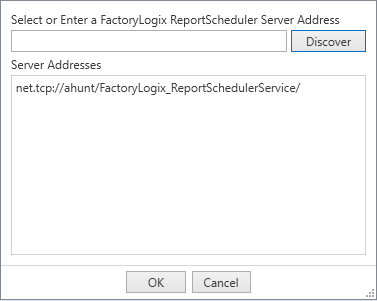
Report Service Address - The address of the FactoryLogix Report Scheduling Service. When you specify this address, DataMiner data generation will be executed on the report scheduling service rather than the FactoryLogix Application Service. Use the drop-down to the right of this option to enter or discover the Report Service address.
General
Recipe Management
Recipe Management - Recipe management can be operation-based or global:
Operation-based recipe management is for managing a recipe on an operation-by-operation basis. Recipes will be stored with each operation.
Global recipe management makes recipes global to the entire FactoryLogix system. Recipes will be selected via batch attributes or a number of other selection criteria.
General
Microsoft Account
Tenant ID - Specifies the Tenant ID for Sign in with Microsoft Entra.
Client ID - Specifies the Client ID for Sign in with Microsoft Entra.